Import Server Details
To import the server details,
- Log in to AppViewX application with valid credentials.
- Click the menu button located in the upper left corner of the screen.
The left navigation pane appears.
-
Click Inventory > Device.
By default, the ADC tab opens.
- Click the Server tab.
- Click the Import icon in the command bar.
- You will be redirected to the import server page.
- Download the sample <.csv> or <.xls> file.
- Update the details.
- Click the browse and upload button.
- Upload the files.
- Sever details provided in the sheet will be added to the server inventory.
License Enforcement
AppViewX has enabled a feature to set a limit for the licensed certificates. If the number of certs exceeds this limit then the additional certs added into the inventory will be moved into the Monitored status.
-
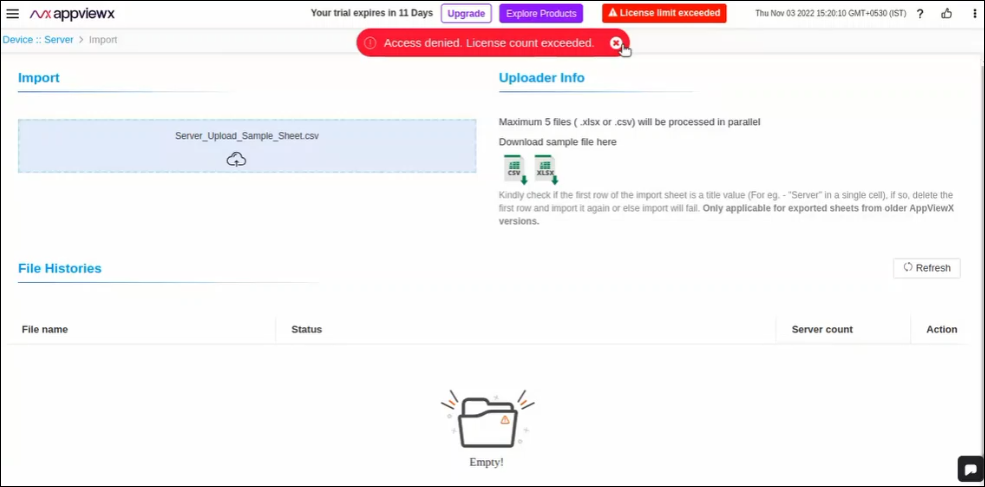
A red indicator labelled "License Limit Exceed" appears on the title bar of the page, if the limit has exceeded.
-
A pop-up message "Access denied. License count exceeded." is displayed on the click of the Save button while adding a new server device.