Class Management Widget
Class management widget is used to execute actions on the Data group of F5 devices. The data group values can be Viewed and Modified.
Configuration
| Name | Type | Mandatory | Description | Validation |
|---|---|---|---|---|
| Widget Name | Text box | Yes | User defined Name for the Widget | No special characters are allowed, except '_' , '.' , '-' , '|' , ':'. The name should not start with a special character. |
| Select task | Drop Down | Yes |
1.Create Group Create a new Group.Default Group would be the Widget name. 2.Modify Group Modify the groups added. 3.Create Action Create View/Modify action 4.Modify Action Modify the configured actions. |
NA |
| Group | Drop Down | Yes | List of groups added in the Widget. | NA |
| Name | Text box | Yes | User defined name for Groups/Actions. | NA |
Create Group
Select task as Create Group and Provide a Group name and Click Add.
Create Action
-
View Class
-
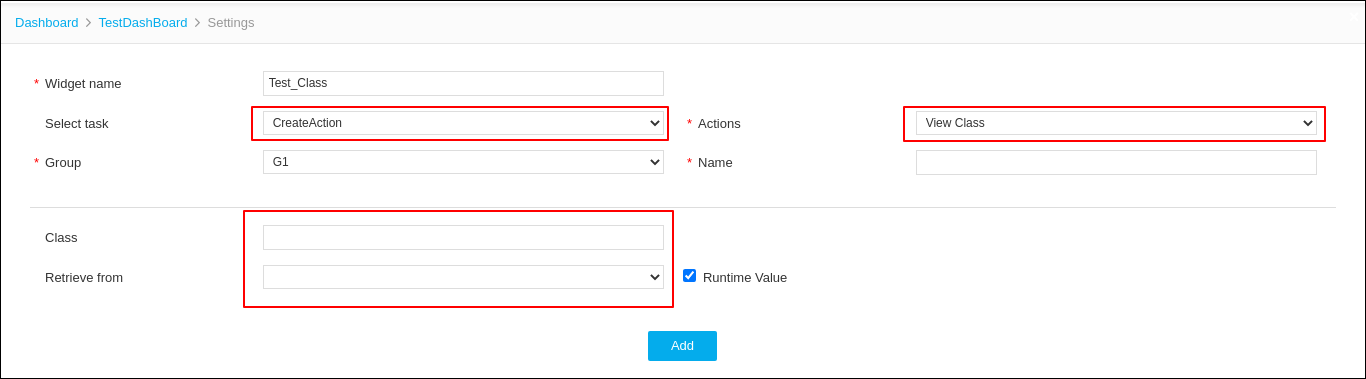
Select task as Create Action.
-
Select View Class in Actions.
-
Select the group and provide Action Name.
-
Search the data group name in Field Class.
The list of devices are listed in Retrieve From.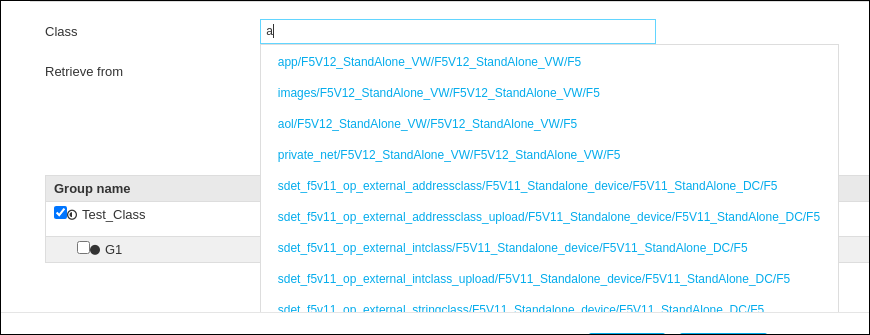
- Select the data group and Click Add and Save.
-
-
Modify Class
-
Select task as Create Action
-
Select Modify Class in Actions.
-
Select the group and Provide Action name.
-
Search the data group name in Field Class.
The list of devices are listed in Retrieve From.
-
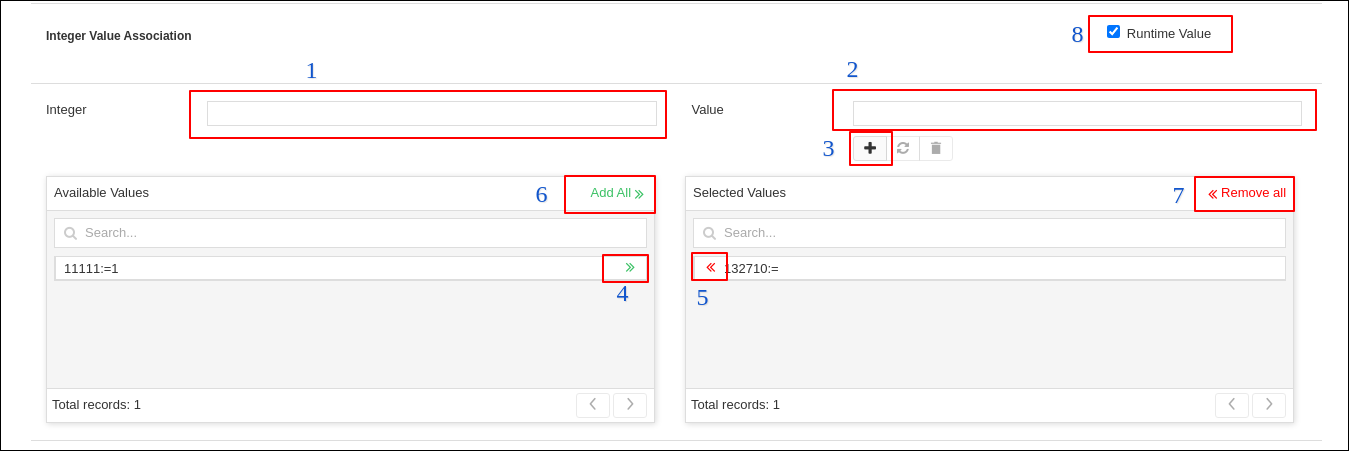
Add Attributes to be added in the datagroup.
-
Add Key
-
Add Value
-
Click on the Add icon. The added pair is moved to Available Values.
-
In Selected Values, attributes available in the device are listed.
-
Using Add/Remove and AddAll/Remove All Arrows, attributes can be modified.
-
Selecting Runtime value allows to modify the attributes at the time of execution.
-
Select the devices on which the action has to be executed.
-
Click Add and Save.
-
Execution of Configured Actions
-
Click the Play icon on the Group.
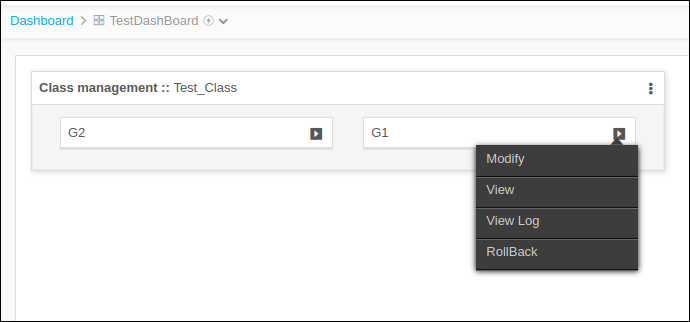
- Click the Action name to be Executed.
View Action Execution
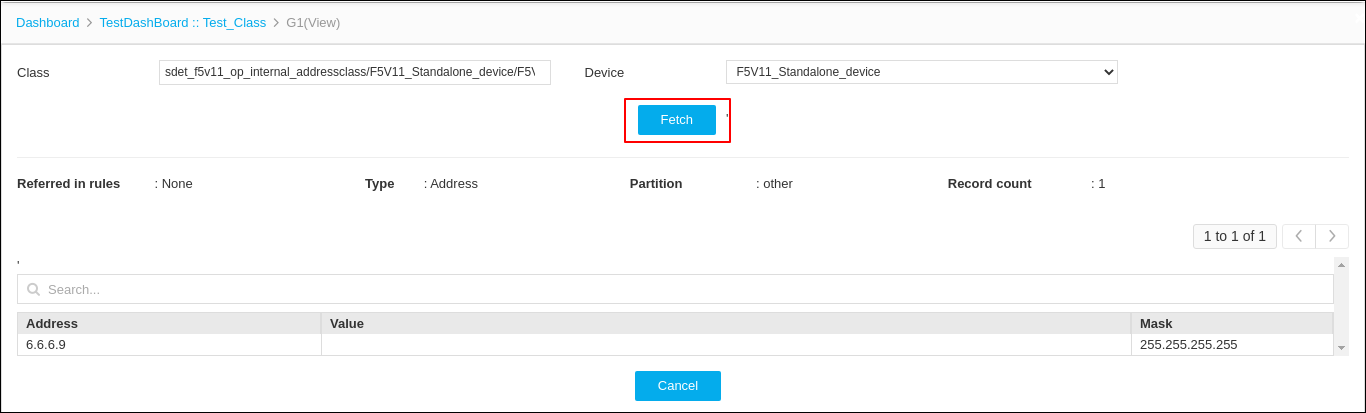
Modify Action Execution
- Add/Modify the attributes and push it to Device Values.
- Push the devices on which the action has to be executed.
- Click Execute.
View Logs
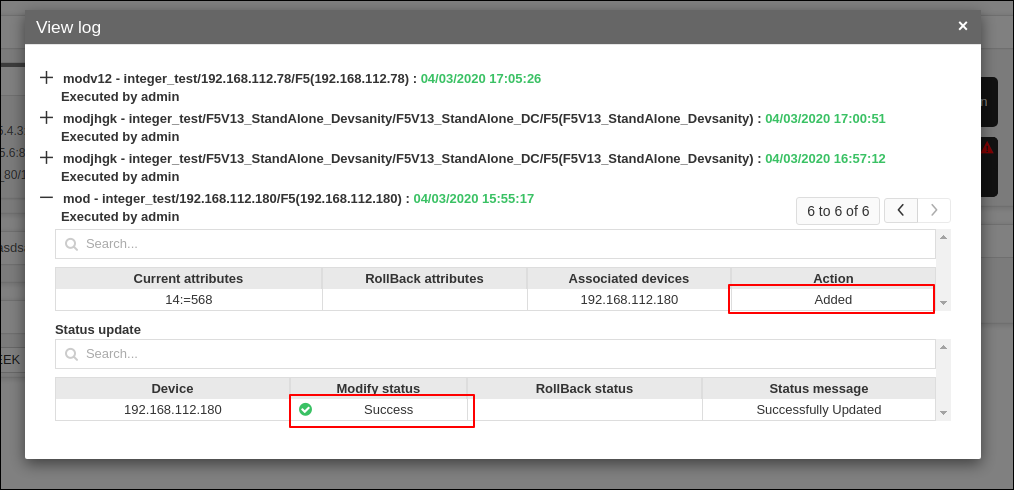
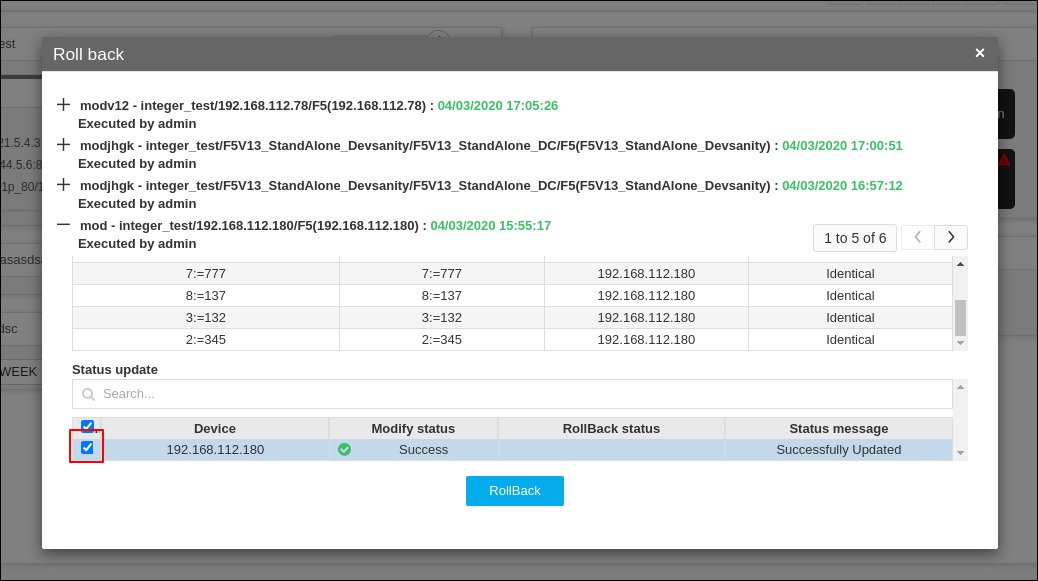
Rollback