Traffic Grid Widget
Configuration Steps:
-
Provide widget name
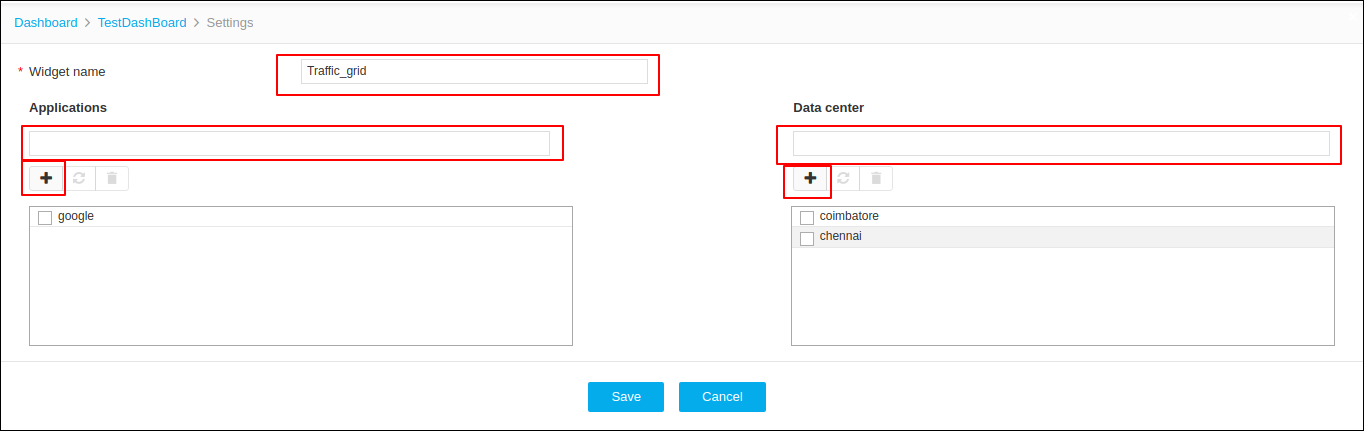
- Add Application Name and Data Centers and click the + (Add) icon
-
Click Save.
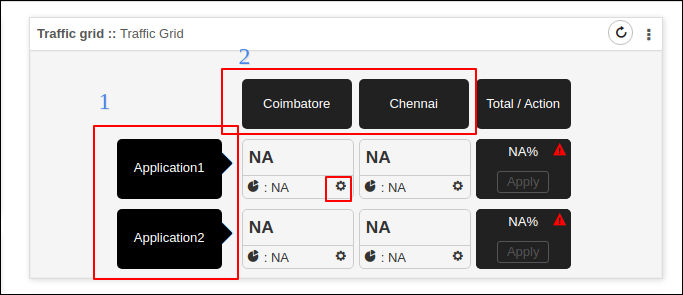
Sample Widget
-
Applications Configured
-
Data Centers added
-
Click on Settings icon to configure objects and rules
-
1. Configure Availability Status
-
Provide required information
Name Type Mandatory Description Validation Vendor Drop Down Yes Select vendor NA Device State Drop Down Yes Available options:
Active : Active devices are listed.
Standby : Standby devices are listed.
All : All Managed devices are listed.
NA Object type Drop Down Yes All Primary ADC objects are listed. NA Object Name Drop Down Yes Object names can be searched and selected. NA - Click Add and Save.
- Added objects can also be updated by selecting the object in the list and Update
-
Added Objects can be deleted by selecting the object in the list and
Delete
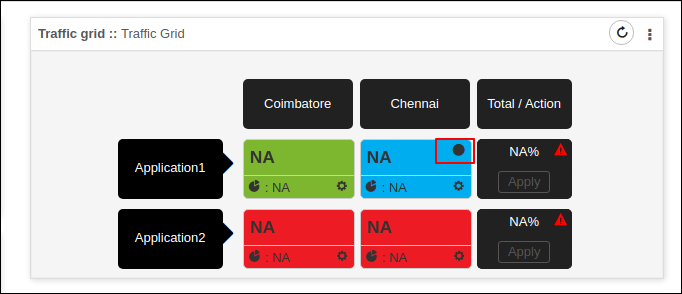
After configuring the objects the color representation changes according to status of the objects and State of the objects are also represented at top right corner of every application.
2. Configure Traffic Percentage
-
Provide required information
Name Type Mandatory Description Validation Vendor Drop Down Yes Select vendor NA Device State Drop Down Yes Available options:
Active : Active devices are listed.
Standby : Standby devices are listed.
All : All Managed devices are listed.
NA Object type Drop Down Yes Only traffic controllable objects like pool members are listed NA Object Name Drop Down Yes Object names can be searched and selected. NA - Select the objects, and then Click Add.
-
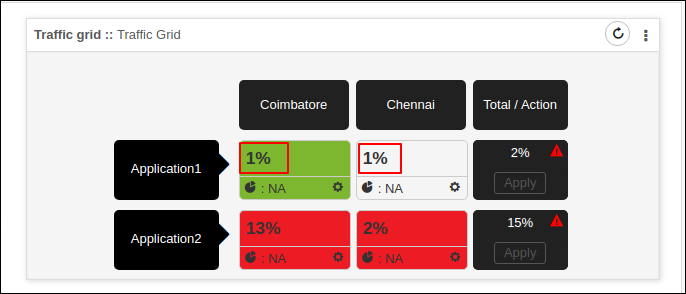
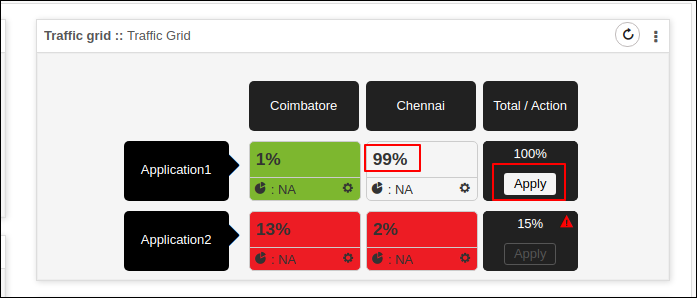
After adding the traffic percentage value is shown on the widget.
-
Traffic percentage values can be altered and Applied on the objects.
-
Modify the traffic percentage and click Apply to execute action on the
objects added.
Note: The sum of all traffic percentages should be 100.
3. Configure the Statistics
-
Provide required information
Name Type Mandatory Description Validation Display Name Text Box Yes User defined name for stats to be displayed Only 10 characters are allowed. Vendor Drop Down Yes Select vendor NA Device State Drop Down Yes Available options:
Active : Active devices are listed.
Standby : Standby devices are listed.
All : All Managed devices are listed.
NA Object type Drop Down Yes All Primary ADC objects are listed. NA Object Name Drop Down Yes Object names can be searched and selected. NA Statistics Type Drop Down Yes Statistics parameters for selected object type are listed. NA -
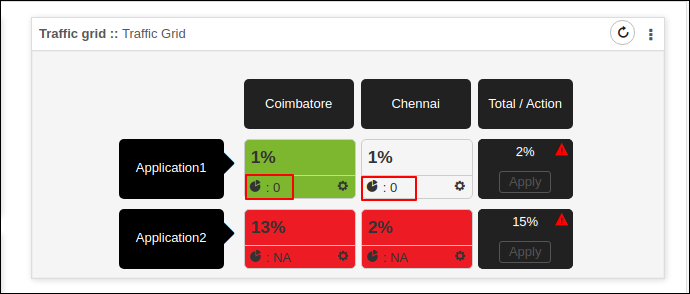
Stats collected for the configured objects are displayed in the
widget
4. Add Rules For Action
-
Configure Warning for an action
-
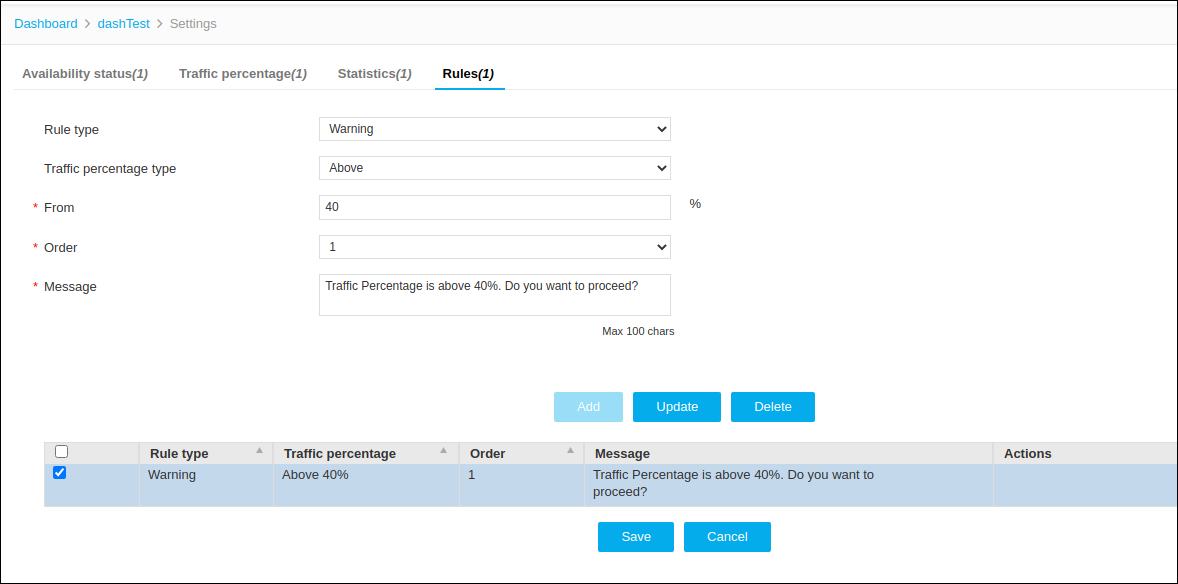
Select Rule type as Warning.
-
Set the condition to be checked.
-
Set the order of execution. Maximum 10 rules can be configured.
-
Provide a warning message to be displayed when the condition becomes true.
-
Click Add and Save.
 On performing action , the warning message is displayed when the condition is true.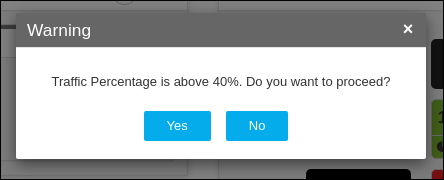
-
-
Configure Restriction for an action.
-
Select Rule type as Restriction.
-
Set the condition to be checked.
-
Set the order of execution. Maximum 10 rules can be configured.
-
Provide a Restriction message to be displayed when the condition becomes true.
-
Click Add and Save.
Adding restrictions will not allow the user to perform the action.
-
-
Configure action when certain condition met.
-
Select Rule type as Action.
-
Set the condition to be checked.
-
Configure Enable/Disable action on objects.
-
Select the Action Type and the object on which action has to be executed.
-
Click Add and Save.
When the condition becomes true, the configured action is executed on the object.
-