Traffic Statistics Widget
Traffic statistics widget is used to monitor live/historic statistics of objects.
-
Add objects
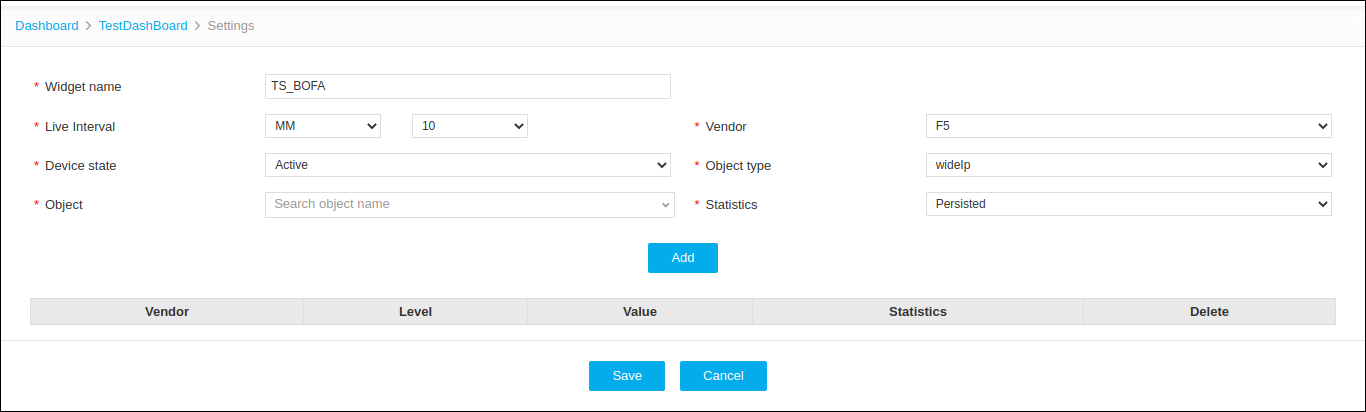
Name Type Mandatory Description Validation Widget Name Text box Yes User defined Name for the Widget No special characters are allowed, except '_' , '.' , '-' , '|' , ':'. The name should not start with a special character. Live Interval Drop Down Yes Set time interval for live statistics collection. NA Vendor Drop Down Yes Statistics supported Vendors are listed NA Device State Drop down Yes Available options:
Active : Active devices are listed.
Standby : Standby devices are listed.
All : All Managed devices are listed.
NA Object Type Drop Down Yes Based on the vendor, all supported object types are listed. NA Object Drop Down Yes Based on vendor and object type filter available objects are listed. NA Statistics Drop Down Yes Based on vendor and object type filter supported statistics parameters are listed. NA - Provide the required information and click Add.
-
Click Save.
By default Live stats are collected. If Insight is enabled then historic statistics are shown.Widget Setting:
-
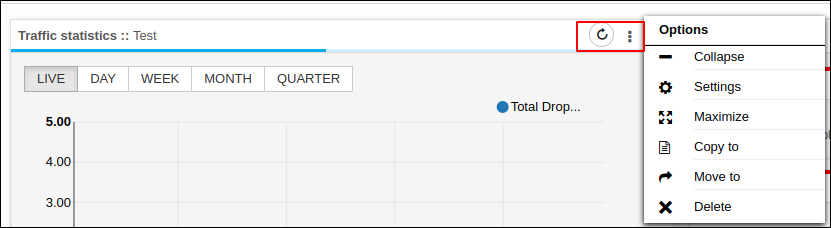
Refresh - Refreshing the widget will get live stats for the configured objects.
-
Collapse/Expand - Collapse and expand the widget screen
-
Settings - Configure the settings
-
Maximize - To maximize the widget size
-
Copy to - The widget is copied to another dashboard
-
Move to - The widget is moved to another dashboard.
-
Delete - Delete the widget
-