Script Execution Widget
Using Script Execution Widget, scripts which can be executed within 5 minutes can be configured and executed.
Before you begin: Set Timeout in system Settings. Refer Configuring Script Execution Settings
Configuring Script Execution Widget
-
Add Scripts
-
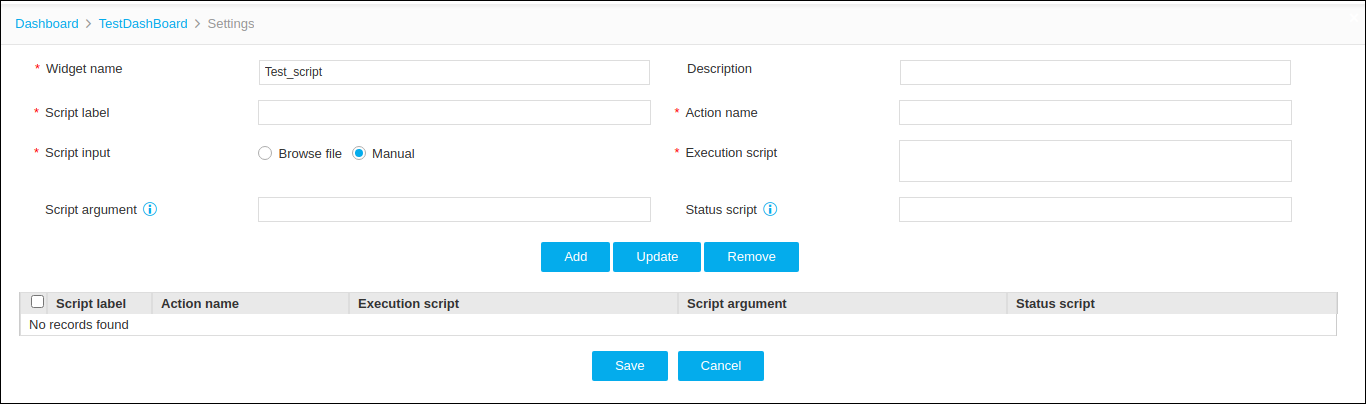
Provide information
Name Type Mandatory Description Validation Widget Name Text box Yes User defined Name for the Widget No special characters are allowed, except '_' , '.' , '-' , '|' , ':'. The name should not start with a special character. Description Text box No Description for the Widget - Script label Text box Yes - - Action Name Text box Yes - - Script Input Radio button Yes Browse file:
Script file can be uploaded.
Manual:
Script can be typed in the text box.
NA Execution Script Text box Yes 1.File can be uploaded.
or
2. Manual script input can be added.
NA Script argument Text box No Arguments for the script can be mentioned with space as delimiters. - Status script Text box No The full path of the scripts in AppViewX servers to update the color and status message of the bar. This functionality is used to get the status/result of a script. - - After adding all information, click Add and Save.
Execution of Scripts
-
Click the Play icon, and then click the Action
Name configured.
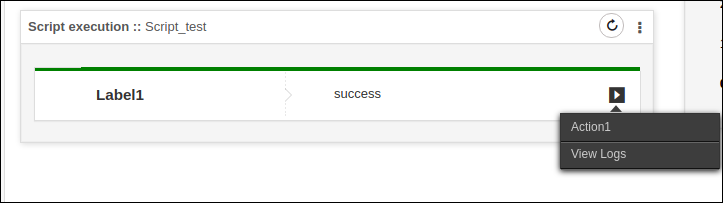
- Output logs can be verified using View Logs option.