Configure Active Directory Certificate Services
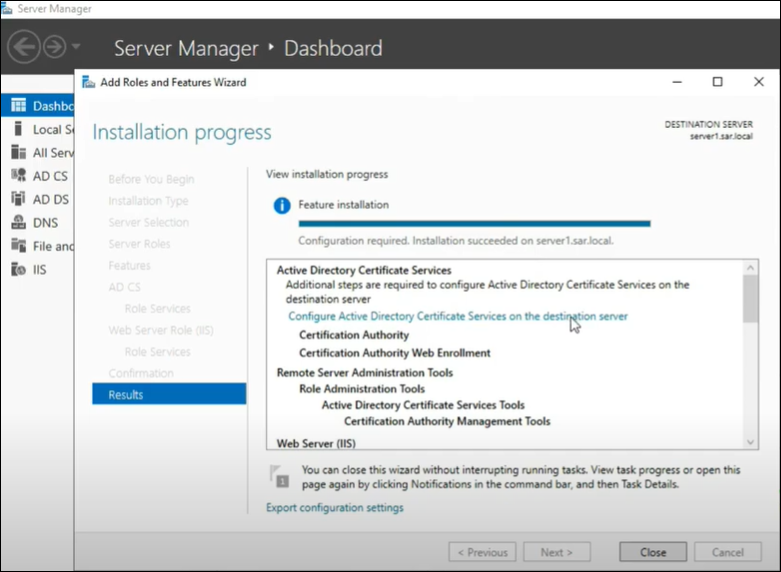
To configure Active Directory Certificate Services:
- Click Configure Active Directory Certificate Services on the destination
server in the Server Manager notifications.
- Click Change besides the Credentials box.
- Enter an account that belongs to the Domain/Enterprise Admin group, click OK, and then click Next.
- Configure Certification Authority and Certification Authority Web Enrollment by selecting role services, and click Next.
- Select Enterprise CA, and click Next.
- Select Root CA, and click Next.
- Select Create a new private key and click Next.
- Set the Cryptography provider to RSA#Microsoft Software Key Storage Provider.
- Set the Key Length to 4096 bits.
- Set the hash algorithm to SHA256, and click Next.
- Enter a unique name for the CA such as <MSCA-Proxy> and then click Next.
- Set the validity period 25 years.
- Configure the location for the certificate database and certificate database logs.
- Click Next.
- Click Configure, and click Close.