Configure IIS
To configure the Internet Information Services (IIS) on ADCS:
- Type
InetMgr.exein the command prompt to open the Internet Information Services (IIS) Manager. - Click your server name on the left-hand side.
- Expand the selection for your server and click Application Pools.
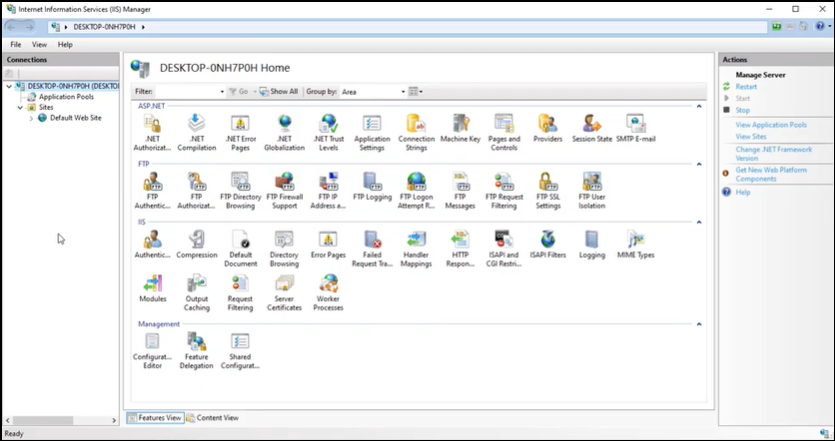
- Right-click WSEnrollmentPolicyServer, and select Advanced Settings.
- Edit Identity.
- Select Custom account in the panel that appears, and click Set.
- Enter the username and credentials for <yourcompany\waep-service>.
- Click OK and expand Sites in the Connection menu on the left-hand side.
- Click Default Web Site and then click Bindings on the right-hand side.
- Edit the https site binding.
- From SSL certificate, select the CS Server's SSL certificate winaepserver.yourcompany.com, click OK and then click Close.
- Expand the Default Web Site option on the left-hand side.
- Click ADPolicyProvider_CEP_Kerberos and open Application Settings.
- Edit the entry name FriendlyName and set the value to AppViewX_Enrollment. This is a name that clients will see only when manually requesting certificates.
- Click Add and create a new entry with the name RetryIntervalMs and value 300000.
- Click on the URI and copy the URI so that it can be used for group policy update.
- Restart IIS by clicking on the server name and then click Restart on the right-hand side.