Set up Service Account
To set up the service account on Active Directory Certificate Services:
- Create Service Account as mentioned in the Section, Create Service Account.
- Type
lusrmgr.mscin the command prompt to open the Local Users and Group manager. - Click Groups.
- Right-click the IIS_IUSRS group and select Properties.
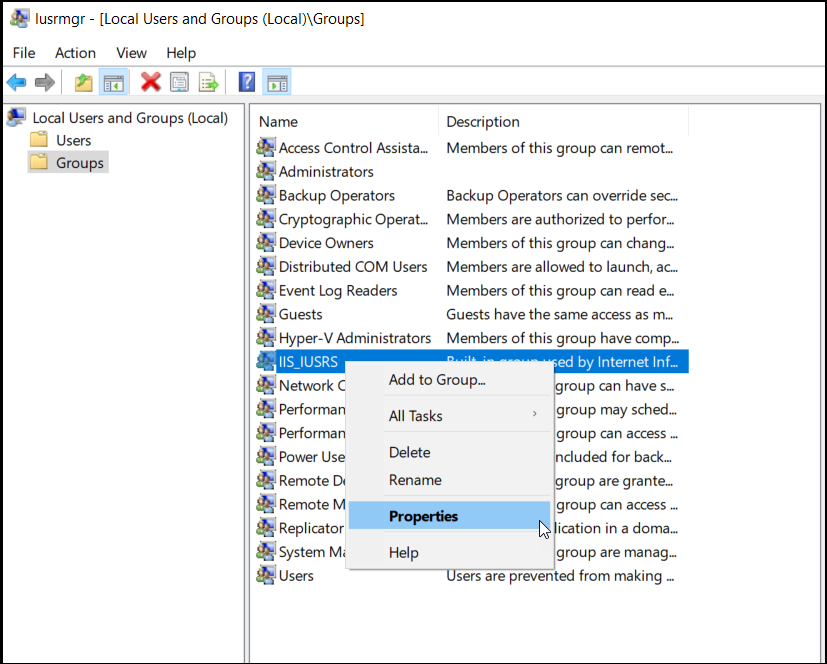
- Right-click the Administrators group and select Properties.
- Click Add, and enter <YOURCOMPANY\waep-service> in the Enter the object names to select text box, and click OK.
- Enter an account that belongs to the Domain/Enterprise Admin group, and click OK.
- Open the command prompt with Admin permissions.
- Set the service principal name for the service account by running the following
command as admin:
Make sure to replace the server <FQDN> and account names with your own configuration.setspn -s HTTP/<winaepserver or server name>.yourcompany.com <waep-service>
Note:
- If you are using a single service account and performing this installation on a single host (the waepserver host), ensure to run only the setspn command once.
- If you have a service account created that is part of the domain, then ensure that it has access to the Cert Publishers group and they are a member of the local admin group on the CEP/CES or policy server.