Application View Widget
Using Application View Widget, the ADC Primary objects like WideIP, GTM Pool, Virtual servers, LTM Pool and nodes can be monitored for state and status change and Actions can be performed. The actions for each object is predefined and can be selected accordingly.
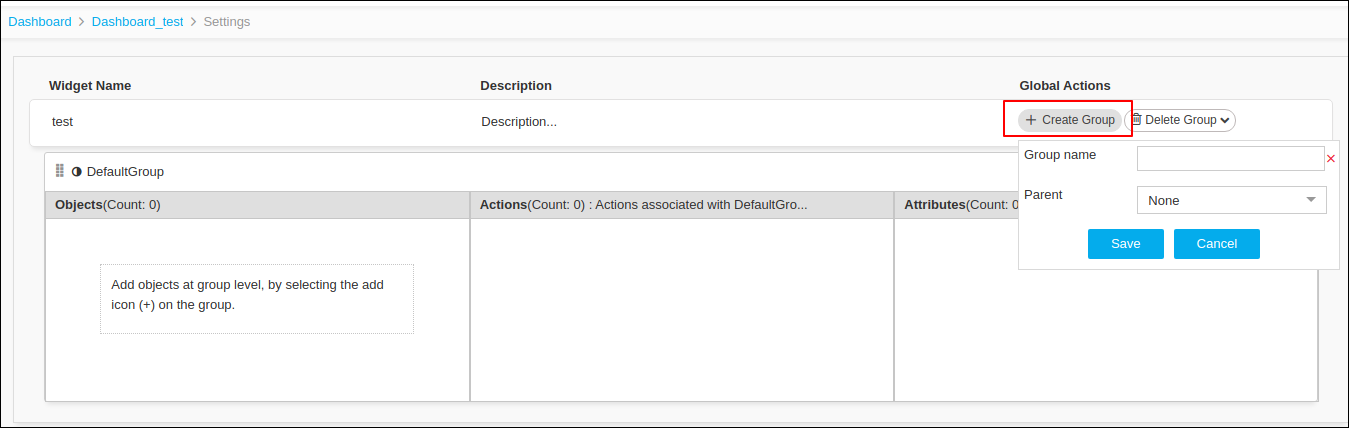
To Create a Group
- Click Create Group.
- Provide a user defined group name.
-
Parent group can also be selected from the list of available groups added
in the widget.
Note: Maximum group hierarchy allowed is four.
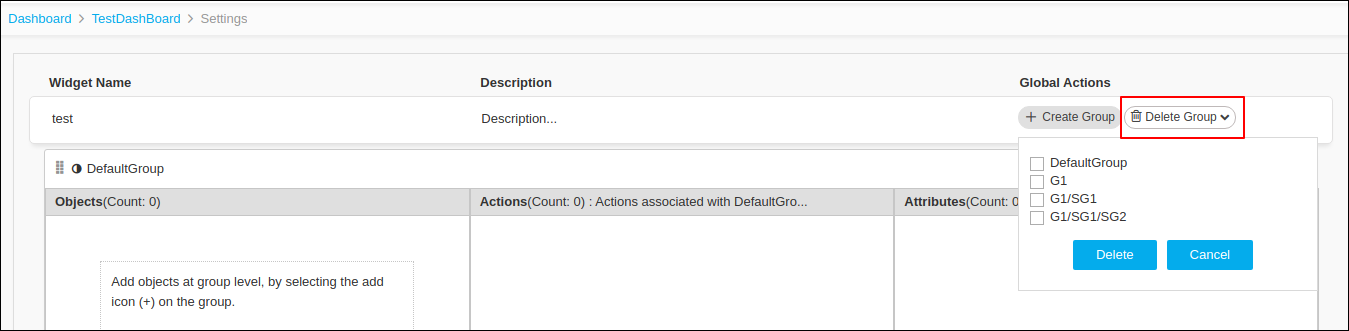
To Delete a Group
-
Click Delete Group and select the groups to be
deleted.
CAUTION: The groups will be deleted with all subgroups and it’s configured objects.
- Click yes on the confirmation to proceed the deletion.
To Add/Modify Objects in a Group
-
Click Add/Modify objects on the Default/Created
Group

Table 1. Add/Modify Objects - Field and Description Table Field Description *Vendor Vendors of Managed devices from the inventory are listed in Alphabetical order. *Device State Available options:
Active : Active devices are listed.
Standby : Standby devices are listed.
All : All Managed devices are listed.
*Device Name Based on vendor and device state, available devices are listed. *Object Type Based on the vendor, all supported object types are listed. *Hierarchy Based on the Object Type selected the hierarchy is listed. *: Mandatory fields -
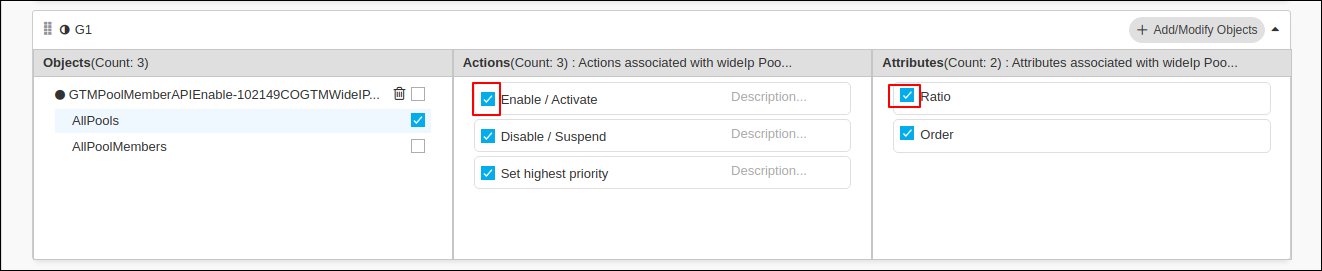
Based on the objects added, default actions are selected. Users can deselect the actions
-
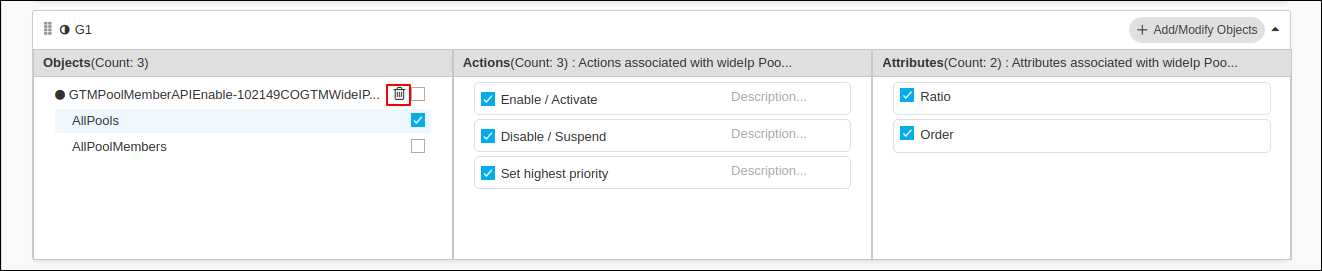
To delete added objects in a group, click on the delete symbol next to the object.
-
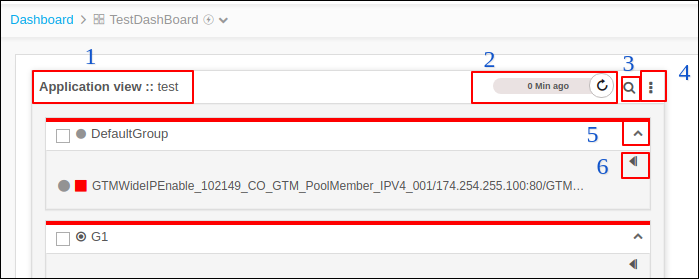
After completing the configuration, a Test Widget will be displayed. The test widget includes the following:
-
Widget Name
-
Last refresh time, when the widget is refreshed,the current state and status are fetched from the device and updated in the widget
-
To search for an object added in the widget
-
Settings options
-
Collapse/Expand the Group
-
To display the attributes of the objects
Widget Settings: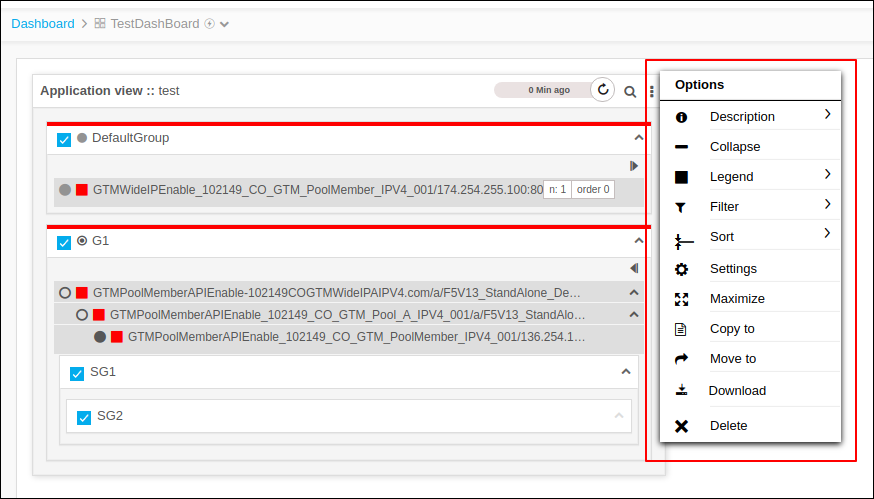
-
Description - Description provided for the widget while creating it.
-
Collapse/Expand the Widget
-
Legend - Gives information about representations used in Widget.
-
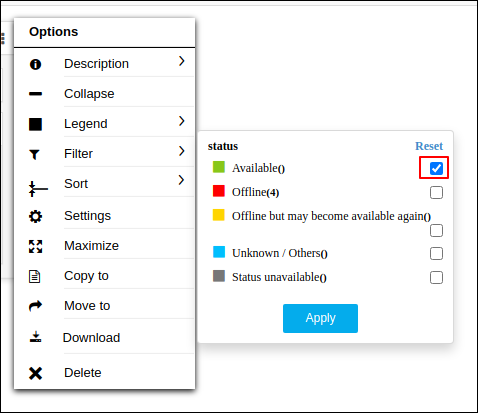
Filter - Filter the objects to be shown based on status and click Apply.
-
Sort - To Sort the objects in Ascending/Descending order
-
Settings - Settings page of the widget
-
Maximize - To Maximize the widget
-
Copy to - The widget is copied to another Dashboard.
-
Move to - The widget is moved to another Dashboard.
-
Download - Download the widget as csv file
-
Delete - to delete the widget
-
-
- Based on the above filters, available objects are listed. Specific objects can also be searched and added.
- Select the objects to be added and click ADD.
Actions on Objects/Groups
Right click on Object/Groups and actions are displayed based on the object type and ACF permissions assigned to the user.