Install a Validator
Validator analyzes an Agent and validates all the prerequisites before installing an agent. It is also used to troubleshoot any issue that occurs in the managed machines that runs on a network. Before installing AppViewX gateway and the certificates, make sure you have downloaded the validator to either the Downloads folder or to the Desktop in your local environment.
To install a validator, complete the following steps:
- Go to the location of the downloaded AppViewX.CertPlus.ValidatorSetUp.msi file, then select it.
-
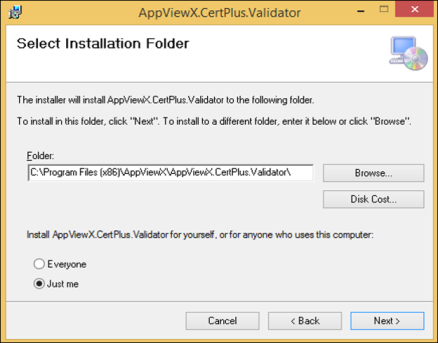
On the setup wizard screen that opens, click Next.

-
In the Select Installation Folder screen, click Browse and
navigate to the following installed folder C: Program Files
(x86)AppViewXAppViewX.CertPlus.ValidatorSetup
- Click the AppViewX.CertPlus.Validator.exe file to open the application for validation.
- In the AppViewX CertPlus Validator screen that opens enter all the mandatory fields in the Basic Information section to proceed.
-
Select the Agent, Certificate Authority, IIS, and
Non-IIS checkbox depending on what you want to validate and manage in
the target machine.
- Based on the checkboxes you selected, the fields that are mandatory will be highlighted in Red color.
- The CA Name is required only if the Certificate Authority check box is selected.
-
Click Submit and the results are displayed as shown in the following
image:
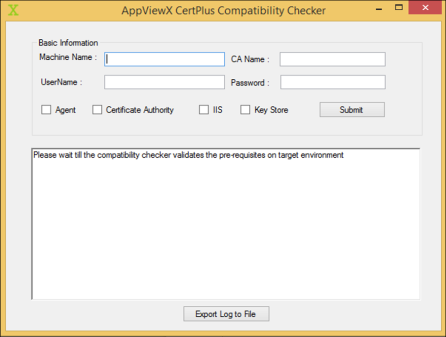 AppViewX CertPlus Compatibility Checker is used for troubleshooting or validating the prerequisites as part of Windows Agent Installation. It comprises the following fields:
Name Description Condition Machine Name The name of the target machine must be validated. It is a hostname. Mandatory field CA Name The name of the CA in the CA config. Mandatory only when a CA is selected User Name User Name to be used for validating the target machine. It is in the format "username@domainname". Mandatory field Password The password corresponding to the provided user name. Mandatory field