Configuring the LDAP Authentication
AppViewX integrates with the Active Directory and Open LDAP for authentication of external users. It also enables configuring multiple servers in the event that users belong to multiple domains.
To configure the LDAP authentication:
-
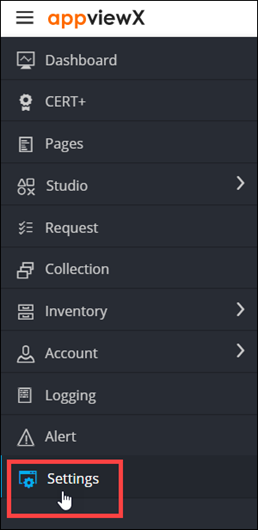
To access the navigation pane, in the top-left corner of the screen, hover the
mouse pointer over the
 icon.
icon.
-
From the menu displayed, click Settings.
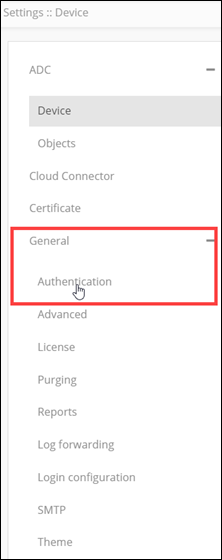
- On the Settings page, from the navigation pane on the left, click General.
-
Under General settings, click
Authentication.
The Settings :: Authentication page is displayed, with the LDAP tab open by default.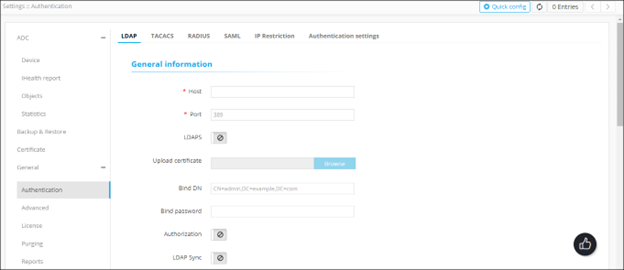
-
To configure the LDAP settings, in the General Information section,
enter the following details (sample values are shown in the image below the
table):
Field Description *Host Host name (domain name) of the LDAP server. *Port Port number of the LDAP server. Note: This value is entered based on the port number used in your deployment. By default, port number 389 is used for a LDAP configuration and port number 636 is used for a LDAPS configuration.LDAPS The LDAPS protocol is used for secure communication between AppViewX and Active Directory/Open LDAP. To enable use of the LDAPS protocol, enable this toggle.
Upload Certificate Note: This field is enabled only when the LDAPS is enabled.To upload a LDAP server certificate:
- Click Browse Certificate.
- Navigate to the location of the
.pem certificate file. Note: If the LDAP servers are load balanced with VIP, upload the root certificate of the LDAP server instead of the server certificate.
- Select the certificate to be uploaded and click
Open.
The selected certificate is uploaded.
Note: Only a single certificate can be uploaded for each server.Bind DN Username of the base authentication endpoint that will be used to connect to LDAP. Bind password Password of the base authentication endpoint that will be used to connect to LDAP. Authentication In addition to authentication, AppViewX also lets you perform user authorization against the LDAP server. To enable authorization along with authentication, turn on the toggle. Note: If Authorization is not enabled, AppViewX will only carry out LDAP authentication for the given user.LDAP Sync To enable the use of the SSH module in AppViewX for SSH key discovery use case, turn on the toggle. All * marked fields are mandatory. 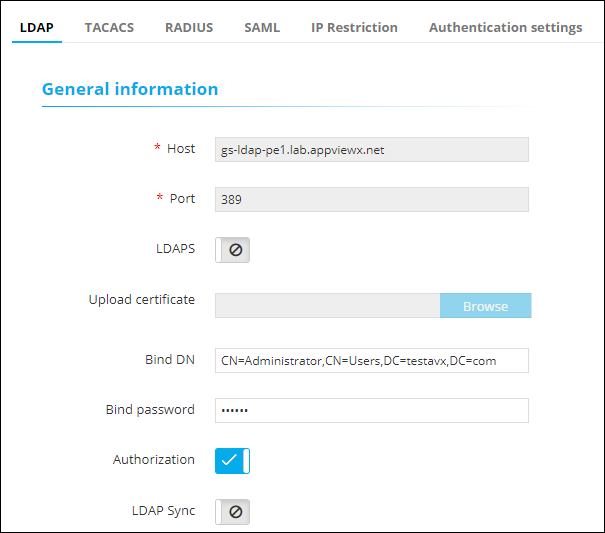
-
After entering the above connection details, to test if the host is reachable
and the port is valid for establishing an LDAP/LDAPS connection, click Test
Connection.
Note: You can test the connection of LDAPS only when you save all of the configuration details. Bind DN and Bind password details cannot be validated through a test connection.
-
The User Search section collects information to validate a user’s
presence in the Active Directory. In the User Search section, enter the
following details (sample values are shown in the image below the table):
Field Description *User search base Base directory where the user is present. *Search filter Criteria for searching for the user from the search base. User return attribute User information to be retrieved from the search base. Note: This field is enabled only when the Authorization toggle (in the General Information section) is turned on.Note: You can specify only User return attribute.All * marked fields are mandatory. 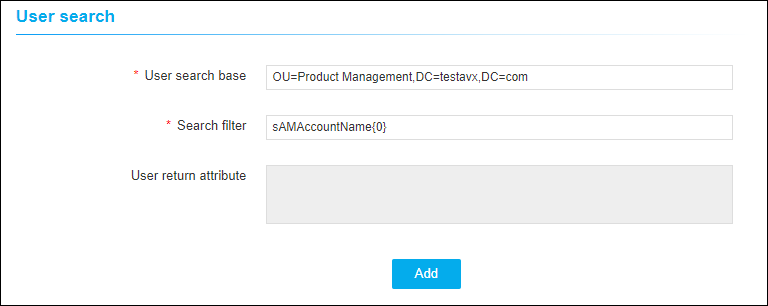

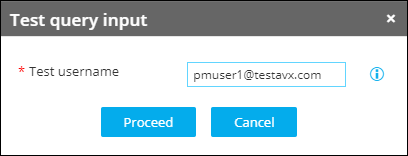
Note: You can now add multiple OUs in User search so that it checks multiple OUs to validate a user’s presence in the Active Directory. - For the given configuration, to check the user’s presence, click Test query.
-
In the Test query input dialog box, enter the
Test username.
The output is displayed as shown in the image below: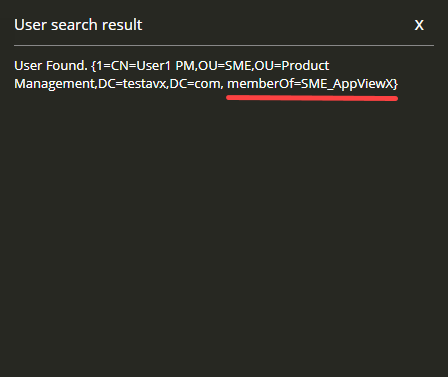
-
To test which user group the user belongs to, in the Group search
section, enter the following details:
Note: This section is enabled only when the Authorization toggle (in the General Information section) is turned on.
Field Description *Group search base Base directory where the user group is present. *Search filter Criteria to search the user group from the search base. Group return attribute User group information to be retrieved from the search base. All * marked fields are mandatory. Note: You are allowed to check the query response for User search and Group search only when the connection is valid.Note: Group search can be performed only if the customer’s LDAP is of type Open LDAP. Microsoft Active Directory does not need group search configuration. For Open LDAP, group search needs to be configured mandatorily. The User return attribute in the User search section does not return the group membership details. - After entering the above details, to test if the group search query thus configured works, click Test Query. For Open LDAP, when the user runs the test query for group search, the user search base details are passed to the group search test query and the group membership details for that user are returned.
-
To save the LDAP settings, click Save or to reconfigure the settings,
click Reset.
The LDAP authentication settings thus configured are saved and displayed in the table shown at the end of this screen:
 Note: In the case of multiple LDAP servers, to define/update the order in which the servers will be authenticated, drag and drop the entries in this table.