Linking a Repository
- On the Workflow Inventory page, from the navigation pane on the left, click Source Control.
- On the Source Control landing page, select the integration type as GitLab.
- Select the connection type as HTTPS or SSH.
-
For HTTPS, enter the valid credentials along
with the HTTPS clone URL.
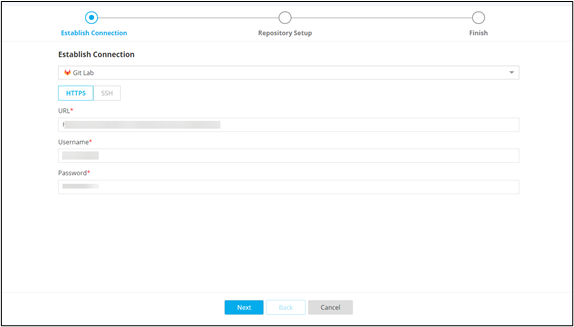
-
For SSH, enter the valid private key corresponding to
the public key and SSH clone URL.
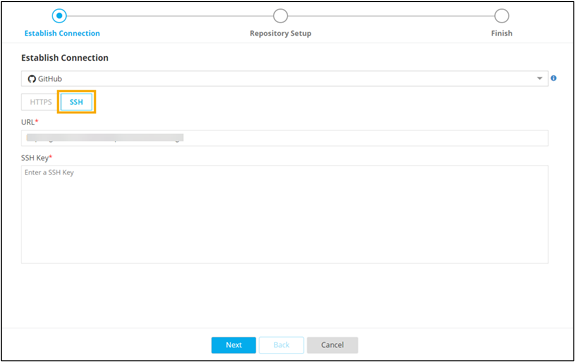
Note: Prerequisite for SSH - Public key is to be added to the remote user account. -
Under Branches, select master.
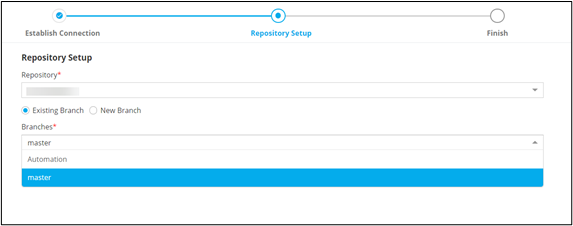
-
Click Next.
All available workflows, tasks and subflows in the remote repository are displayed.
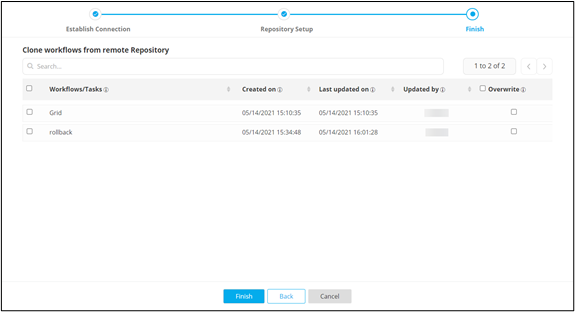
- Select the workflows to be cloned.
- Click Finish.
-
Click Yes in the Confirmation
pop-up window.
- Cloned tasks and subflows are added to Source Control Directory and
Workflows to Inventory. The connected workflows reflect the Source
Control
 logo .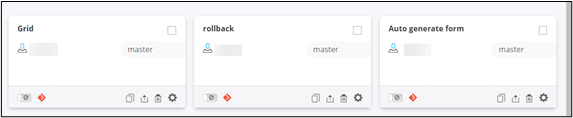
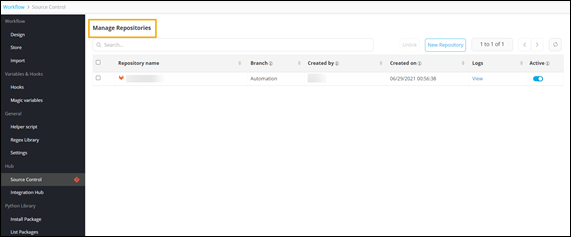
- Cloned Repository is added to the Manage
Repositories page.
- Cloned tasks and subflows are added to Source Control Directory and
Workflows to Inventory. The connected workflows reflect the Source
Control