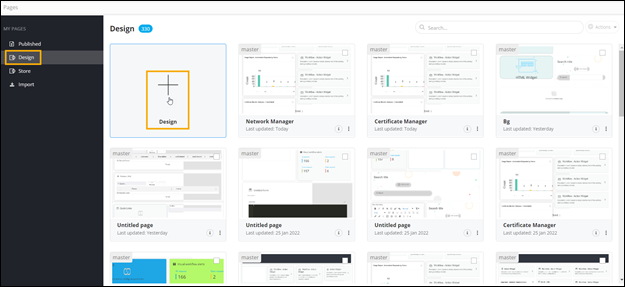
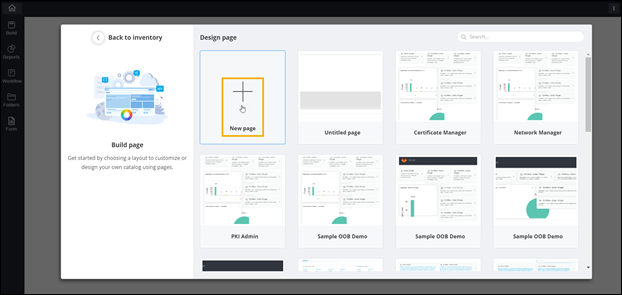
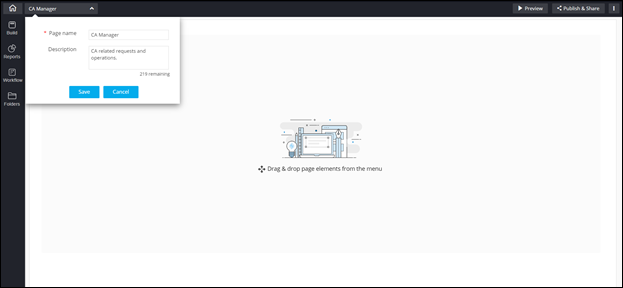
A blank page is displayed with the
Switch Layout
window open by default.
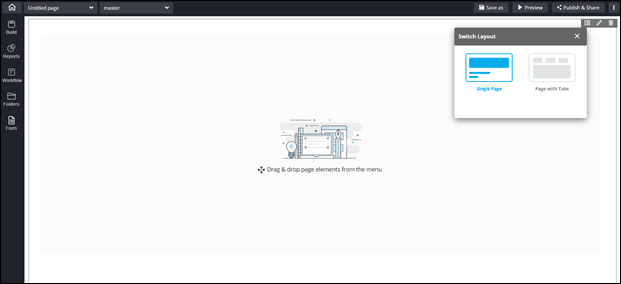
Note: For more information on page layouts, click
here.
The component panel on the
left shows the following options for Page elements:
- Build: Allows you to add
widgets and form components to your page.
- Reports: Allows you to add
report widgets to your page.
- Workflow: Allows you to add
workflow catalogs to your page.
- Folders: Allows you to save
pages to personal and shared folders.
- Form: Allows you to access OOB
forms and customized forms.