Reports
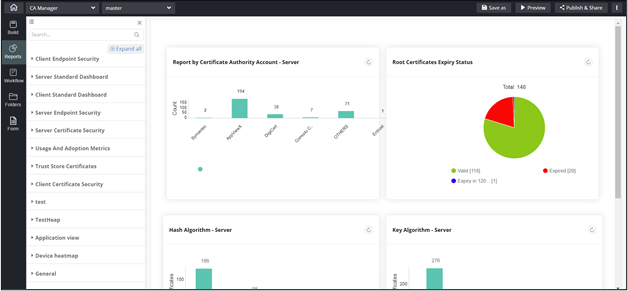
Note: To access the Reports module in AppViewX, navigate to
Studio > Reports. For more
information on Reports, refer to the Reporting User Guide.
To access Reports in Page builder:
-
From the component panel on the left, click
Reports.
The Report inventory is displayed.
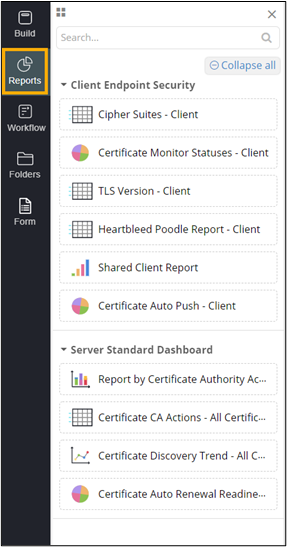
This table describes the options present in the Reports section:
Options Description View Allows you to switch between list view and grid view when the Reports Inventory is expanded. Search bar Allow you to search for a specific report. Collapse All/Expand All Allows you to expand/collapse the Reports inventory. -
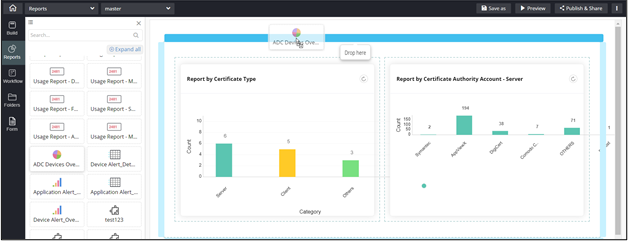
To add a report to your page, drag and drop the report to any blue highlighted
space in the build area.
- To configure Report Properties, click here.
- To configure Report Styles, click here.