Configuring the Tabular with Hooks
- Design a page.
-
From the Build > Form section, drag and drop the following form
fields to design a form:
Field Type Label Name Field Values Parent ID Text Box Vendors A10,F5,Citrix Text Box Device Name - Tabular Text Box IP Address - Tabular - Drag and drop a Tabular field to the form.
-
To configure the Tabular, hover your mouse over the field and click
 .
The Tabular pop-up window opens with the Properties tab open by default.
.
The Tabular pop-up window opens with the Properties tab open by default. -
In the Tabular window, under Properties, select an appropriate
hook for getting the device list.
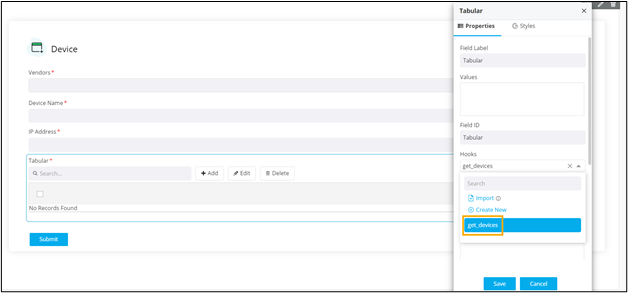 Note: You can also create a hook that meets your requirements. For more information on assigning hooks to form fields, click here.
 - Click Save.
-
Preview the form.
The form opens in a new tab.
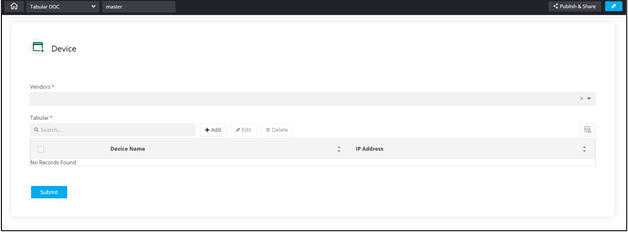
- In the Vendors field, select an option from the dropdown.
-
To trigger the hook and get the device list based on vendor and auto-populate
the form, click
 above the Tabular field.
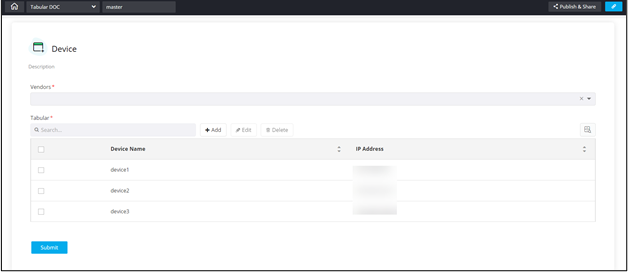
The Tabular is populated with the device list fetched from the hook.
above the Tabular field.
The Tabular is populated with the device list fetched from the hook.