Designing a new Form
The following
form fields are available:
- Date Time Picker
- Download
- File Upload
- Text Area
- Text Box
- Label
- Password
- Ace Editor
- Form Button
- Checkbox
- Multi-select Box
- Select Box
- Radio Button
- Form Group
- Tabular
To access these form fields:
-
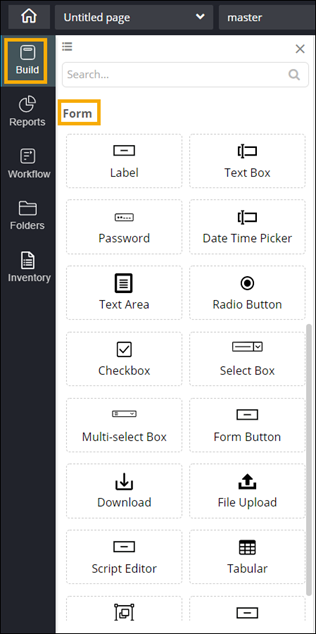
From the menu on the left, click Build.
A list of form components are displayed under Form.
-
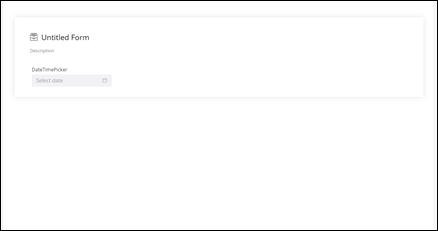
To create a form, drag and drop a form field to the canvas.
A form is created with the selected form field.
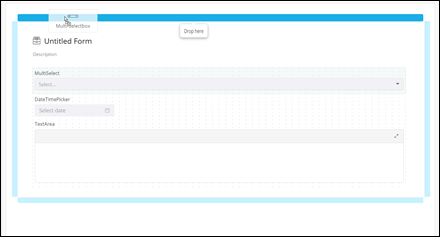
- To add another form field(s) to the same form, drag and drop the required form field(s) in the form area.
-
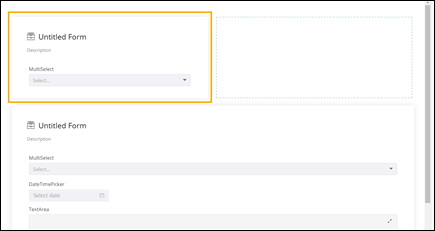
To create a new form on the same page, drag and drop a form field into any blue
highlighted space in the canvas.