Create a Custom View
To create a custom view:
-
Click
 and select AppVision > Application.
The Application screen opens with the Inframap tab selected by default.
and select AppVision > Application.
The Application screen opens with the Inframap tab selected by default. - Open the application for which you want to customize the view.
-
Click
 on the right top
corner of the workspace screen.
on the right top
corner of the workspace screen.
- On the Custom Views pop up screen that opens, click the Create view button.
- Enter a name for the view to help the users identify it. Select the radio button beside the group name based on how you want the service components to be grouped and displayed in the workspace.
- Click Create.
-
Click on the newly created custom view and the service components will be displayed as
shown in the following image.
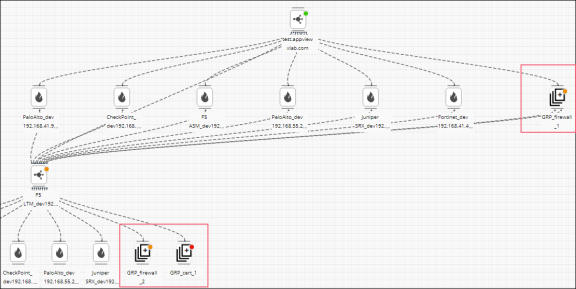
- Hover the mouse and click on the grouped elements in the workspace for a detailed view of the grouped components.