Create an SSH Key
To create an SSH key, complete the following steps:
-
Click
 and select Inventory > SSH.
The SSH screen opens.
and select Inventory > SSH.
The SSH screen opens. - If the Key tab is not displayed, click to open it.
-
Click
 in the Command bar.
- On the Generate SSH Key screen that appears on the right side of the screen, select the Key group that you want to create an SSH key for.
- Enter a name for the new SSH key.
- (Optional) Enter and confirm a passphrase for the key.
- Select the type of encryption you want the new key to use: RSA, DSA, or ECDSA.
- Select the bit length you want for the encryption. The options in this field vary depending on the type of encryption you selected in Step.
- Select how long you want the key to be valid: Lifetime, Days, or Years.
- If you selected Lifetime in Step 10, jump to Step 12.
- If you selected Days or Years in Step 10, in the Validity field, specify exactly how many days or years the key should be valid. After the validity expires, the keys will be deleted from the associated host (client and server).(Optional) Enter any comments you want related to the SSH key you are creating.
-
The Push automatically toggle is enabled by default. If you want to disable
automatic pushing of the key to any new connectors that are associated with the
key, click
 to switch it to
  .
.
-
The Rotate automatically toggler is disabled by default. If you want to enable
automatic rotation of the SSH key for security compliance reasons, click to switch it to .
-
Click Generate to create the SSH key.
If the key policy does not require work order approval, then the key creation process is complete. If the key policy does require work order approval, the process continues through the following steps.
-
The key then appears in a holistic view. Right-click the key and select Approve
from the dropdown menu that appears.
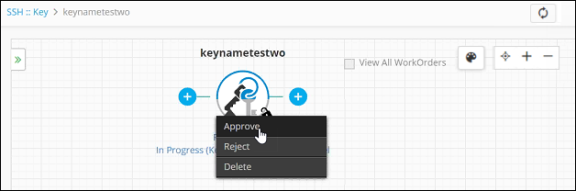
- On the Approve popup screen that appears, enter any comments you have about the creation, then click Yes.
-
Click
 in the holistic view to refresh the screen until
the key shows the status of Key Creation - Awaiting implementation.
in the holistic view to refresh the screen until
the key shows the status of Key Creation - Awaiting implementation.
-
Right-click the key and select Implement from the dropdown menu that
appears.
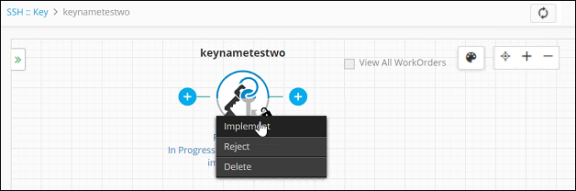
- On the Implement screen that pops up, enter any comments about the implementation, then click Yes.
-
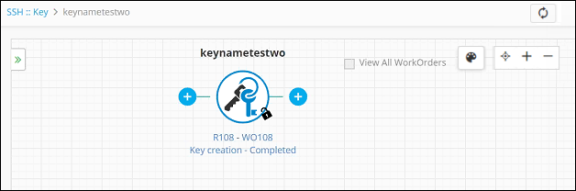
Click in the holistic view to refresh the screen until
the key shows the status of Key Creation - Completed.