Modify an SSH Key
To modify an SSH key:
-
Click
 .
.
-
Navigate to Inventory > SSH.
The SSH screen opens.
- If the Key tab is not displayed by default. Click to open it.
- Select the checkbox
beside the SSH key that you want to modify.
Note: You can tell at a glance if a key has passphrase associated with it by looking for a lock icon beside its name.
-
Click
 in the Command
bar.
If an SSH key has a passphrase associated with it, you are prompted to enter the passphrase when you click the key link. If no passphrase is associated, the Modify screen appears immediately.
in the Command
bar.
If an SSH key has a passphrase associated with it, you are prompted to enter the passphrase when you click the key link. If no passphrase is associated, the Modify screen appears immediately.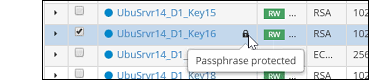
-
On the Modify screen that appears in the bottom-right corner of the screen, you can
modify any of the following key details:
- Passphrase
- Validity: The timespan the key is valid, expressed in days or months, or lifetime
- Push automatically: Toggle between enabled and disabled
- Rotate automatically: Toggle between enabled and disabled
- TTL (time-to-live): The number of hours or days you want the key to be active before it gets rotated out
- Click Update to save your changes.