Create an SSH Policy
-
Click
 .
.
-
Navigate to Inventory > SSH.
The SSH screen opens.
- Click the Policy tab to open it.
-
Click
 in the Command
bar.
in the Command
bar.
-
On the Add screen that appears, select one of the following types of policy:
- Key - Enter a name for the policy and follow step 7 onwards.
- Host - Enter a name for the policy and select a vendor (F5 or Linux) of your choice from the left side. Then, configure the parameters as per your liking and jump to step 15.
-
Select the type of policy you want to create:
- Strict - Strict policies require that the encryption values and the bit length of the SSH key exactly match those of the policy. If they do not, the request fails.
- Suggestive - Suggestive policies do not require that the encryption values and the bit length of the SSH key exactly match those of the policy.
- Enter a description of the policy that makes it easy for users to tell what the policy covers.
- Select the Private key access checkbox if you want to give authorized users the ability to access and download the private key.
- Select the Enforce Key Approval WO checkbox if you want to have a work order generated automatically for any key that uses this policy whenever an action is initiated on the key. If you do not select this option, then actions initiated on keys that use this policy are approved and implemented automatically.
- Select the encryption type you want to use for the policy: RSA, DSA, or ECDSA.
- Select the bit length you want to use for the encryption type. The values in this field vary depending on the type of encryption you selected in Step 9.
-
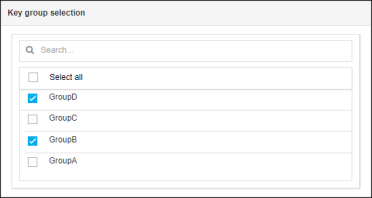
In the Key group selection field, select each key group that you want to associate with
the policy you are creating.
- Click Create to finish creating the policy.