Update a Known Host File
- Create an SSH Key.
- Associate a Client Device with an SSH Key and Associate a Server Device with an SSH Key.
-
If you enabled the automatic push option, the known host file with the work order on
the client device is published immediately. Steps 3 to 9 below explain what to do if the
automatic push option was not enabled or if publishing of the host file fails. If the key
is pushed to the client and server devices successfully for a particular user, then
right-click the client device.
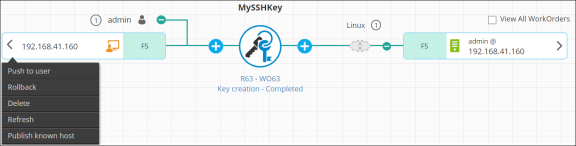 The public known host appears only when the color code of the client device is set to 'orange'. This indicates that the host is not updated. For more details, refer to the View the Different Statuses and States for an SSH Key and Hostsection of this guide. From the dropdown menu that appears, click the Publish known host option.
 -
Right-click the host again and click Approve from the dropdown menu that
appears.
Note: When auto push is disabled for a key, the system will not update the known host in client devices. You can update the known host file only using workflows.
- On the Approve popup screen that appears, enter any comments you have about the creation, then click Yes.
- Right-click the host and click Implement from the dropdown menu that appears.
- On the Implement screen that pops up, enter any comments about the implementation, then click Yes.
-
Click
 in the top corner
of the holistic view to refresh the screen until the host shows a status of Known host -
Completed.
in the top corner
of the holistic view to refresh the screen until the host shows a status of Known host -
Completed.