Discover an SSH Key
Note: Discovery is not supported for F5 (ADC) devices.
To discover an SSH key, complete the following steps:
-
Click
 .
.
-
Navigate to Inventory > SSH.
The SSH screen opens.
- If the Key tab is not displayed by default, click to open it.
-
Click
 in the Command
bar.
in the Command
bar.
- On the Discover screen
that opens, select whether you want key discovery to happen
immediately (Instant) or at a specific time in the future
(Scheduled).
Note: Click
 to
view the defined discoveries (in the AppViewX Config file) that were triggered at
midnight. All those discoveries of managed devices will be displayed in a table
format.
to
view the defined discoveries (in the AppViewX Config file) that were triggered at
midnight. All those discoveries of managed devices will be displayed in a table
format. -
If you selected Instant in Step 5, jump to Step 7. If you selected Scheduled, enter the
following details in the Scheduler region that appears:
- Schedule name - Enter a name that clearly identifies the scheduled key discovery action that you are setting up.
- Description - Enter a description of the scheduled key discovery that makes it easy for a reader to immediately determine when the key discovery is scheduled to take place.
- Recurrence Type - Select the frequency of the key discovery process: once, daily, weekly, monthly, or yearly. The remaining fields in the Scheduler region update depending on what you select here. At a minimum, complete all fields designated with a red asterisk (*).
- Time - Set the specific time you want key discovery to take place.
- Date - Select the date that you want key discovery to take place, or for recurring discoveries, the start and end dates that you want key discovery to begin and end respectively.
- In the Discovery name field, enter a name for the discovery so that you can identify it later as needed.
- In the Description field, enter a description of the discovery that makes it easy for a reader to immediately determine which key is being discovered.
-
In the Discovery Mode field, select the means by which you want to discover the SSH
key:
- Managed devices - If you select this option, complete the following sub-steps:
- Select each of the managed devices you want to use in the discovery process.
- Select the required condition and lick the Add as Regex button; then, jump to step 12.
- IP range - If you select this option, complete the following sub-steps:
- Enter a starting IP address and an ending IP address to define the IP range you want to use.
- Select the port or ports you want to use.
- From the Credential Type dropdown, select one of the following options:
- Manual Entry - You must provide the credentials for device communication and all the SSH operations.
- Credential List - AppViewX - The active credentials in the system are listed. You can select the required credentials and assign them for SSH host and all the other SSH operations.
- Credential List - CyberArk - The AppViewX system communicates with CyberArk and retrieves the passwords for all the SSH operations.
- Select the Login Type you want to use to access the IP range: Password, which requires a username and password combination, or Identity key, which requires a username and identity key and, in some cases, a passphrase. Then, jump to step 10.
- Subnet - If you select this option, complete the following sub-steps:
- Enter the network containing the subnet you want to use for discovery.
- Select the port or ports you want to use.
- From the Credential Type dropdown, select one of the following options:
- Manual Entry - You must provide the credentials for device communication and all the SSH operations.
- Credential List - AppViewX - The active credentials in the system are listed. You can select the required credentials and assign them for SSH host and all the other SSH operations.
- Credential List - CyberArk - The AppViewX system communicates with CyberArk and retrieves the passwords for all the SSH operations.
- Select the Login Type you want to use to access the IP range: Password, which requires a username and password combination, or Identity key, which requires a username and identity key and, in some cases, a passphrase. Then, jump to step 10.
- Cloud - If you select this option, complete the following sub-steps: Note: Make sure that you set the cloud based key discovery method either by using private IP or public IP. For more details refer to the SSH settings section of this guide.
- In the Cloud Vendor field, select the vendor whose devices you want to run a discover operation for.
- In the Account Name field, select the cloud vendor account you want to run a discover operation for.AppViewX will authenticate the account based on the cloud vendor and account you selected. After the authentication is successful, it will display the respective fileds by which fetch instance is triggered.
- Click the Fetch Instance button to have the system grab all instances that exist for the account you specified in Step b.
- Select all instances or any of the instance that you want to discover from the results field that appears beneath the Fetch Instance button, then click the Add as Regex button.
- The Regex column displays the total number of keys that match each of the regex search criteria you have created.
- Select the port or ports you want to use.
- From the Credential Type dropdown, select one of the following options:
- Manual Entry - You must provide the credentials for device communication and all the SSH operations.
- Credential List - AppViewX - The active credentials in the system are listed. You can select the required credentials and assign them for SSH host and all the other SSH operations.
- Credential List - CyberArk - The AppViewX system communicates with CyberArk and retrieves the passwords for all the SSH operations.
- Select the Login Type you want to use to access the IP range: Password, which requires a username and password combination, or Identity key, which requires a username and identity key and, in some cases, a passphrase.
- Select the Sudoer User checkbox to provide admin access to the user.
- In the Username field, enter the name of the user who has access permissions for the account you selected in Step b.
- Enter the password for the account you selected in Step b. Then, jump to step 10.
- Managed devices - If you select this option, complete the following sub-steps:
-
In the Host Group and Key Group fields, select the host group and key group that that
you want the keys you discover to be associated with.
The policy associated with the groups will automatically be associated with the keys that are discovered.
- Select the Manage or Monitor radio button depending on what you want to do with the keys you discover.
- Click Discover (if you selected Instant in Step 5) or Save (if you selected Scheduled).The table at the bottom of the screen updates to show the details of the immediate or scheduled discovery action.
-
Click the name of one of the completed discovery operations in the table.
The Discovery screen that appears contains two tabs: Summary and Discovered SSH Keys.The Discovery Summary tab displays the parameters that you set for the discovery operation along with the following statistics:
- Number of discovered keys
- Number of deleted keys
- Number of modified keys
- Number of keys with no changes
- Number of discovered hosts
- Number of modified hosts
- Number of hosts with no changes
-
Click
 in any of the
statistics rows to expand the row to display the names of the related keys or hosts. If
there are no entries for a particular row, the Expand icon is grayed out, as shown below
for the Deleted Keys, Modified Keys, No Changes, Modified Hosts, and No Changes
rows.
in any of the
statistics rows to expand the row to display the names of the related keys or hosts. If
there are no entries for a particular row, the Expand icon is grayed out, as shown below
for the Deleted Keys, Modified Keys, No Changes, Modified Hosts, and No Changes
rows.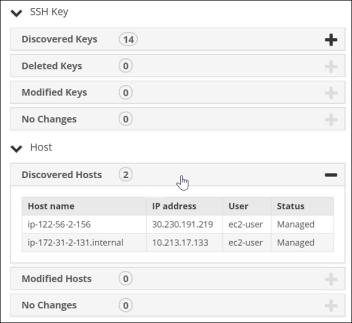
-
Click
 to view the
status of the host devices and
to view the
status of the host devices and  to go back to the previous screen
again.
The Discovered SSH Keys tab displays full details for all SSH keys that were discovered.
to go back to the previous screen
again.
The Discovered SSH Keys tab displays full details for all SSH keys that were discovered.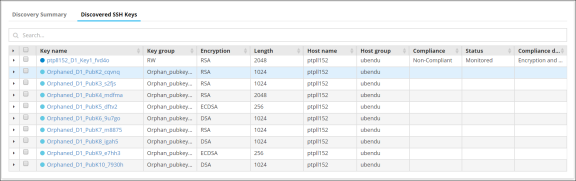
- Click any of the links in the Name column to view the holistic view of the related SSH key.