Configuring Certificate Alerts
- Certificates need to be validated
- Certificates are set to expire
- Certificates cannot be synchronized
To configure certificate alerts:
-
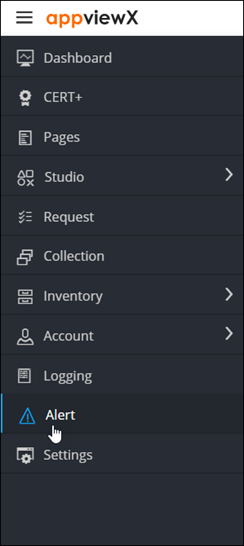
To access the navigation pane, in the top-left corner of the screen, hover the
mouse pointer over the
 icon.
icon.
-
From the menu displayed, click Alert.
The Alert :: All page is displayed (by default).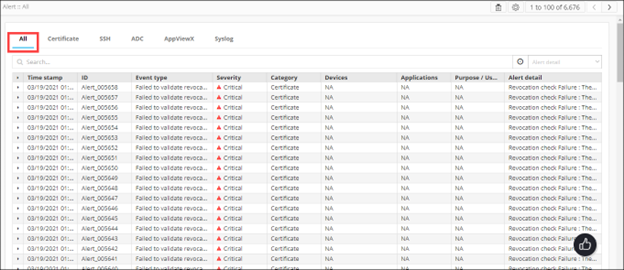
-
From the top-right corner of the screen, click
 .
.
-
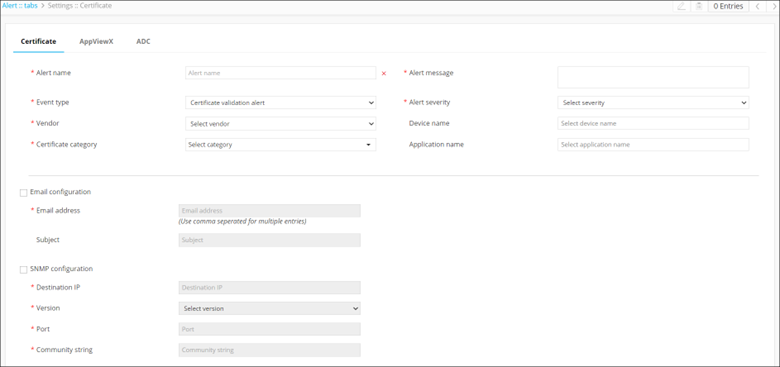
The Settings :: Certificate page is displayed, with the
Certificate tab open by default.
-
To configure certificate alerts, enter the following details:
Field Description *Alert name Enter the name you want to give this alert. *Alert message Enter the message that will be displayed with the alert, to describe the alert. Note: This field is not displayed when configuring the certificate expiry alert.Note: The alert message cannot be longer than 64 words.*Event type From the drop-down menu, select the event type that will trigger this alert from the following options: - Certificate validation alert (default)
- Certificate expiry alert
- Certificate sync alert
*Alert severity From the drop-down menu, select a severity for the alert from the following options: - Critical
- Major
- Notification
Vendor From the drop-down menu, select the vendor name for whose device/application you are creating the alert. Note: This field is not displayed when configuring the certificate expiry alert.Device name Enter the name of the device associated with the certificate you are creating the alert for. Note: This field is not displayed when configuring the certificate expiry alert.*Certificate category From the drop-down menu, select a certificate category from the following options: - Server
- Client
- Device
- Code Signing
*Expires in (days) Enter the number of days till the certificate expires. Note: This field is displayed only when configuring certificate expiry alerts.Email configuration To send the certificate alert as an email, select this check box. *Email address To send the certificate alert as an email, enter the email address to which this specific certificate alert will be sent. Note: Separate multiple email addresses with a comma.Subject To send the certificate alert as an email, enter a subject line. SNMP configuration To use the Simple Network Management Protocol for sending the alert, select this check box. *Destination IP Enter the destination IP address for the alert. *Version From the drop-down menu, from the following options, select the SNMP version to be used: - V1
- V2
*Port Enter the port number to be used for the alert. *Community string Enter the community string for the alert. The community string is similar to a user ID or password that allows users access to the requested information on the device.
All * marked fields are mandatory. -
To save the certificate alerts configuration details, click Add.
The saved details are displayed in the table shown at the bottom of the screen.