Configuring Syslog Alerts
To configure syslog alerts:
-
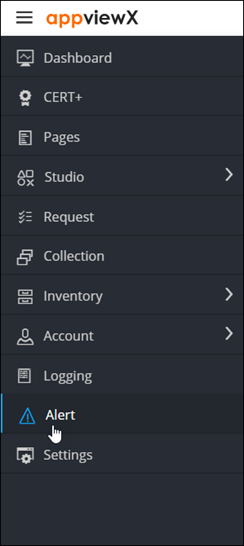
To access the navigation pane, in the top-left corner of the screen, hover the
mouse pointer over the
 icon.
icon.
-
From the menu displayed, click Alert.
The Alert :: All page is displayed (by default).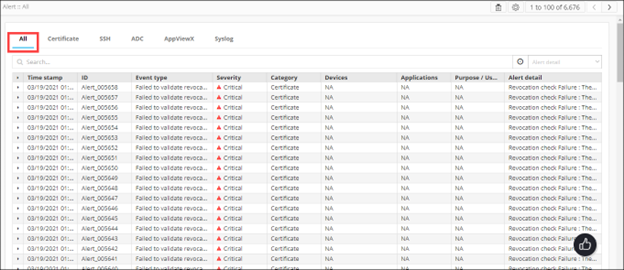
-
From the top-right corner of the screen, click the
 icon.
The Settings :: Certificate page is displayed.
icon.
The Settings :: Certificate page is displayed. -
To configure Syslog alerts, click Syslog.
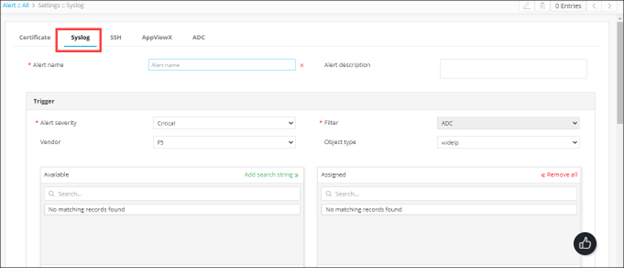
The Settings :: Syslog page is displayed.
-
Enter the following details:
Field Description *Alert name Enter the name you want to give this alert. Alert description Enter a description for the alert. All * marked fields are mandatory. -
In the Trigger section, enter the following details:
Table 1. Field Description *Alert severity From the drop-down, from the options given below, select a severity for the alert: - Critical
- Fatal
- Major
- Minor
- Notification
Filter For syslog alerts, the filter is set to ADC, because syslog alerts are parsed only through ADC devices. Vendor ADC module vendor (A10, Citrix, or F5) Object type Object type for ADC (FQDN, Service IP, VirtualService, ServiceGroup, Server, VirtualServer, or Device) Available Depending on the Object type and Vendor selected, a list of all available ADC objects or devices is displayed here. Add search string Instead of adding devices manually, AppViewX lets you automatically assign all existing devices or objects that match your criteria. To do this:
- In the Available section, in the Search field, enter the search criteria.
- Click Add search string.
Note: The benefit of using a search string rather than selecting devices manually is that the search string continues to work in the background and auto-assigns all new devices that match the search criteria.Assigned To add an object to the Assigned column, click the check box corresponding to that object. Regex Enter single/multiple regex patterns/strings. Note: When entering multiple regex patterns/strings, separate the regex strings using commas. The comma works as the BOOLEAN AND operator.All * marked fields are mandatory. -
In the Action section, enter the following details:
Field Description Execute workflow To select the workflow to trigger: - Select the Execute workflow check box.
- From the drop-down menu, select the workflow to trigger.
Metadata AppViewX lets you define a metadata condition based on which the workflow will be triggered. To define a metadata key-value pair for this condition: - In the Enter key field, enter the key.
- In the Enter value field, enter the key value.
To add another key-value pair:- Click
 .
. - In the Enter key field, enter the key.
- In the Enter value field, enter the key value.
To delete a key-value pair: For the key-value pair you want to delete, click
 .
. - To send the Syslog alert as an email, execute the steps for configuring SMTP for email alerting.
-
Enter the following details:
Field Description Email configuration To send the syslog alert as an email, select this check box. Email configuration To send the syslog alert as an email, enter the email address to which this specific syslog alert will be sent. Note: Separate multiple email addresses with a comma.Email configuration To send the syslog alert as an email, enter a subject line. All * marked fields are mandatory. -
To use the Simple Network Management Protocol (SNMP) to send the alert, enter
the following details:
Field Description SNMP configuration To use the Simple Network Management Protocol for sending the alert, select this check box. *Destination IP Enter the destination IP address for the alert. *Version From the drop-down menu, from the following options, select the SNMP version to be used: - V1
- V2
*Port Enter the port number to be used for the alert. *Community string Enter the community string for the alert. The community string is similar to a user ID or password that allows users access to the requested information on the device.
All * marked fields are mandatory. -
To save the Syslog alerts configuration details, click Add.
The saved details are displayed in the table shown at the bottom of the screen.