Configuring SSH Alerts
-
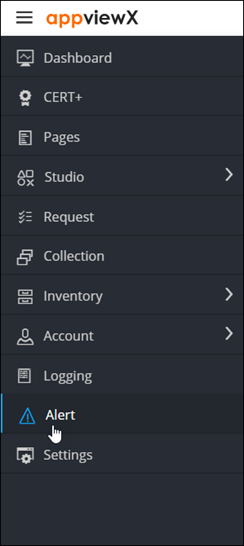
To access the navigation pane, in the top-left corner of the screen, hover the
mouse pointer over the
 icon.
icon.
-
From the menu displayed, click Alert.
The Alert :: All page is displayed (by default).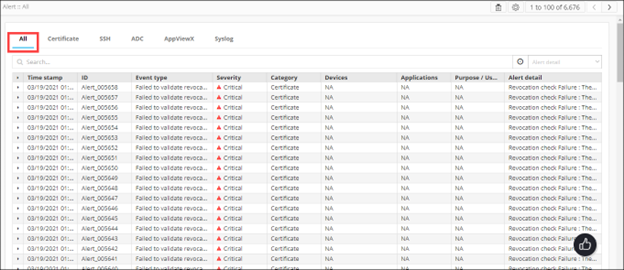
-
From the top-right corner of the screen, click
 .
The Settings :: Certificate page is displayed.
.
The Settings :: Certificate page is displayed. -
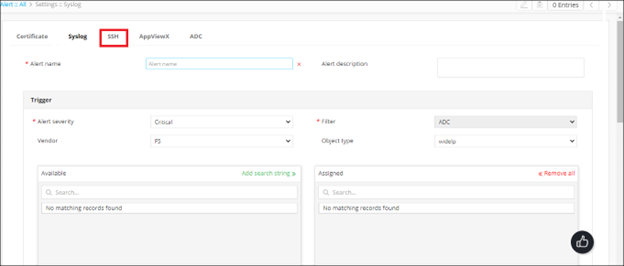
To configure SSH alerts, click SSH.
The Settings :: SSH page is displayed.
-
Enter the following details:
Field Description *Alert name Enter the name you want to give this alert. *Alert severity From the drop-down menu, select a severity for the alert from one of the following options: - Critical
- Fatal
- Major
- Minor
- Notification
*Event type From the drop-down menu, select the event type that will trigger the alert: - SSH key expiry alert
- Compliance alert
- SSH key push failure alert
- SSH discovery failure alert
- SSH key deletion alert
- SSH host modify/delete alert
*Expires in (days) Note: This field is applicable only for the SSHkey expiry alert.From the drop-down menu, select the number of days until the SSH key expires. The AppViewX system will trigger an alert message when this value is reached.
*SSH keygroup Note: This field is applicable only for the Compliance alerts, SSHkey push failure alert,and SSH key deletion alertFrom the drop-down menu, select the key group to be used as the basis for the alert.
*Key alert criterion Note: This field is applicable only for the SSH key push failure alert and the SSH key deletion alert.Select the keys you want to include in the alert, from the following options:
- Logged in user keys
- All user keys
*SSH host group Note: This field is applicable only for the SSH host modify/delete alert only.Enter the host group you want to use as the basis for the alert.
Email configuration To send the syslog alert as an email, select this check box.
Email address To send the syslog alert as an email, enter the email address to which this specific syslog alert will be sent. Note: Separate multiple email addresses with a comma.Subject To send the syslog alert as an email, enter a subject line. SNMP configuration To use the Simple Network Management Protocol for sending the alert, select this check box. *Destination IP Enter the destination IP address for the alert. *Version From the drop-down menu, from the following options, select the SNMP version to be used: - V1
- V2
*Port Enter the port number to be used for the alert. *Community string Enter the community string for the alert. The community string is similar to a user ID or password that allows users access to the requested information on the device.
All * marked fields are mandatory. -
To save the SSH alerts configuration details, click Add.
The saved details are displayed in the table shown at the bottom of the screen.