Managing User Inactivity
-
To access the navigation pane, in the top-left corner of the screen, hover the
mouse pointer over the
 icon.
icon.
-
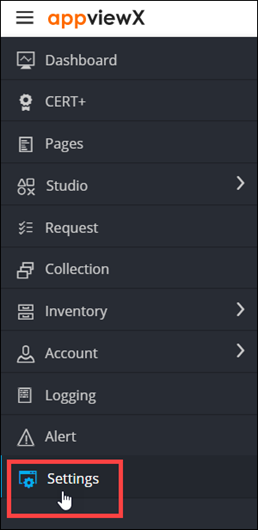
From the menu displayed, click Settings.
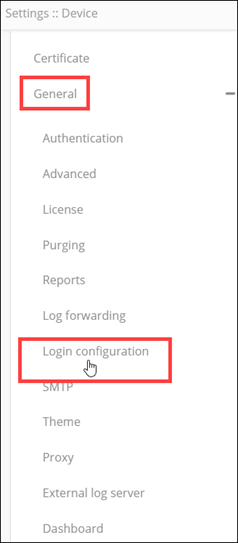
- On the Settings page, from the navigation pane on the left, click General.
-
Under General settings, click Login
configuration.
The Settings :: Login configuration page is displayed.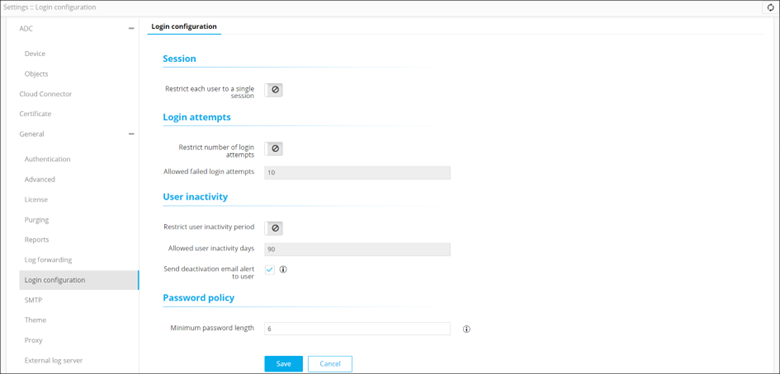
- In the User inactivity section, turn on the Restrict user inactivity period toggle.
- To set the number of days for which a user can remain inactive, in the Allowed user inactivity days text field, enter the required value (between 0 and 99).
-
To send the user an email when they are deactivated, select the Send
deactivation email alert to user check box.
An email alert is sent to the user for three consecutive days before deactivation.
- Click Save.