Restricting the Number of User Sessions
-
To access the navigation pane, in the top-left corner of the screen, hover the
mouse pointer over the
 icon.
icon.
-
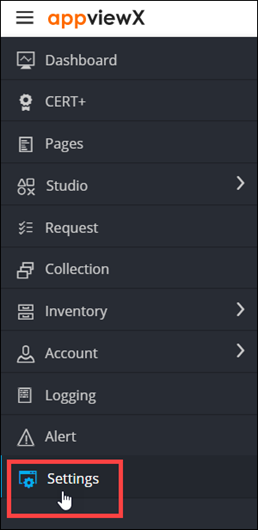
From the menu displayed, click Settings.
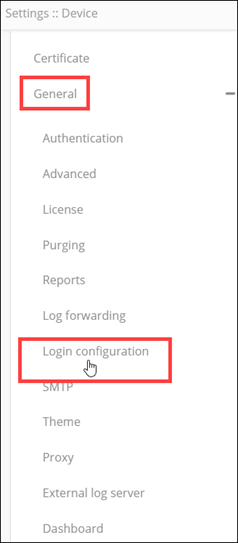
- On the Settings page, from the navigation pane on the left, click General.
-
Under General settings, click Login
configuration.
The Settings :: Login configuration page is displayed.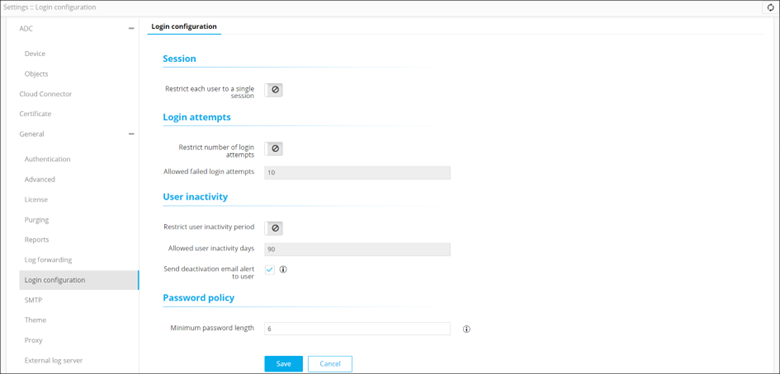
- In the Session section, turn on the Restrict each user to a single session toggle.
- Click Save.
-
In the Confirmation pop-up, click OK.
The Login setting is modified and will be applied from next login for internal users.