Restricting the Number of Login Attempts
-
To access the navigation pane, in the top-left corner of the screen, hover the
mouse pointer over the
 icon.
icon.
-
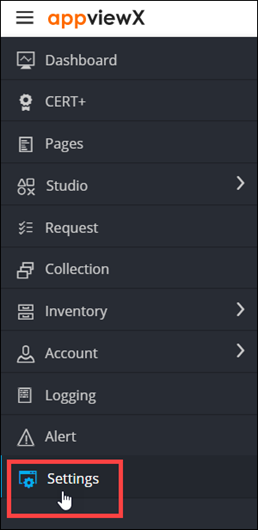
From the menu displayed, click Settings.
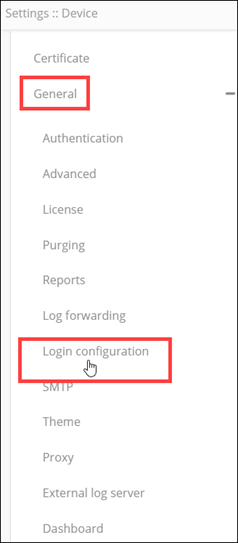
- On the Settings page, from the navigation pane on the left, click General.
-
Under General settings, click Login
configuration.
The Settings :: Login configuration page is displayed.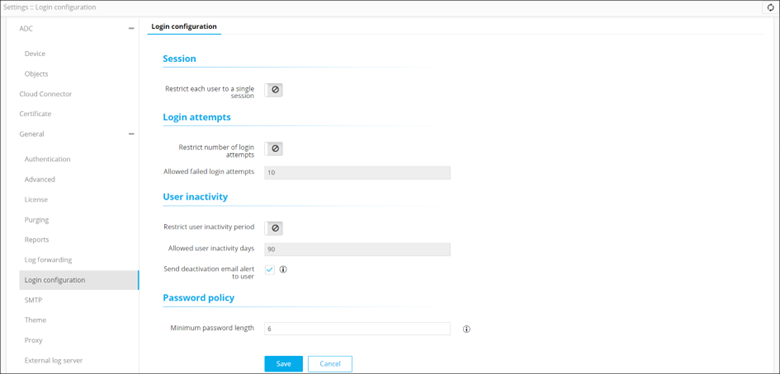
-
In the Login attempts section, enter the following field information:
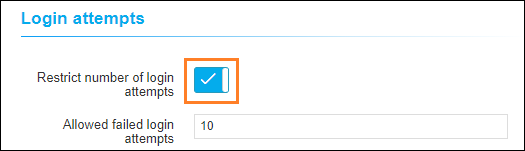
Field Description Restrict number of login attempts Turn on this toggle to restrict the number of login attempts by a user. Allowed failed login attempts Enter any number between 0 and 99 to set the number of login attempts permitted. Note: By default, this value is set to 10. If the user enters incorrect details more than 10 times, he/she will get locked out. - Click Save.