Mapping Role to User Groups
-
To access the navigation pane, in the top-left corner of the screen, hover the
mouse pointer over the
 icon.
icon.
-
From the menu displayed, click Account >
Role.
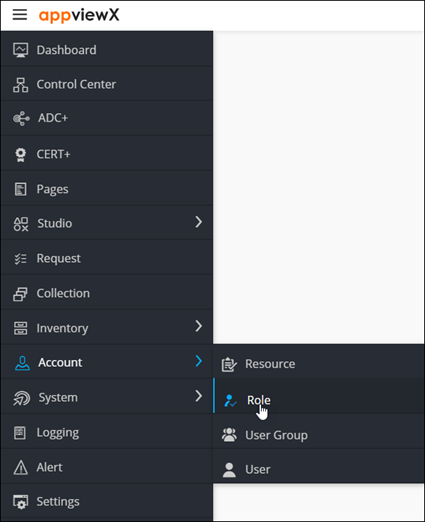
The Role page is displayed.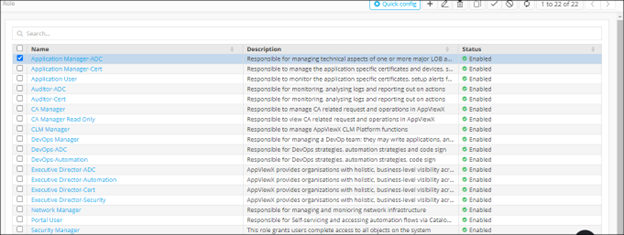
-
From the top-right corner of the screen, click Quick Config.
The RBAC Journey :: Authentication page is displayed.
-
Navigate to the Role stage as part of the wizard flow to add roles into
AppViewX.
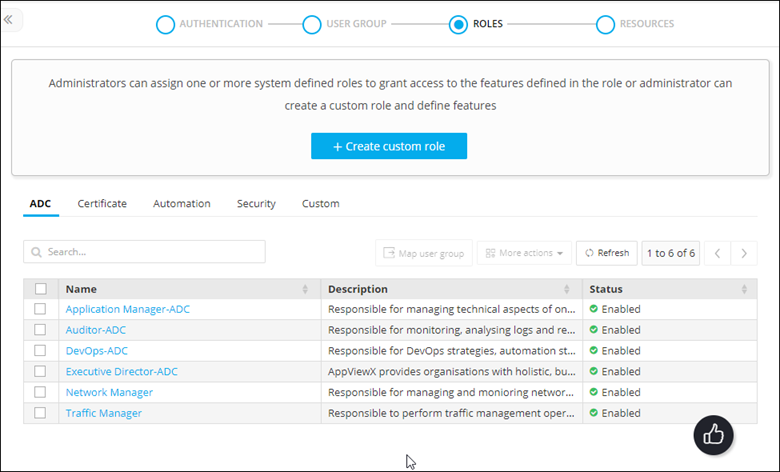
- For the role, you want to map to user groups, select the check box against that role.
-
Click
 .
.
- In the Mapping user group action pane, select the user groups the role will be mapped to.
-
Click Save.
The saved list of user groups will be displayed as a hyperlink in the rule inventory for each group.