Configuring Images in the Card Widget
-
In the Card window, in the Properties tab, under Options,
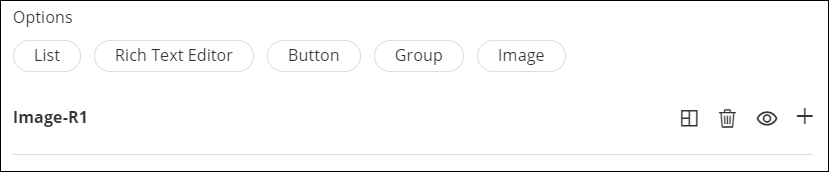
click Image.
The Image row is displayed.
-
To expand the row and add an image, click
 .
.
-
To upload an image in the card widget, click
 and upload the required image from your computer.
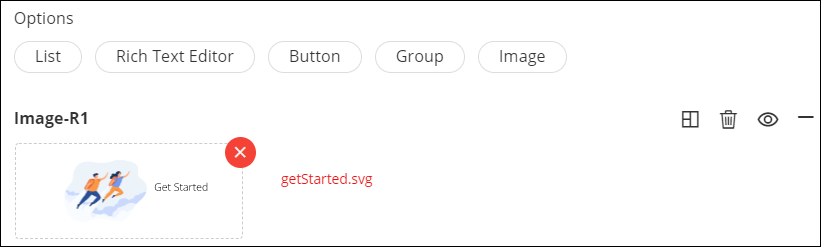 Note: Allowed image formats are: .svg, .jpeg, and .png
 -
To delete this image and select another, click
 .
.
-
To add another image, under Options, click Image.
A new Image row is displayed.
- Once you have added the required image(s), click Save.