Auto-Align Tasks
-
Click
 and select
Studio > Workflow.
and select
Studio > Workflow.
- On the Workflow screen, click the workflow you want to auto-align.
- Click the Auto-align button.
-
In the confirmation dialog box that appears, click Yes.
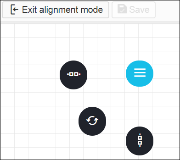
The workflow enters into the auto-alignment mode.
-
You can click one of the following:
 to place all
the tasks horizontally.
to place all
the tasks horizontally. to place all the
tasks vertically.
to place all the
tasks vertically. to align the
tasks to their original position.
to align the
tasks to their original position.
- Click Save to retain the alignment you have chosen.
- Click Exit alignment mode once you are done auto aligning your workflow.