Run a Workflow
-
Click
 and select
Workflow > Request.
My Workflows screen opens.
and select
Workflow > Request.
My Workflows screen opens. -
Click the Play button on the workflow, which you want to execute.
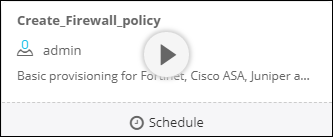
- On the screen that opens, the Request View tab is selected by default.
- At a minimum, fill in all fields that contain a red asterisk beside their names.
-
Click the Submit button.
A new request ID is created to view the request details. The Request View tab displays the tasks or phases of a request in a tree view after the workflow execution is complete.Note: After you submit the request form, the configuration changes are reviewed and implemented only after approval.
-
Click on each task to view its details.
All logs related to the selected task are displayed in the Logs pane at the bottom of the screen.
- Click the Workorder View tab to view the work order details such as work order ID, date, and time when the work order was created and updated, status, RFC ID, and RFC status.