Request Tasks
You can group your workflows accordingly and create a catalog. The list of grouped workflows in the catalog will be displayed in this section.
The Request section of the Studio module consists of the following tabs:
- Overview - Consists of the following three sections:
- Dashboard - Displays the total number of all, open, closed, and failed requests.
- Total requests - A pie chart containing the percentage of requests in four different statuses, namely, In progress, Completed, Failed, and Rollback.
- Total requests by a workflow - A bar chart displaying the number of requests
from the workflows selected through
 .
. - Change submission request - A line chart displaying the total number of change submission requests segregated based on daily, weekly, monthly, quarterly, and yearly.
-
My workflows - Consists of the following two sections:
- View/Run - Displays all enabled workflows assigned to a specific user role. On
this screen, you can perform the following tasks:
- Search for a workflow using the Search field. You can click
 to search for a workflow in the categories of your choice. Also, you can arrange the
workflows in Ascending, Descending, or Recently created order
using the Sort by option beside the search field.
to search for a workflow in the categories of your choice. Also, you can arrange the
workflows in Ascending, Descending, or Recently created order
using the Sort by option beside the search field. -
Click
 to define the time, duration, and frequency of a
workflow.
to define the time, duration, and frequency of a
workflow. -
Click
 to trigger a workflow immediately.
- Search for a workflow using the Search field. You can click
- Scheduled jobs - Displays all workflows that have been scheduled. A unique Job ID is created every time a scheduled workflow is triggered. From the Job ID column, you can click on the job for which you want to view the details.
- View/Run - Displays all enabled workflows assigned to a specific user role. On
this screen, you can perform the following tasks:
- My requests - Displays the total number of All, Open, Closed, and Failed requests, clicking upon these tabs displays the corresponding workflow details in a table.
- From the Request ID column, you can click on the request for which you want to view
the details. On the tabs in this screen, you can perform the following tasks:Note: For the workflow(s) containing grid component(s) and script(s) to generate data, you can click
 to save the data to PC
in XLS or CSV file format.
to save the data to PC
in XLS or CSV file format.- Search for a request using the Search field and clicking
to select the options you want to use to sort the requests.
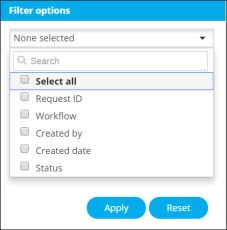
- Search for a request using the Search field and clicking
- Click the Request ID to display the tasks or phases of a request in a tree-view. You can click a task to view its details. Wherever applicable, all logs related to the selected task are displayed in the Logs pane at the bottom of the screen.
- Right-click the Request ID and select one of the following options from the pop up
that appears:
- Rollback - Triggers an alternative rollback workflow that you have added or imported for the workflow.
- View details - Displays all the tooltips configured in the Global
variables.

- Click View in the Activity log column to display the request in a
stage-view. In the Summary tab, click
 to view the details of
a task. Click the Details tab to view log messages and other particulars of a request.
to view the details of
a task. Click the Details tab to view log messages and other particulars of a request. - Audit logs - Displays a list of all the events that took place in the Workflow module. Using the Search field, you can search for the logs on a particular workflow.