Configuring Columns in the Advanced Grid
-
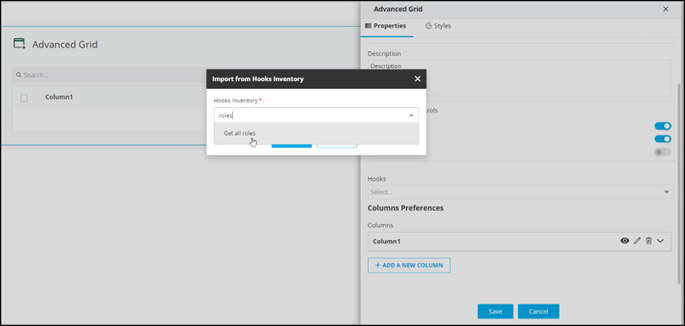
In the Advanced Grid window, under
Properties, assign a hook by selecting an option from
the dropdown. For example, Import the Get all
roles hook.
Note: For more information on Adding Hooks to Form Fields, click here. -
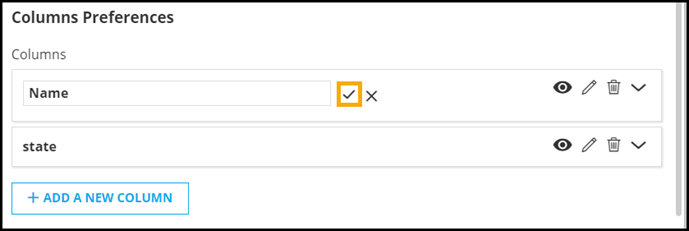
Under Columns Preferences, to change the name of the
first column, click
 .
.
-
Type the name of the column as required and click
 .
.
-
To configure the Column Type, click
 .
The following options are available:
.
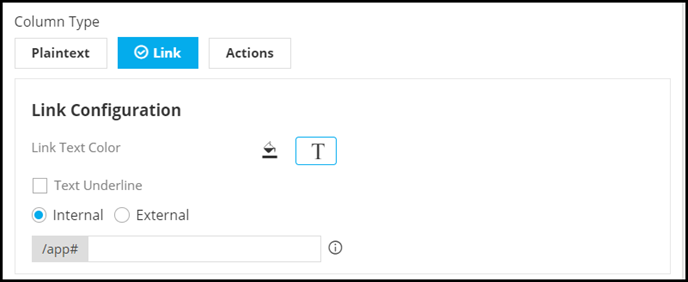
The following options are available:- Plaintext: Select this option to display the column items as plain text.
- Link: Select this option to add links to each column item.
- Actions: Select this option to add actions such as Download or Delete to the columns.
-
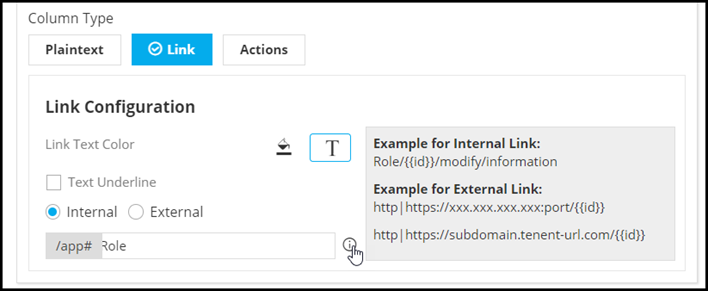
To configure links for the column items, under Column
Type, click Link.
The Link Configuration option is displayed.
-
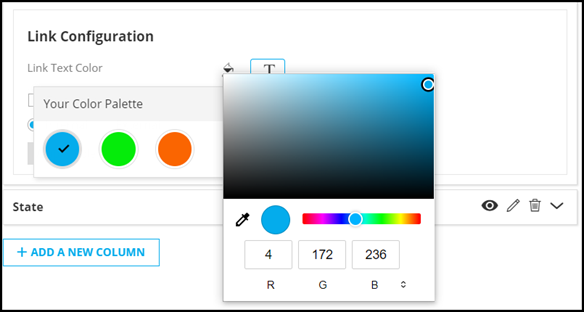
Select the color for the Link Text.
- Select the Text Underline checkbox to underline the link text.
-
Select the type of link to be assigned to the column fields. For example,
Internal.
-
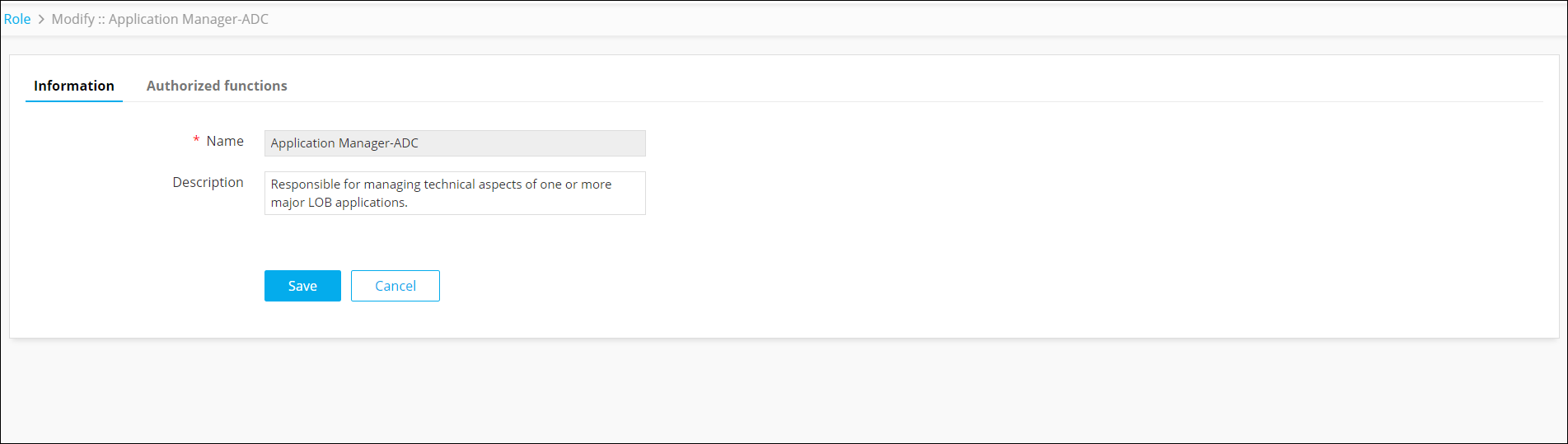
Clicking on any role under the Name column, will
redirect to the linked page.
-
To configure an action for a column, under Column Type,
click Actions.
The Action Configuration option is displayed.
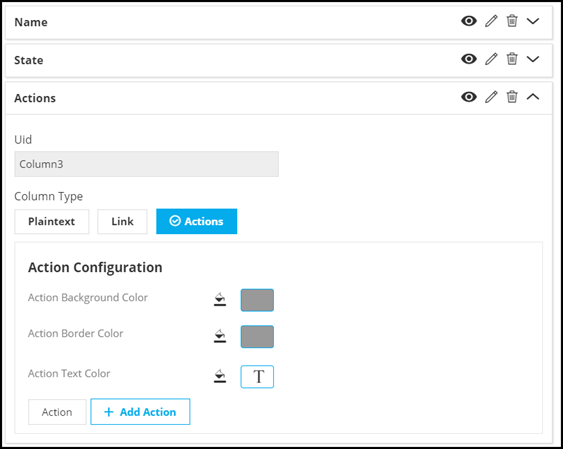
- Select the Action Background Color.
- Select the Action Border Color.
- Select the Action Text Color.
-
To add an action for the column field, hover your mouse over
Action and click
 .
More fields to add the action are displayed as shown.
.
More fields to add the action are displayed as shown.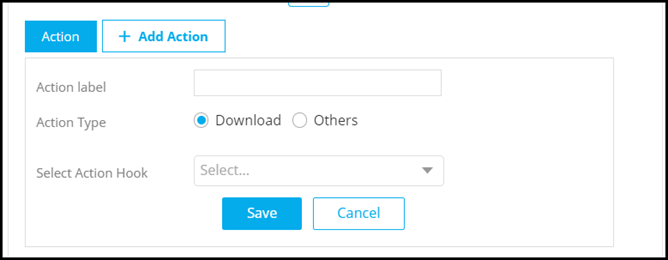
- Enter the Action label. For example: Download.
- Select the Action Type as Download or Others. For example, select Download to download the list of roles to your machine as a .csv file.
-
Select the hook to be assigned to the action. For example: Role
Download.
Note: For more information on Adding Hooks to Form Fields, click here.
-
Click Save.
The configured action is added to the grid.Note: You can also add actions to the grid by turning on the Actions toggle under Grid Universal Controls.
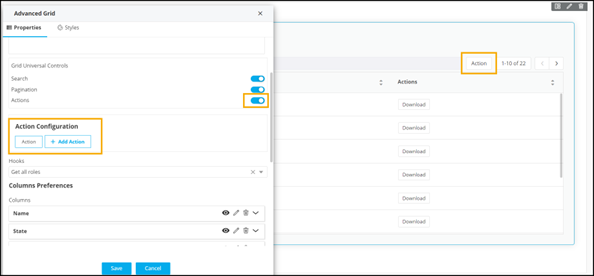
- To add more actions to the grid, under Action Configuration, click Add Action.
-
For options on configuring this action, hover your mouse over the action and
click .
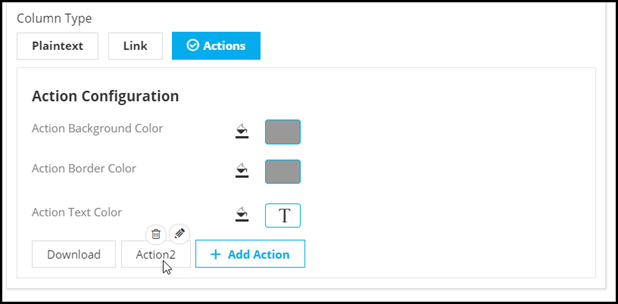
-
To delete this action, hover your mouse over the action and click
 .
.