Amazon and Amazon Private CA
Prerequisites
- An Amazon account for a user having necessary access for enrolling the certificates and other CLM operations.
- AppViewX server should either have internet access or have a proxy configured in AppViewX general settings. Refer to the section Managing Proxy Settings in the Platform guides.
- Policy JSON for AWS Ec2 Instance Certificate Management.
- Prerequisite for Amazon CA:
 {
 "Version": "2012-10-17",
 "Statement": [
 {
 "Sid": "VisualEditor0",
 "Effect": "Allow",
 "Action": [
 "ssm:SendCommand",
 "ssm:DescribeDocument",
 "ec2:DescribeInstances",
 "ec2:DescribeRegions",
 "s3:ListBucket",
 "ssm:CreateDocument",
 "ssm:GetCommandInvocation",
 "s3:GetObject",
 "s3:ListAllMyBuckets",
 "ssm:DescribeInstanceInformation",
 "ssm:GetDocument",
 "s3:DeleteObject",
 "s3:GetBucketLocation"
 ],
 "Resource": "*"
 }
 ]
 }
 Policy JSON for Certificate Management in AWS Classic and Application LoadBalancers:
 {
 "Version": "2012-10-17",
 "Statement": [
 {
 "Sid": "VisualEditor0",
 "Effect": "Allow",
 "Action": [
 "iam:GetServerCertificate",
 "elasticloadbalancing:DescribeLoadBalancers",
 "elasticloadbalancing:ModifyListener",
 "elasticloadbalancing:DescribeListeners",
 "acm:GetCertificate",
 "ec2:DescribeRegions",
 "elasticloadbalancing:DescribeTargetHealth",
 "acm:ImportCertificate",
 "elasticloadbalancing:SetLoadBalancerListenerSSLCertificate",
 "iam:UploadServerCertificate"
 ],
 "Resource": "*"
 }
 ]
 }
 Policy JSON for Certificate Management in AWS Cloudfront:
 {
 "Version": "2012-10-17",
 "Statement": [
 {
 "Sid": "VisualEditor0",
 "Effect": "Allow",
 "Action": [
 "ec2:DescribeRegions",
 "cloudfront:ListDistributions",
 "cloudfront:UpdateDistribution",
 "cloudfront:GetDistributionConfig"
 ],
 "Resource": "*"
 }
 ]
 }
 Policy JSON for IAM Certificate Management:
 {
 "Version": "2012-10-17",
 "Statement": [
 {
 "Sid": "VisualEditor0",
 "Effect": "Allow",
 "Action": [
 "iam:GetServerCertificate",
 "iam:UpdateServerCertificate",
 "iam:ListServerCertificates",
 "ec2:DescribeRegions",
 "iam:UploadServerCertificate"
 ],
 "Resource": "*"
 }
 ]
 }
 Policy JSON for ACM Certificate Management:
 {
 "Version": "2012-10-17",
 "Statement": [
 {
 "Sid": "VisualEditor0",
 "Effect": "Allow",
 "Action": [
 "acm:DescribeCertificate",
 "acm:RequestCertificate",
 "acm:GetCertificate",
 "ec2:DescribeRegions",
 "acm:ListCertificates",
 "acm:ImportCertificate"
 ],
 "Resource": "*"
 }
 ]
 }
Prerequisite for Amazon Private CA.
Policies and Permissions required for AWS IAM User:
{
 "Version": "2012-10-17",
 "Statement": [
 {
 "Sid": "VisualEditor0",
 "Effect": "Allow",
 "Action": [
 "s3:PutObject",
 "s3:GetObjectAcl",
 "s3:GetObject",
 "s3:PutObjectAcl"
 ],
 "Resource": [
 "arn:aws:s3:::<bucketname>",
 "arn:aws:s3:::<bucketname>/*"
 ]
 },
 {
 "Sid": "VisualEditor1",
 "Effect": "Allow",
 "Action": [
 "acm-pca:GetCertificate",
 "ec2:DescribeRegions",
 "acm-pca:GetCertificateAuthorityCertificate",
 "acm-pca:RevokeCertificate",
 "acm:RenewCertificate",
 "acm-pca:ListCertificateAuthorities",
 "acm-pca:DescribeCertificateAuthorityAuditReport",
 "acm-pca:CreateCertificateAuthorityAuditReport",
 "s3:ListAllMyBuckets",
 "acm:DescribeCertificate",
 "acm-pca:IssueCertificate",
 "acm:RequestCertificate",
 "acm:GetCertificate",
 "acm:ListCertificates",
 "acm-pca:DescribeCertificateAuthority"
 ],
 "Resource": "*"
 }
 ]
AWS Simple Storage Service (S3) Bucket Policy for parsing Audit log:
{
 "Version": "2012-10-17",
 "Statement": [
 {
 "Effect": "Allow",
 "Principal": {
 "Service": "acm-pca.amazonaws.com"
 },
 "Action": [
 "s3:PutObject",
 "s3:PutObjectAcl",
 "s3:GetBucketAcl",
 "s3:GetBucketLocation"
 ],
 "Resource": [
 "arn:aws:s3:::bucket_name/*",
 "arn:aws:s3:::bucket_name"
 ]
 }
 ]
}
Configuring Amazon CA
-
Go to
 (Menu) > SIGN+ > ADMINISTRATION > Certificate
Authority.
(Menu) > SIGN+ > ADMINISTRATION > Certificate
Authority.
-
From the displayed CA, Select Amazon.
The Amazon home page is displayed.
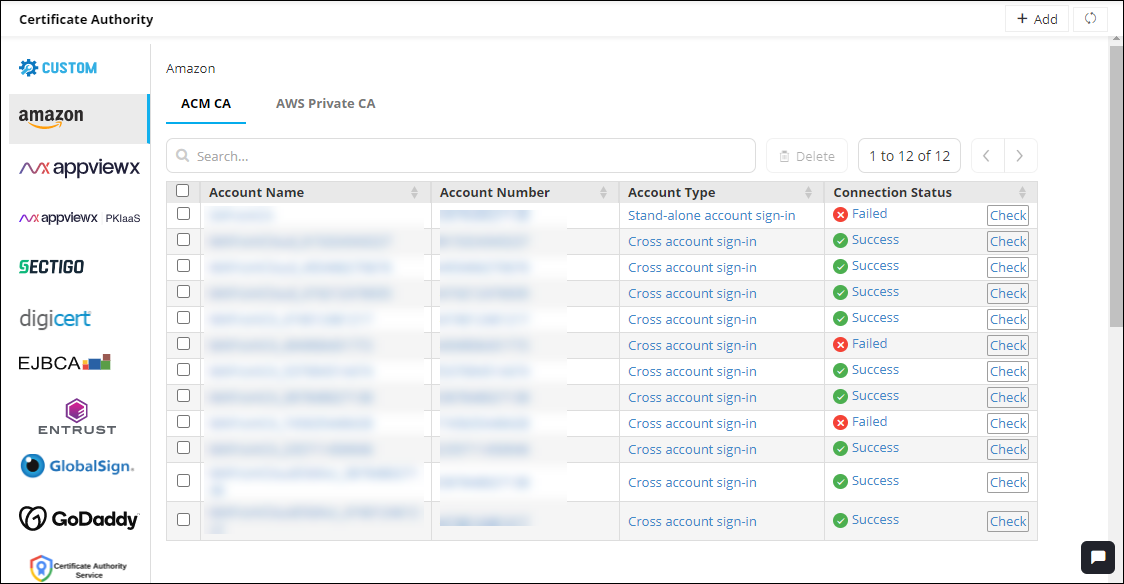
- To configure Amazon CA, click ACM CA from the home page.
-
Click the Configure Now button or +Add icon from the middle or
top-right of the page respectively.
Note: The Configure Now option is displayed if you are configuring a CA for the first time.The Amazon configuration page is displayed.
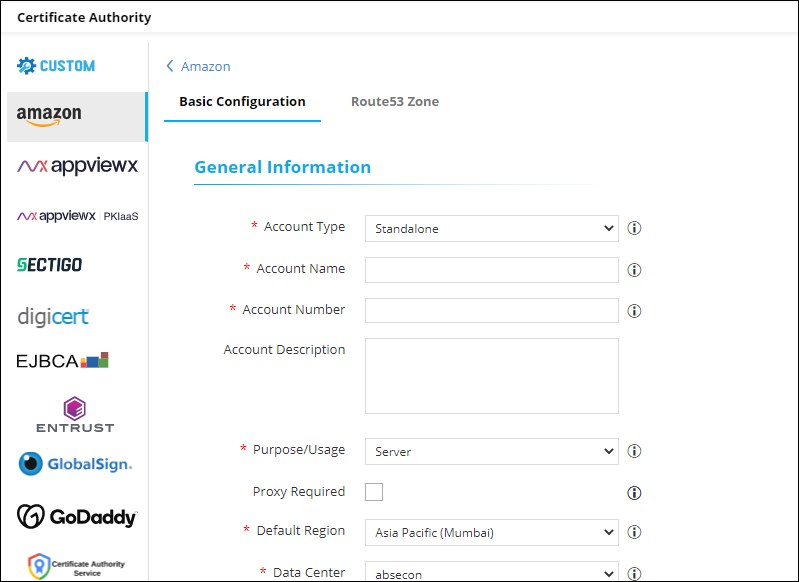
-
Enter/Select the following details in the General Information section:
Table 1. General Information - Field Description Table Fields Description *Account Type From the dropdown list, select one of the following account types: - Standalone (Traditional access key- and secret key-based communication)
- Cross or Federated (Authentication using assume role)
*Account Name Unique name for the certificate authority (CA) account represented during certificate enrollment and policy creation *Account Number Valid AWS account number
Account Description Additional information related to the CA account being configured *Purpose/Usage Certificate Type for which CLM actions will be enabled. The available options are,
- Server
- Client.
Proxy Required Enable this field if the CA communication needs to happen via Proxy. The proxy details configured in general settings will be used for communication. *Default Region Default region for API communication *Data Center (AppViewX's CA agent) Select the data center through which the CA communication needs to happen. *: Mandatory fields -
Enter/Select the following Credentials-related information:
Table 2. Credentials - Field Description Table Fields Description Credential type* From the dropdown list, from the following options, select the credential type:
- Manual Entry: Manually enter the access and secret key for the customer’s AWS account)
Access key* Enter the access key for the customer’s AWS account.
Note: This field is displayed only when Credential type is set to Manual Entry.Secret key* Enter the secret key for the customer’s AWS account.
Note: This field is displayed only when Credential type is set to Manual Entry.*: Mandatory fields -
Enter/Select the following details in the Discover resources section:
Table 3. Discover Resources - Field Description Table Fields Description Role ARN for Resource Discovery* Note: This field is displayed only when Account Type is Cross or Federated.To let the master account assume role for the child account (get temporary privileges to discover resources from the child account), configure the role ARN for resource discovery:- Click
 .
. - Enter the following details:
Fields Description Role Session name Role Session name is an identifier for the assumed role session.
Use the Role Session name to uniquely identify a session when the same rule is assumed by different principals or for different reasons.Duration Seconds Enter the duration, in seconds, for which the credentials should remain valid.
Acceptable durations for IAM user sessions:
-
Minimum: 900 seconds (15 minutes)
-
Maximum: 129,600 seconds (36 hours)
External Id External Id is a unique identifier that might be required when you assume a role in another account. Source Identity The source identity is specified by the principal that is calling the AssumeRole operation. Session Tags Session Tags are key-value pairs that you pass when you assume an IAM role or federate a user in AWS STS. To create a session tag:
-
In the Enter Key field, enter a key for the key-value pair.
-
In the Enter Value field, enter a value for the key-value pair.
-
Click Add.
The added key-value pair is shown in the table below the fields.
-
Service Region* To select a service region: - To fetch the service regions for the account information provided, click
Fetch Region.
The retrieved service regions are populated in the Select the Region(s) dropdown list.
- From the Select the Region(s) dropdown list, select the required service region.
Discover Certificate To enable instant certificate discovery at the time of device addition, select this checkbox. Cert Sync* Select from one of the following options: - Managed: AppViewX will connect with the customer’s AWS account and discover certificates. These certificates will be added to the inventory. Users with the relevant permissions can then perform the required certificate-related actions.
- Monitored: AppViewX will connect with the customer’s AWS account and discover certificates. These certificates will be added to the inventory where the users will be allowed to only view the certificates.
- Ignored: AppViewX will connect with the customer’s AWS account but certificate discovery will be disabled.
Auto Sync To enable/disable automatic schedule-based synchronization: - For Auto Sync, select the Yes checkbox.
- For Schedule based discovery, use the two dropdown lists to
select a duration. For example, to schedule the auto sync after every 2
days, from the first dropdown list, select 2 and from the second
dropdown list, select Days.
By default, the auto sync is set to 1 Hours.
Note: The Schedule based discovery dropdown lists are displayed only when Auto Sync is enabled.
Route53 Zone Auto Approval To support DNS validation as an automatic process, enable this toggle. Important: If Route53 has been configured for any of the older Amazon Public CAs, ensure that, after migration, the zones are manually updated.*: Mandatory fields - Click
- Click Save.
Configuring Amazon Private CA
-
Go to
(Menu) > SIGN+ > ADMINISTRATION > Certificate
Authority.
-
From the displayed CA, Select Amazon.
The Amazon home page is displayed.
-
To configure the Amazon Private CA, click AWS Private CA.
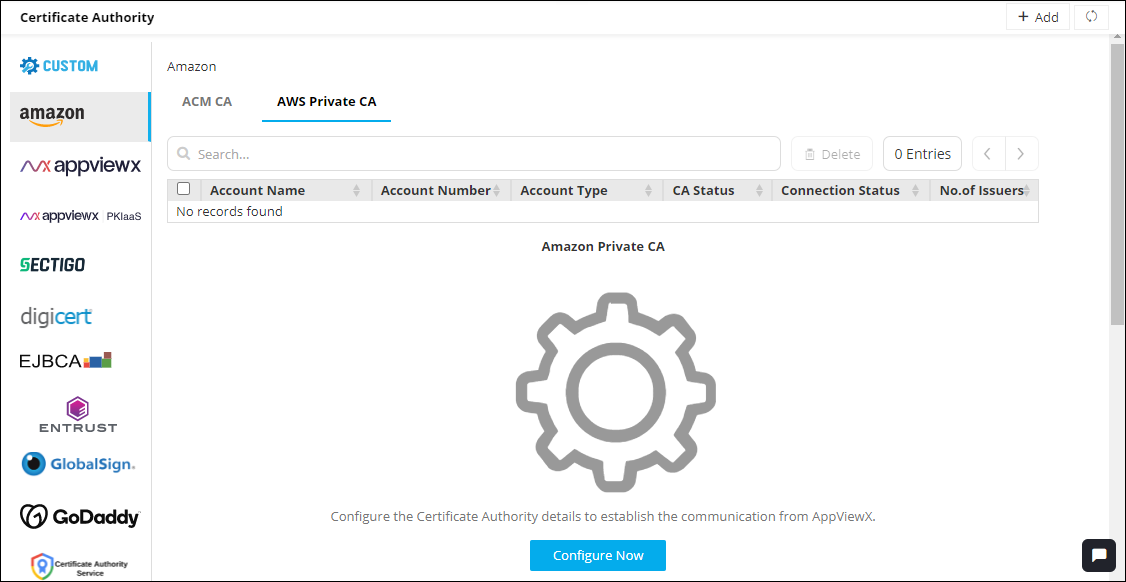
The Amazon home page is updated to display the inventory grid as shown in the image. In the inventory grid for the Amazon Private CA, master and child account details are logged as separate entries, instead of having just one master entry.
Fields in the inventory grid are explained in the table below:Table 4. AWS Private CA - Screen Description Table Fields Description Search Use the Search field to search for accounts, by entering the value of one of the details listed in the inventory grid. 
To delete one or more accounts: - From the inventory grid, select the checkbox corresponding to the account(s) you want to delete.
- Click .Tip: To delete all accounts listed in the inventory grid, select the checkbox in the grid header.

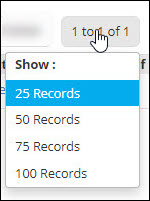
To set the number of records that should be displayed on one page: - Click .
- From the Show menu displayed, select the required value.

If the inventory grid spans more than one page, use this control to navigate the pages, one page at a time. Account Name This is the unique name for the Certificate Authority (CA) account entered at the time of account creation. Account Number AWS account number Account Type Multi account: Indicates that the account is a cross account Single account: Indicates that the account is a standalone account
CA Status For an account, after all configuration details for Amazon Private CA are entered, you will be required to click the Fetch issuer and save button to sync and discover the issuers and the respective certificates for that account. The CA Status field shows the current status of this sync and discovery process.
Possible values for this field are:
-
Completed
-
In progress
Note: An account entry in the grid will be disabled till the CA Status is In progress.Connection Status To validate if connection has been established with the CA, click Check. If a connection has been established, this field is updated to display Success or Failure. No. of Issuers This field displays the number of issuers associated with the account. Note: For a master account, this field will show the number of issuers associated with only the master account. The value does not include the number of issuers associated with the child account.*: Mandatory fields -
Click the Configure Now button or +Add icon from the middle or
top-right of the page respectively.
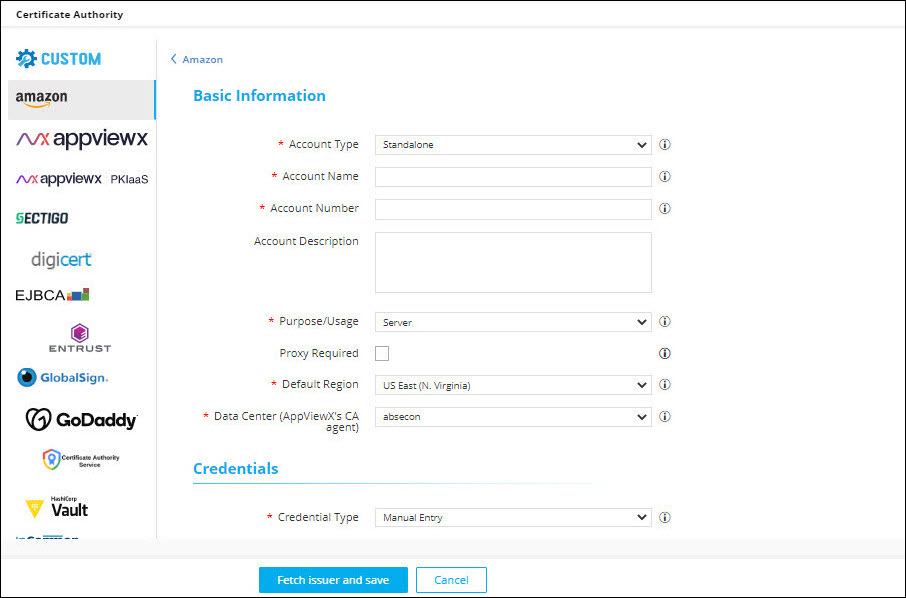
The Amazon page is updated to display fields for entering the CA configuration-related information.
-
On this screen, enter the following Basic Information:
Table 5. Basic Information - Field Description Table Fields Description Account type* From the dropdown list, from the following options, select the customer’s AWS account type: - Standalone: The user account and the resources are available in the same account.
- Cross or Federated: Resources are available across multiple accounts and users are given role-based access.
Account name* Enter a unique name for the Certificate Authority (CA) account that will be used during certificate enrollment and policy creation. Account number* Enter the customer’s AWS account number. Account Description Enter any additional details related to the account, if required. Purpose/Usage* From the dropdown list, select the purpose of the certificate that can be requested using this account. Proxy Required To allow all communication to the Certificate Authority (CA) to use the proxy details (provided in general settings; refer the CLMaaS Platform User Guide for more details), select this checkbox. Default Region* From the dropdown list, select the default region for API communication. Data Center (AppViewX’s CA Agent) From the dropdown list, select the data center that will be used to establish communication with the Certificate Authority (CA) *: Mandatory fields -
Enter the following Credentials-related information:
Table 6. Credentials - Field Description Table Fields Description Credential type* From the dropdown list, from the following options, select the credential type: - Manual Entry: Manually enter the access and secret key for the customer’s AWS account)
Access key* Enter the access key ID for the customer’s AWS account. The access key and the secret access key (entered in the following field) are used together to authenticate requests.
Note: This field is displayed only when Credential type is set to Manual Entry.Secret key* Enter the secret access key ID for the customer’s AWS account. The access key (entered in the previous field) and the secret access key are used together to authenticate requests.
Note: This field is displayed only when Credential type is set to Manual Entry.Credential name* If the customer’s AWS credentials are stored in CyberArk, from the dropdown list, select the CyberArk credential name. Note: This field is displayed only when Credential type is set to Credential List - CyberArk.*: Mandatory fields -
In the Discover resources section, enter the following details:
Table 7. Discover Resources - Field Description Table Fields Description Role ARN for Resource Discovery* Note: This field is displayed only when Account Type is Cross or Federated.To let the master account assume role for the child account (get temporary privileges to discover resources from the child account), configure the role ARN for resource discovery:- Click .
- Enter the following details:
Fields Description Role Session name Role Session name is an identifier for the assumed role session.
Use the Role Session name to uniquely identify a session when the same rule is assumed by different principals or for different reasons.Duration Seconds Enter the duration, in seconds, for which the credentials should remain valid.
Acceptable durations for IAM user sessions:
-
Minimum: 900 seconds (15 minutes)
-
Maximum: 129,600 seconds (36 hours)
External Id External Id is a unique identifier that might be required when you assume a role in another account. Source Identity The source identity is specified by the principal that is calling the AssumeRole operation. Session Tags Session Tags are key-value pairs that you pass when you assume an IAM role or federate a user in AWS STS.
To create a session tag:
-
In the Enter Key field, enter a key for the key-value pair.
-
In the Enter Value field, enter a value for the key-value pair.
-
Click Add.
The added key-value pair is shown in the table below the fields.
-
Service Region* Service regions are regions that are supported by the selected service.
To select a service region:- To fetch the service regions for the account information provided, click Fetch Region.The retrieved service regions are populated in the Select the Region(s) dropdown list.
- From the Select the Region(s) dropdown list, select the required service region.
CA Operation Mode* From the following options, select one/both operation mode(s) for discovering all the certificates enrolled by the Private Certificate Authority:
-
ACM Private CA
-
AWS Certificate Manager (ACM)
S3 Bucket* Note: This field is displayed only when the ACM Private CA operation mode is selected.Enter the S3 bucket name.Role ARN for S3 Bucket Note: This field is displayed only when the ACM Private CA operation mode is selected for a Cross or Federated account.- Click .
The ARN Advanced Settings action pane is displayed.
- In the ARN Advanced Settings action pane, enter the following
details:
Fields Description Role Session name* Role Session name is an identifier for the assumed role session.
Use the Role Session name to uniquely identify a session when the same rule is assumed by different principals or for different reasons.Duration Seconds Enter the duration, in seconds, for which the credentials should remain valid.
Acceptable durations for IAM user sessions:
-
Minimum: 900 seconds (15 minutes)
-
Maximum: 129,600 seconds (36 hours)
External Id External Id is a unique identifier that might be required when you assume a role in another account. Source Identity The source identity is specified by the principal that is calling the AssumeRole operation. Session Tags Session Tags are key-value pairs that you pass when you assume an IAM role or federate a user in AWS STS.
To create a session tag:
-
In the Enter Key field, enter a key for the key-value pair.
-
In the Enter Value field, enter a value for the key-value pair.
-
Click Add.
The added key-value pair is shown in the table below the fields.
-
- Click Apply.
Discover Certificate To enable instant certificate discovery at the time of device addition, select this checkbox. CA Sync* Select from one of the following options:
-
Managed: AppViewX will connect with the customer’s AWS account and discover certificates. These certificates will be added to the inventory. Users with the relevant permissions can then perform the required certificate-related actions.
-
Monitored: AppViewX will connect with the customer’s AWS account and discover certificates. These certificates will be added to the inventory where the users will be allowed to only view the certificates.
-
Ignored: AppViewX will connect with the customer’s AWS account but certificate discovery will be disabled.
Auto Sync To enable/disable automatic synchronization, use the Auto Sync key.
If Auto Sync is enabled, to set the frequency of the schedule-based sync:
-
From the first dropdown list, select the interval between two schedule-based syncs.
-
From the second dropdown, select a unit for the interval (Hours/Days).
For example, to set the frequency of the schedule-based sync to every 2 hours, from the first dropdown list, select 2 and from the second dropdown list, select Hours.
*: Mandatory fields - Click
-
Click Fetch issuer and save.
- AppViewX will now discover all the Private CA Certificate Authorities across the selected region(s).
- The inventory grid on the Amazon CA home page will be populated with the properties and details retrieved from this discovery.
Validating Amazon
-
Go to
(Menu) > SIGN+ > ADMINISTRATION > Certificate
Authority.
-
From the displayed CA, Select Amazon.
The Amazon home page is displayed.
- On the Amazon home page, select Amazon or Amazon Private CA.
-
In the Status column of the grid with the listed accounts, click
Check to validate the CA setting that is created.
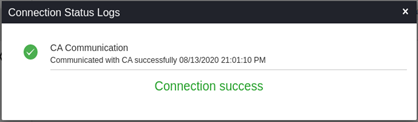 The CA communication will be validated and the connection status will be displayed as either Connection success or Failure.