Microsoft Standalone CA
Prerequisites
- AppViewX Windows Gateway installer should be installed in a windows machine, running and reachable from AppViewX vendor plugin through the Communication Modes described below.
| Communication mode | Category | Windows gateway machine | Microsoft CA |
|---|---|---|---|
| NATIVE API | User account type | Service account | Service account |
| User permission | NA | Read, Request certificates, Issue and Manage certificates permission at CA
level for the service account or the service account group or authenticated
users Enroll permission at Certificate template level for the service account or the service account group or authenticated users |
|
| Services | RPC service | RPC service certutil.exe command availability |
|
| Ports | NA | 135 as incoming port | |
| POWERSHELL | User account type | Service account | Service account |
| User permission | NA | Full control permission to C:\Windows\Temp Read, Request certificates, Issue and Manage certificates permission at CA level for the service account or the service account group or authenticated users |
|
| Services | RPC Service,WinRM Service,WinRM Configuration, Powershell remoting,certutil.exe command availability | RPC Service,WinRM Service,WinRM Configuration, Powershell remoting,certutil.exe command availability | |
| Ports | NA | 5985 | |
| WMI | User account type | Service account | Service account |
| User permission | NA | Full control permission to C:\Windows\Temp Read, Request certificates, Issue and Manage certificates permission at CA level for the service account or the service account group or authenticated users |
|
| Services | WMI service certutil.exe command availability |
WMI service certutil.exe command availability |
|
| Ports | NA | 135, 445 or 139 |
Configuring Microsoft Standalone CA
-
Go to
 (Menu) > SIGN+ > ADMINISTRATION > Certificate
Authority.
(Menu) > SIGN+ > ADMINISTRATION > Certificate
Authority.
-
From the displayed CA, select Microsoft.
The Microsoft home page is displayed.
- Select the Standalone tab.
-
In the Status column of the grid with the listed accounts, click and then click
+Add icon or Configure Now button.
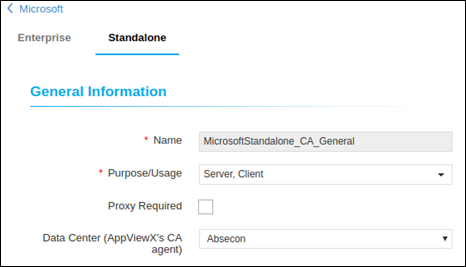
-
Update the following details in the General Information section as described
in the table.
Table 2. General Information - Field Description Table Fields Description Name A unique name to identify the CA setting. Note: No special characters other than ‘.’, ‘-’,’_’ are allowed. Names should not start with special characters.*Purpose/Usage Certificate Type for which CLM actions will be enabled. For example: Server, Client, and Code Signing. Proxy Required Enable this field if the CA communication needs to happen via Proxy. The proxy details configured in general settings will be used for communication. Data Center (AppViewX's CA agent) Select the data center through which the CA communication needs to happen. *: Mandatory fields -
Update the following details in the CA Configuration section as described in
the table:
Table 3. CA Configuration - Field Description Table Fields Description *Windows Gateway URL Enter the URL where the AppViewX agent is running. *Windows Gateway Type The mode of communication types from Windows Gateway machine to CA machine. Available types are NATIVE API, POWERSHELL, WMI. Client Authentication Certificate The client certificate used while installing Windows Gateway. Users can use the default client certificate (Client Certificate Gateway.pfx) or the custom certificate given by the Customer. *Credential Type Type of credential to be used. Either Manual Entry or Credential List. Username User name of the credentials. Password Password for the username. *: Mandatory fields -
Click Fetch CA Names to retrieve CAs accessible from Windows Gateway installed
machine.
Upon successful completion of Fetch CA Names, all reachable CAs listed in Select CA.
-
Click on one specific CA and proceed.
Table 4. Dynamic Fields for Select CA Section Fields Description Select CA All the reachable CAs are listed here. *CA Machine Hostname Host name of the CA Machine will be auto-filled. *CA Name Name of the CA chosen which will be auto-filled. CA Manager Approval Approves the pending enroll / Renew request submitted from AppViewX Certificate. *: Mandatory fields Using Native API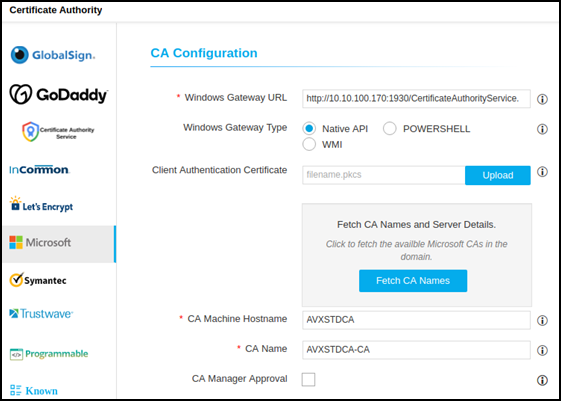 Using Powershell and WMI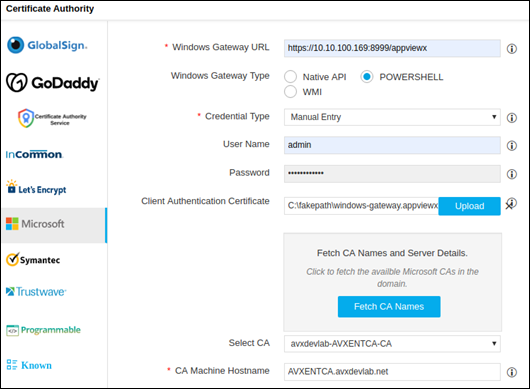
- Click Save.
Validating Microsoft Standalone
-
Go to
(Menu) > SIGN+ > ADMINISTRATION > Certificate
Authority.
-
From the displayed CA, select Microsoft.
The Microsoft home page is displayed.
- Select the Standalone tab.
-
In the Status column of the grid with the listed accounts, click Check to
validate the CA setting that has been created.
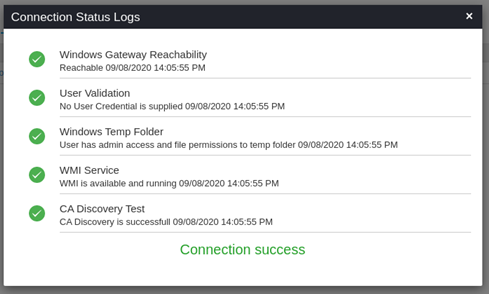
The CA communication will be validated and the Connection Status will be shown as either Success or Failure.Success scenario for Native APISuccess scenario for PowershellSuccess scenario for WMI.Success scenario for Native API
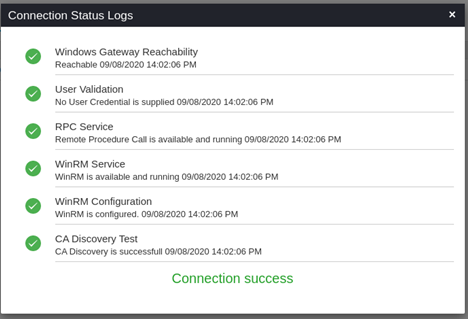 Success scenario for Powershell
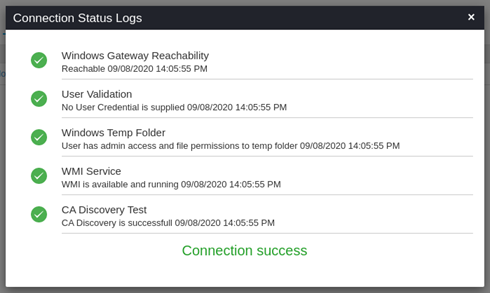 Success scenario for WMI