DigiCert MPKI
Prerequisites
- A Digicert MPKI Account with Administrator role Access.
- An API Key configured in Digicert MPKI with required permissions to make API Requests from AppViewX.
- The AppViewX server should either have internet access or have a proxy configured in AppViewX general settings.
Configuring DigiCert MPKI
-
Go to
 (Menu) > SIGN+ > ADMINISTRATION > Certificate
Authority.
(Menu) > SIGN+ > ADMINISTRATION > Certificate
Authority.
-
From the displayed CA, Select DigiCert.
The DigiCert home page is displayed.
- Click the DigiCert MPKI tab.
-
Click the Configure Now button or +Add icon from the middle or
top-right of the page respectively.
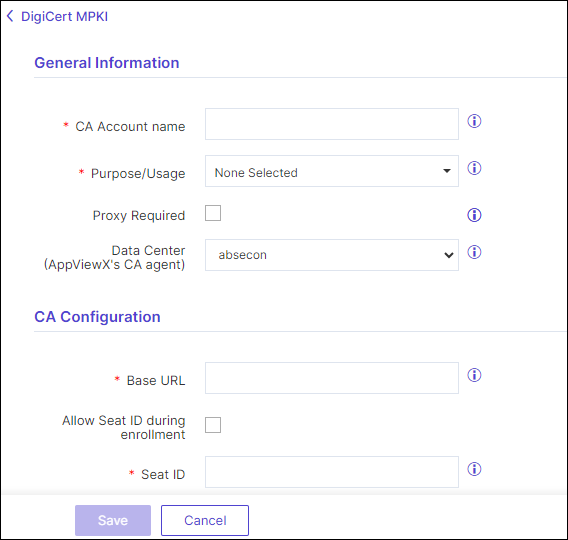
The DigiCert MPKI configuration page is displayed.
-
Update the following details in the General Information section as described
in the table.
Table 1. General Information - Field Description Table Fields Description *CA Account name A unique name to identify the CA setting. No special characters other than ‘.’, ‘-’,’_’ are allowed. Names should not start with special characters. *Purpose/Usage Certificate Type for which CLM actions will be enabled. Example: Server, Client
Proxy Required Enable this field if the CA communication needs to happen via Proxy. The proxy details configured in general settings will be used for communication. Data Center (AppViewX's CA agent) Select the data center through which the CA communication needs to happen. *: Mandatory fields -
Update the following details in the CA Configuration section as described in
the table. These fields are necessary for invoking the Digicert CA APIs for Certificate
Management.
Table 2. CA Configuration - Field Description Table Fields Description *Base URL This URL will contain just the hostname of the Digicert CA instance. For example, <https://www.digicert.com> *Seat ID Enter the unique seat id for discovering certificates. *API Key Enter the API key, which is generic across all CAs *: Mandatory fields Note: Auto approval checkbox is optional and features work only for one-step certificate requests configured in the DigiCert Central Account. -
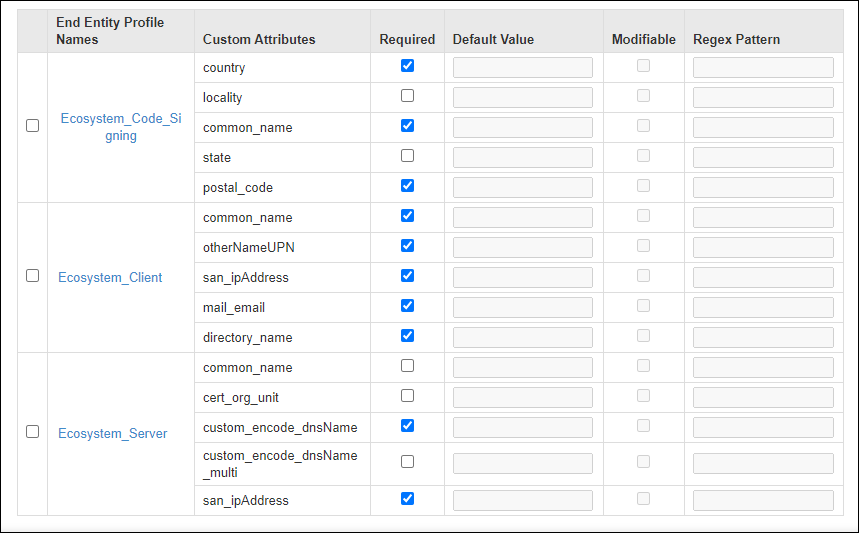
Select Fetch Divisions and Certificate Types.
The Division and Certificate types available in the Digicert CA account will be fetched and listed for the specific API key user in the table as shown below.
-
Click Save.
A pop-up message is displayed as <CA_name> Settings Added.
Validating DigiCert MPKI Connection
-
Go to
(Menu) > SIGN+ > ADMINISTRATION > Certificate
Authority.
-
From the displayed CA, Select DigiCert.
The DigiCert home page is displayed.
-
Click DigiCert MPKI from the left pane of the page.
The DigiCert MPKI home page is displayed.
-
In the Status column of the grid with the listed accounts, click Check to
validate the CA setting that is created.
The CA communication will be validated and the Connection Status will be shown as either Success or Failure.
