IDnomic CA
Prerequisites
- CA Base URL - is shared by IDonomic to the users by email/shared file location or refer attached API documentation.
- Partition name - is shared by IDonomic to the users by email/shared file location
- Client authentication certificate (.p12 or .pfx format) - is shared by IDonomic to the users by email/shared file location
- (Optional) SOAP signing authentication certificate (.p12 or .pfx format) - is shared by IDonomic to the users by email/shared file location
- (Optional) RA Base URL - is shared by IDonomic to the users by email/shared file location or refer attached API documentation.
- (Optional) RA client authentication certificate (.p12 or .pfx format) - is shared by IDonomic to the users by email/shared file location
- AppViewX server should either have internet access or have a proxy configured in AppViewX general settings. Refer to the section Managing Proxy Settings in the Platform guides.
Configuring IDnomic CA
-
Go to
 (Menu) > SIGN+ >
ADMINISTRATION > Certificate
Authority.
(Menu) > SIGN+ >
ADMINISTRATION > Certificate
Authority.
-
From the displayed CA, Select IDnomic.
The IDnomic home page is displayed.
-
Click the Configure Now or +Add icon
from the middle or top-right of the page respectively.
The IDnomic configuration page is displayed.
-
Update the following details in the General Information
section as described in the table.
Table 1. General Information - Field Description table Fields Description *CA Account name A unique name to identify the CA setting No special characters other than ‘.’, ‘-’,’_’ are allowed. Names should not start with special characters.
*Purpose/Usage Certificate Type for which CLM actions will be enabled. Example: Server, Client.
Proxy Required Enable this field if the CA communication needs to happen via Proxy. The proxy details configured in general settings will be used for communication. Data Center (AppViewX's CA agent) Select the data center through which the CA communication needs to happen. *: Mandatory fields -
Update the following details in the CA Configuration section
as described in the table below.
Figure 1. Default CA Configuration 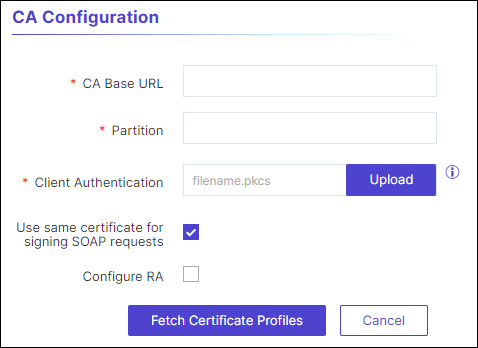
Figure 2. CA Configuration with RA 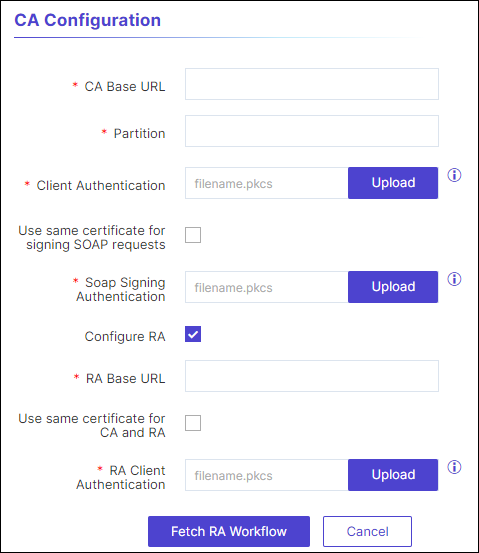
Table 2. CA Configuration - Field Description table Fields Description *CA Base URL Enter the base URL of the IDnomic CA API instance. For example: https://api-ca.idnomic.com
*Partition The name of the partition assigned to the organization’s application; it is the workspace dedicated to the organization. The partitioning system allows implementing multi-tenancy within ID CA and ID RA. Partitions are defined in a tree structure, each node being a partitioning in which resources (e.g. Configurations, Certificate, etc) can be attached. According to the customer's needs we can isolate or share common resources. *Client Authentication Upload the certificate for client authentication in the .p12 or .pfx format only. Use same certificates for signing SOAP requests If checked, allow user to use the same certificate uploaded in Client certificate field, if not checked, you can upload another certificate in the enabled field Soap Signing certificate.
*SOAP Signing Authentication Upload the certificate for soap signing authentication in the .p12 or .pfx format only. Configure RA The field is unchecked by default. If you want to allow a user or device to request a digital certificate from a specific website or application you can select the checkbox and update the fields below. A registration authority (RA) is an authority in a network that verifies user requests for a digital certificate and tells the certificate authority (CA) to issue it.
*RA Base URL Enter the base URL of the IDnomic RA API instance. For example: https://api-ra.idnomic.com
Use same certificate for CA and RA This field is checked by default. In that case, use the same client certificate uploaded in the “Client Certificate” section. If unchecked, you may upload a new certificate in the enabled field labeled as RA Client Authentication.
*RA Client Authentication Upload the certificate for RA client authentication in the .p12 or .pfx format only. *: Mandatory fields -
Click Fetch Certificate Profiles. (If RA is used the button
label changes to Fetch RA Workflow)
If only CAs are used in the configuration, then a list of certificate profiles are displayed and if RAs are configured then only the certificate RA workflows are displayed.
-
Click Save.
A confirmation message will appear “Validation Policy fetched and settings have been updated.” and the CA is created successfully. The connection status for the CA is displayed as New.
Validating IDnomic CA
-
Go to (Menu) > SIGN+
> ADMINISTRATION > Certificate Authority.
- From the displayed CA, Select IDnomic.
-
In the Status column of the grid with the listed accounts, click
Check to validate the CA setting that is created.
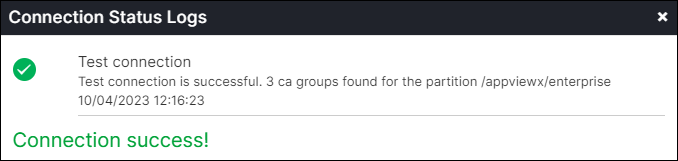
The CA communication will be validated and the Connection Status will be shown as either Success or Failure.
Figure 3. RA Validation 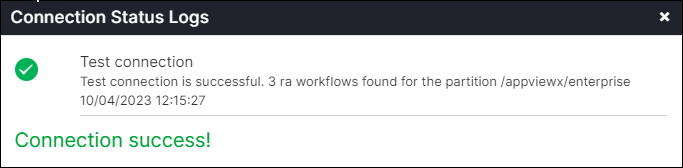
Figure 4. CA Validation