|
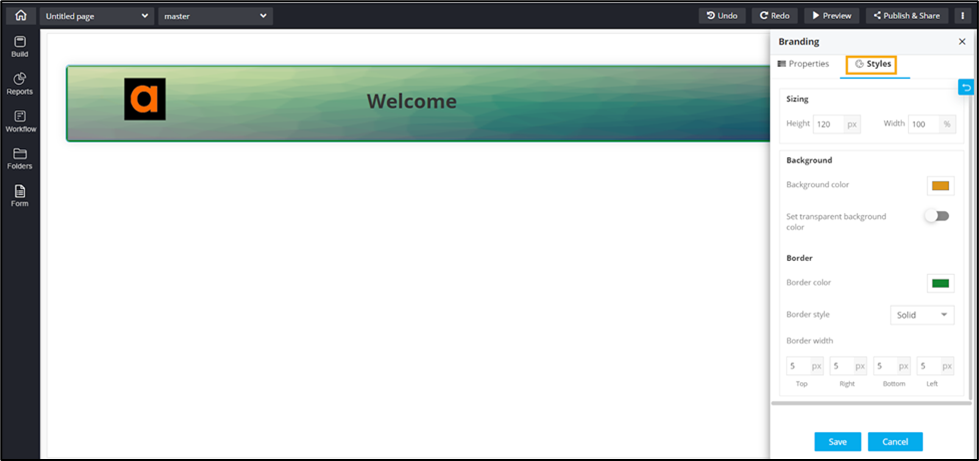
Sizing
|
Allows you to increase/decrease the height and width
of the widget. |
| Background |
The following options are available here:
- Background color: Allows
you to select a background color for the branding
widget.
- Set transparent background
color: To set the background color as
transparent, turn on the toggle.
|
|
Border
|
The following options are available here:
- Border color: Allows you
to select the border color.
- Border style: Allows you
to select the border style from the options
available in the dropdown.
- Border width: Allows you
to adjust the width of the border.
|
 .
.