Configuring Quick links - Properties
-
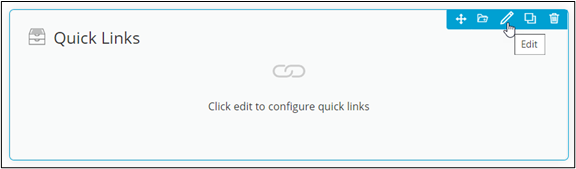
To configure the Quick links component, hover your mouse over the widget and
click
 .
. 
The Quicklinks Widget pop-up window opens with the Properties tab open by default.The following table describes the various fields under the Properties tab:Field Description Widget Header Provide a name for the Widget Header. For example, Quick Links. Select icon Select an icon for the Quick Links widget from the dropdown. Add Links There are three types of links that can be added: - Internal: Add an internal link from within AppViewX pages.
- Others: Add links to other pages within AppViewX or embed external cross origin enabled pages.
- Workflow: Add a workflow link which redirects to the workflow execution page.
-
In the Quicklinks Widget window, under
Properties, enter or select the required field
information.
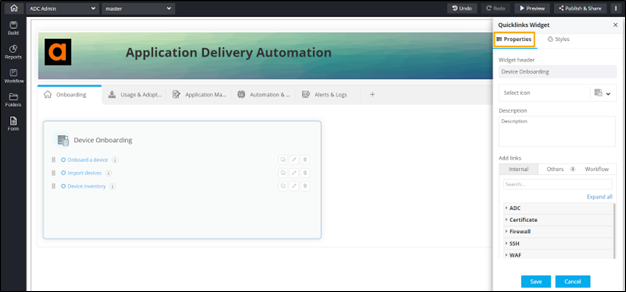
The following table describes the various fields under the Properties tab:Field Description Widget Header Provide a name for the Widget Header. For example, Quick Links. Select icon Select an icon for the Quick Links widget from the dropdown. Add Links There are three types of links that can be added: - Internal: Add an internal link from within AppViewX pages.
- Others: Add links to other pages within AppViewX or embed external cross origin enabled pages.
- Workflow: Add a workflow link which redirects to the workflow execution page.
- Click Save.