Configuring the Download field - Properties
-
To configure the Download widget, hover your mouse over
the widget and click
 .
The Download pop-up window opens.
.
The Download pop-up window opens. -
In the Download window, under
Properties, enter or select the required
fields.
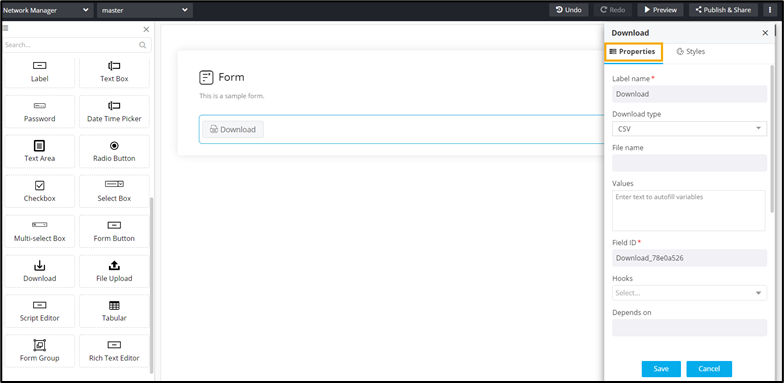
The following table describes the fields under the Properties tab:
Field Description Label name Enter a valid Label name for the form field. For example, Download CSV. Download Type Select the Download type from the available options:
- URL
- File
- CSV
File Name Enter the file name with which the file will be downloaded to your machine. Values Allows you to define field Values relevant to a form field.
- Values can be delimited by a comma.
- Characters not allowed: ‘&’ and ‘|’
Field ID Allows you to assign a unique Field ID to refer to the field name. - Allowed characters: ‘-‘ and ‘_’
- Character Length: Min (1), Max (50)
Hooks Allows you to assign an appropriate hook for this field. For example, a hook to fetch the current date. - Select a hook that is relevant to the form field.
- Hooks can be either Script or REST API.
- Hooks are used to fetch details against a specific form field from the device and/or database and map them to the respective field on the user interface.
Note: For more information on Assigning Hooks to Form Fields, click here.Depends on Allows you to define dependencies between form fields based on ‘Field ID’ and ‘Values’.
- Operators used: ‘&’ and ‘|’
- Max character: 550
- Format: [Field Id1: value1 & Field Id2: value1 & Field Id3: value3], [Field Id1: value1 | Field Id2: value1]
Validation Allows you to select or define a custom regex pattern against the specific form field.
- Select from the predefined regex patterns defined in the regex inventory.
- Validation ensures that you capture the right information while creating the request.
Parent ID Allows you to assign a Parent ID for fields in a table.
- Select the relevant tabular component (Field ID) against which the form field must be mapped to.
Note: This is used only when defining a tabular element in the form.Help Allows you to add Help text/tooltip for the field. Mandatory Allows you to define this field as Mandatory or otherwise. If marked as mandatory, an asterisk (*) is displayed next to the field name in the form. Read only Allows you to define this field as Read Only or otherwise. If marked as Read Only, a red crossed circle is displayed when you hover your mouse over the read only field and does not allow you to enter any information. Global variable Allows you to define this field as a Global Variable. - Click Save.