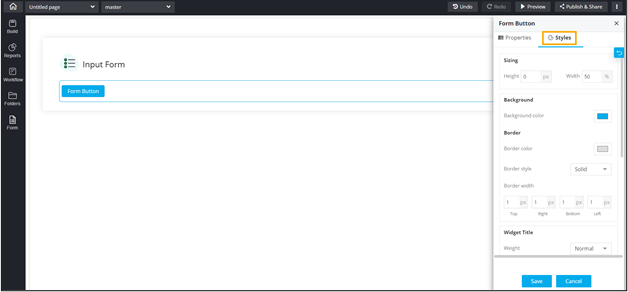
| Sizing |
|
| Background |
Allows you to select the color of the form
button. |
| Border |
Allows you to define the color, style, and width of the
button’s border. |
|
Weight
|
The Weight dropdown list lets you
set the font thickness of the field label using one of the
following values: |
| Size |
Allows you to increase/decrease font size of the field
name. |
|
Line Height
|
Allows you to increase/decrease the line height of the
field. This means the space between the field and the field
border. |
|
Color
|
Allows you to define the color of the field
name. |
| Align |
Allows you to align the field name to the left, center or
right side of the field. |
| Field Size |
Allows you to define the size of the form field as |
 .
.