Configuring the Tabular with Hooks
- Design a page.
-
From the Build > Form section,
drag and drop the following form fields to design a form:
Field Type Label Name Field Values Parent ID Text Box Vendors A10,F5,Citrix Text Box Device Name - Tabular Text Box IP Address - Tabular - Drag and drop a Tabular field to the form.
-
To configure the Tabular, hover your mouse over the
field and click
 .
The Tabular pop-up window opens with the Properties tab open by default.
.
The Tabular pop-up window opens with the Properties tab open by default. -
In the Tabular window, under
Properties, select an appropriate hook for getting
the device list.
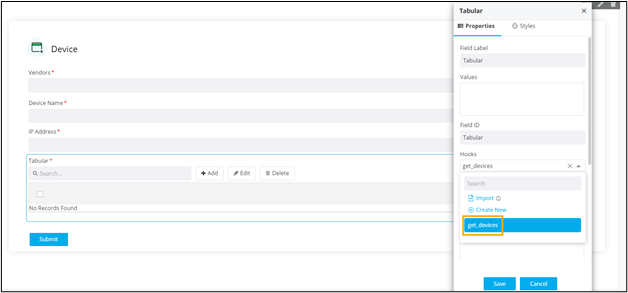
Note: You can also create a hook that meets your requirements. For more information on assigning hooks to form fields, click here. - Click Save.
-
Preview the form.
The form opens in a new tab.
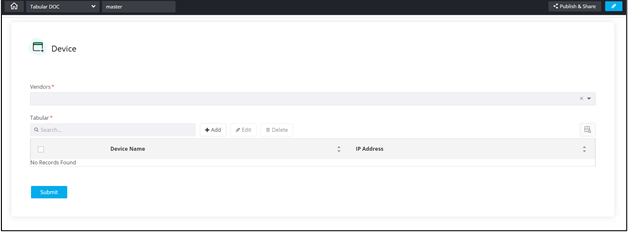
-
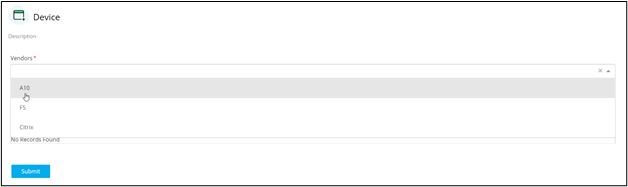
In the Vendors field, select an option from the
dropdown.
-
To trigger the hook and get the device list based on vendor and auto-populate
the form, click
 above the Tabular field.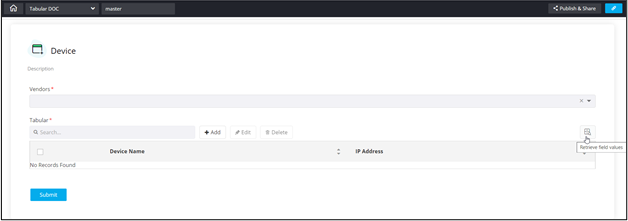
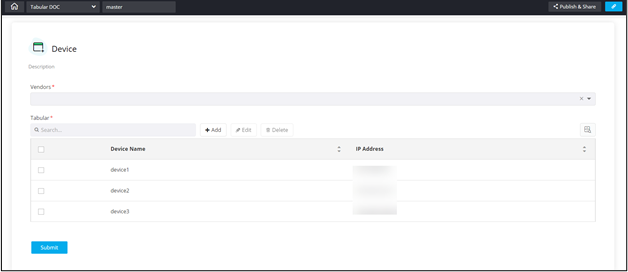
The Tabular is populated with the device list fetched from the hook.