The Firewall rule details then appear side-by-side on the Compare policies
screen with the following markups:
- Yellow highlights are used to indicate different content between the two rules. In
the image below, the name of the secondary rule differs from the first, so it is
highlighted. Highlighting is also used to indicate content that appears only in the
secondary or tertiary rule.
- Strike-through text is used to indicate rule components that appear in the primary
rule but are absent in the second and/or third rule. In the image below, the primary
rule lists HTTPS and TCP as the Firewall protocols, but the secondary
policy does not contain any protocols so those values are struck out.
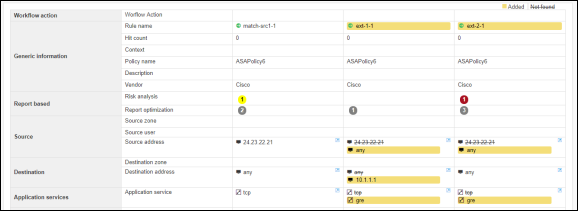
Note: If the HTTPS and TCP protocols had appeared only in the secondary
policy, they would have appeared as highlighted text rather than strike-through
text.
 and select Control
Center.
and select Control
Center.

 in the Command
bar.
in the Command
bar.