View Additional Details of Search Results
There are two ways to view additional details about search results and the method varies depending on the type of object you are viewing:
- ADC, Certificate, and SSH primary object search results are clickable and take you to topological screens that provide much more information about the corresponding object than is displayed on the search results screen.
- ADC primary and secondary object search results can be right-clicked to view the list of actions available for them.
- Firewall, WAF, and Proxy search results are not clickable and include only the information contained on the search results screen.
ADC Primary Object Topological Views
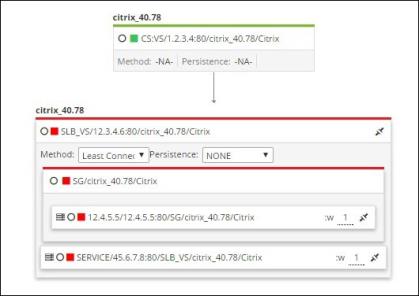
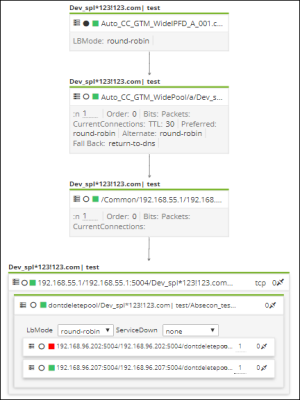
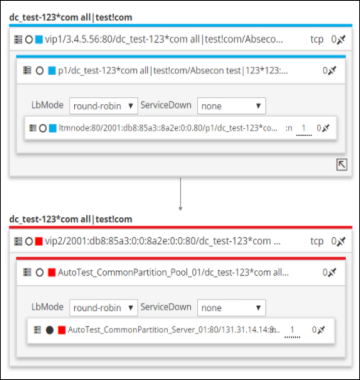
When you click a search result for a primary ADC object either from the Application or Infrastructure view, a topology view opens, providing a detailed, hierarchical map of the structure of the ADC. The following are the sample ADC topologies within the Control center module.
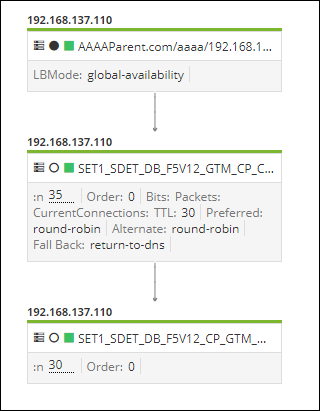
Global Server Load Balancing (GSLB) Virtual Server Topology
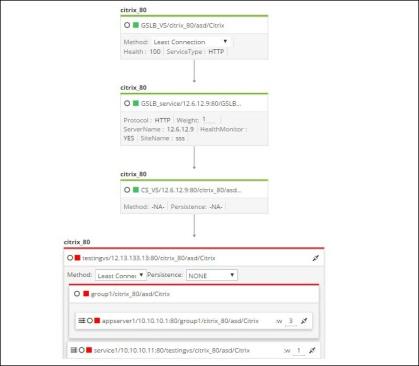
Server Load Balancing (SLB) Virtual Server Topology
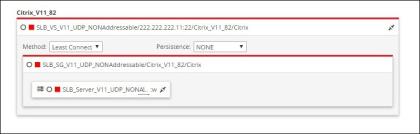
CS Virtual Server Topology
Virtual Server (VIP) under Wide IP Topology
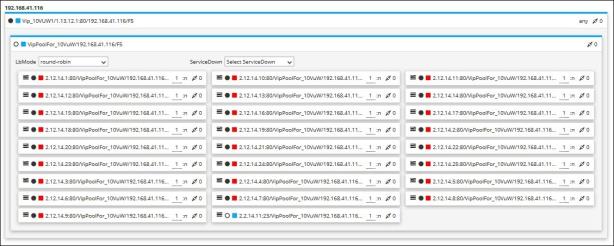
Virtual Server IP (VIP) under VIP topology
ADC Primary and Secondary Objects Additional Details
When you run a search for an ADC secondary object-such as an iRule, a policy, or a class- you can perform various actions on the search results.
For a detailed description of the features and functionalities available within the ADC search result screen, refer to the ADC Topology Actions section of this guide.
Certificate Topological Views
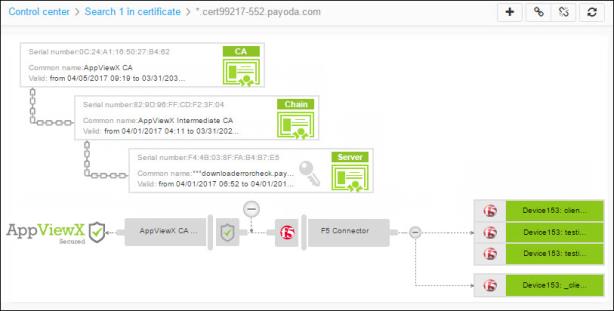
When you click the Server certificate, Client certificate, or Code signing certificate tab to view the search results corresponding to your search query, a topology view opens, providing a detailed map showing the trust chain that extends from the root certificate to intermediate certificates to the end certificate itself. This view also shows the relationship between all of the other components related to the certificate, including connectors and devices.
Firewall and WAF Additional Details
Most of the details of Firewall and WAF objects are visible directly on the search results
screen. However, some columns within the search results contain  icon that open popup screens
that provide Read-Only access to the specific settings for the corresponding object parameter.
For more details, refer to the View
the Settings for WAF Threat Protection and View the Nested Groups for a Firewall
Rule section of this guide.
icon that open popup screens
that provide Read-Only access to the specific settings for the corresponding object parameter.
For more details, refer to the View
the Settings for WAF Threat Protection and View the Nested Groups for a Firewall
Rule section of this guide.
Proxy Additional Details
The details of Proxy objects do not appear on separate screens or popup screens as they do for other objects. Instead, all of the additional information is made available without leaving the search results screen. Not all of the information is immediately visible, however, depending on the rule type listed in the search results, you might be able to view additional information by doing the following:
- Hovering your cursor over a rule name. Note that this functionality is available for all object types, not just Proxy ones.
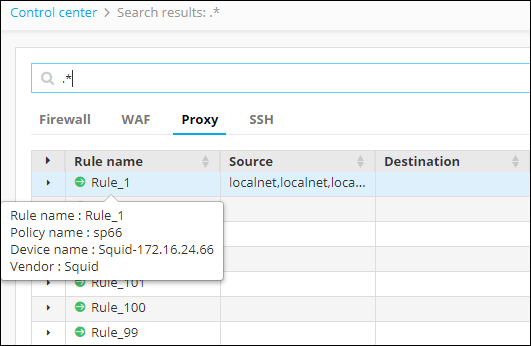
-
Clicking
 that appears in the first search results column. Note that this
functionality is available for all object types, not just Proxy ones. In addition,
although each row contains an Expand icon, if all of the details fit within the standard
height of a results row, the row will not get any taller when you click the icon.
that appears in the first search results column. Note that this
functionality is available for all object types, not just Proxy ones. In addition,
although each row contains an Expand icon, if all of the details fit within the standard
height of a results row, the row will not get any taller when you click the icon.