Delete a Rule or Route
-
Click
 and select Control
Center
and select Control
Center
- Run a search.
- On the search results screen that opens, click the Firewall tab.
-
Select one of the following three filter options from the dropdown list depending on
what you want to delete:
- Security
- NAT
- Route
The screen then refreshes and displays the results based on the filter you selected. Right-click the rule name and select Delete from the dropdown list that appears.Note: Ensure that the ITSM device (Service Now) is registered in AppViewX. For more details, refer to the Change Managementsection of this guide. -
On the Delete Rule screen that pops up select one of the following actions based
on how you want to trigger the workflow:
- Confirm with CR ticket - Creates an ITSM ticket using Service Now for tracking and approval purpose.
- Confirm without CR ticket - Deletes a rule without creating an ITSM ticket using Service Now for tracking and approval purpose.
- Discard request - Exits the Delete Rule screen.
-
Click Ok to trigger a workflow.
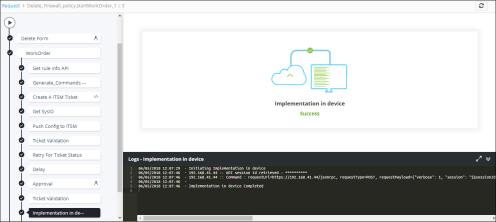
A new Request ID is created. To view the request details, refer to theRequest Taskssection of this guide. The work order tasks or phases of the corresponding request are listed in a tree-view. You can click each task to view its details. Wherever applicable, all the logs related to the selected task are displayed in the Logs pane at the bottom of the screen. The information regarding the rule you trying to delete is fetched using API and the configuration changes are reviewed and approved at AppViewX.
-
Enter any comments you have related to the implementation and then, click
Implement.
The configuration commands are implemented, resulting in deleting the rule or route from the device.