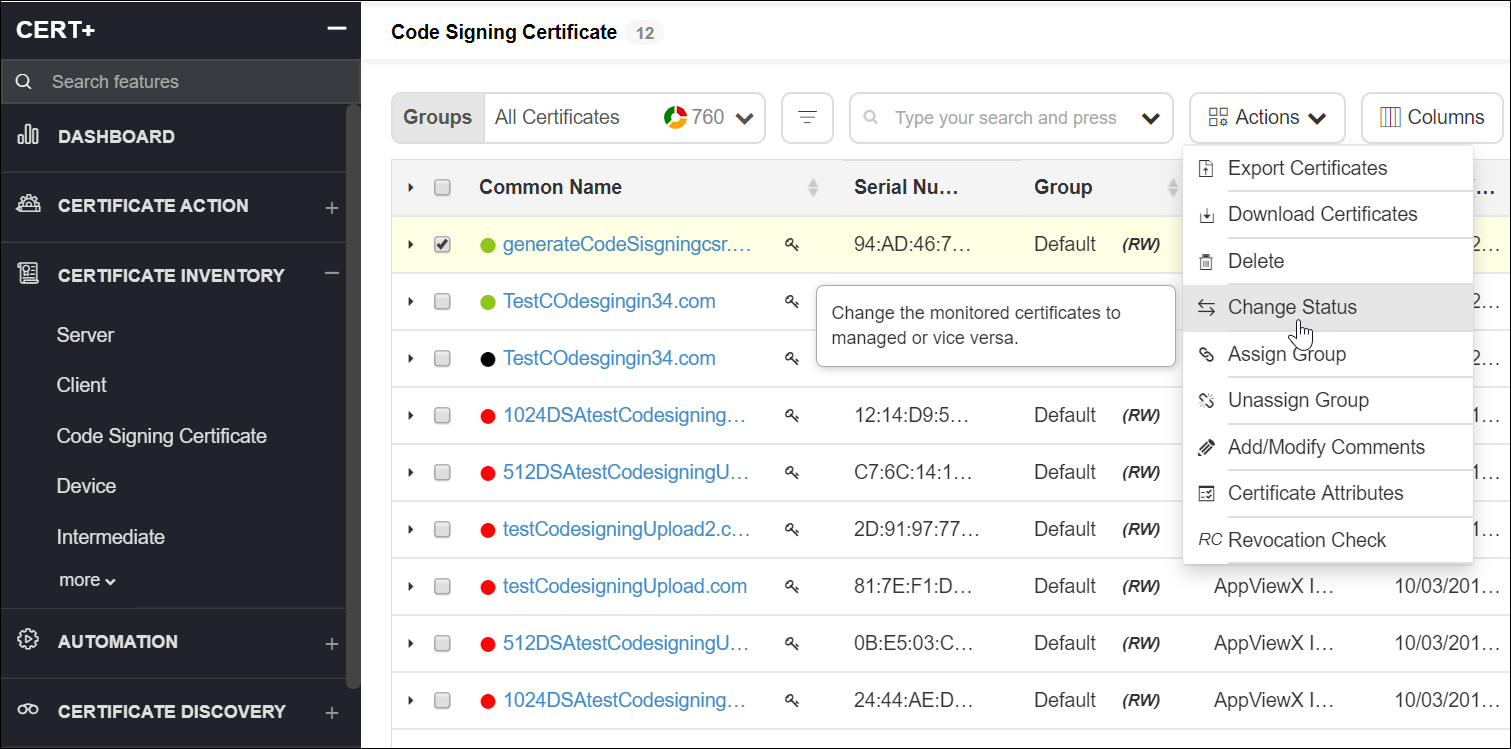
Change the Status of a Certificate
To change the status of a certificate:
-
Click
 and select
CERT+ > Certificate Inventory.
and select
CERT+ > Certificate Inventory.
- Under Certificate Inventory, click Server, Client, Device , or Code Signing tab depending on the type of certificate you want to change the status for.
- On the Certificate Dashboard, click List on the top-right.
- On the certificate list view, select the certificate(s) for which you want to change the status.
- Click Actions and select the Change Status option from the dropdown.
-
On the Change Statuspop-up window, select Managed.
Note: (You can perform any actions (Create, Renew, Revoke) on those certificates.) or Monitored (For alerting purposes, you will not be able to perform any actions on the certificates) from the Change Status to dropdown.
- In the Comments field, enter the reason for changing the status.
-
Click Yes.