Discover a Certificate
You can initiate a discovery on-demand or you can schedule as required. To initiate an authenticated or unauthenticated discovery:
-
Click
 and select
CERT+ > Certificate Discovery.
and select
CERT+ > Certificate Discovery.
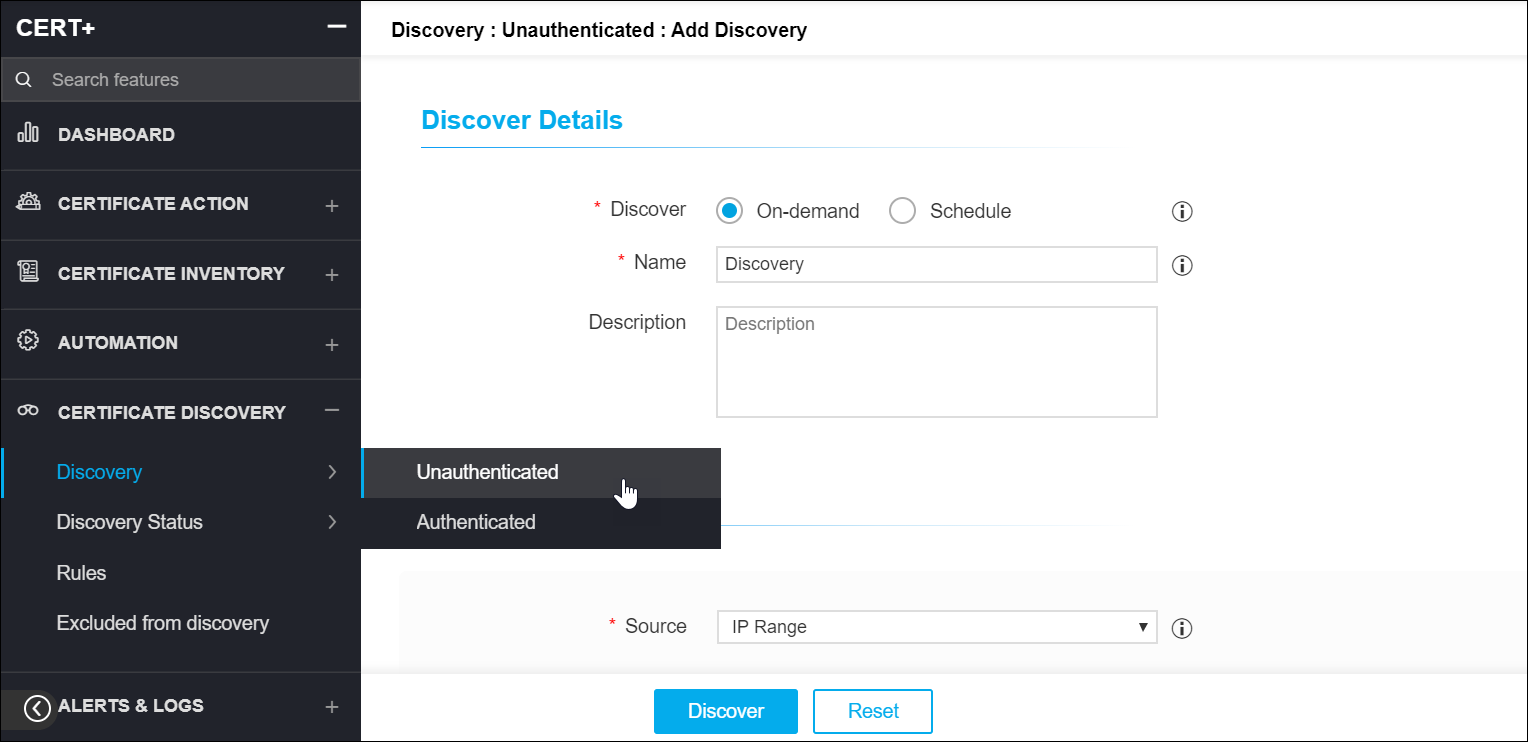
- Under Certificate Discovery, click Discovery and select Unauthenticated or Authenticated.
-
On the Add Discovery page, under the Discover Details section,
selectOn-demandor Schedule .
On selecting On-demand discovery, AppViewX will trigger the discovery certificates process for that instance.
- You can also upload the following details to the template in the .csv, .xls, or .xlsx format.
- Enter the Discovery Name and Description in the respective fields.
-
Under the Discover By section, in the Source field, select one of the
following details.
Note: You can discover certificates from a wide range of sources like IP, Subnet, URL, Managed Devices, Managed Servers, Managed MDMs, Managed Firewalls, Managed WAF, Clouds, and Certificate Authorities.The following are the details that have to be entered as per the source:Note: For Unauthenticated Discovery, you can discover certificates from a wide range of sources like IP, Subnet, URL, and Upload option. For Authenticated Discovery, you can discover certificates from a wide range of sources like Managed Devices, Managed Servers, Managed MDMs, Managed Firewalls, Managed WAF, Clouds, and Certificate Authorities.
- IP Range
- Start IP: You can enter an IPv4 lesser than End IP.
- End IP: You can enter an IPv4 greater than Start IP.
- IP Split Level: Based on this value, the provided range of IP addresses will be split into multiple batches for the discovery process.
- Ports: You can enter any port number from 0 to 65535. You can separate port ranges with a hyphen (Eg. 444-666,888-999,922,44). You can also select All ports to include port numbers from 0 to 65535.
- Datacenter (of AppViewX agent): You can select the datacenter of the AppViewX agent from this drop-down list.
- SNI Hostname(s): AppViewX will discover the certificates based on the hostnames against the IP address. Multiple hostname values are supported by using the comma (,) as a delimiter.
- Scan Type: There are two scan types in this option:
- Aggressive: AppViewX will discover the certificates from all IPs and ports based on the provided values, irrespective of the previous discovery details.
- Passive: AppViewX will discover the certificates only from the IPs and ports from which the certificates are discovered previously.
- Batch Execution Type: Multiple batches will be run either parallel or
sequentially. You can choose between parallel and sequential execution.
- Sequential Execution: AppViewX will take and execute the batches one by one. The interval between the batches can also be defined.
- Parallel Execution: AppViewX will take the number of batches based on the infrastructure capability and the discovery process will be executed for those number of batches in parallel.
- Subnet
- Network: You can enter the network details in this field.
- Subnet Split Level: Based on this value, the provided subnet will be split into multiple batches for the discovery process.
- Ports: You can enter any port number from 0 to 65535. You can separate port ranges with a hyphen (Eg. 444-666,888-999,922,44). You can also select All ports to include port numbers from 0 to 65535.
- Datacenter (of AppViewX agent): You can select the datacenter of the AppViewX agent from this drop-down list.
- SNI Hostname(s): AppViewX will discover the certificates based on the hostnames against the IP address. Multiple hostname values are supported by using the comma (,) as a delimiter.
- Scan Type: There are two scan types in this option:
- Aggressive: AppViewX will discover the certificates from all IPs and ports based on the provided values, irrespective of the previous discovery details.
- Passive: AppViewX will discover the certificates only from the IPs and ports from which the certificates are discovered previously.
- Batch Execution Type: Multiple batches will be run either parallel or
sequentially. You can choose between parallel and sequential execution.
- Sequential Execution: AppViewX will take and execute the batches one by one. The interval between the batches can also be defined.
- Parallel Execution: AppViewX will take the number of batches based on the infrastructure capability and the discovery process will be executed for those number of batches in parallel.
- URL
- URL: You can enter the URL in this field.
- Ports: You can enter any port number from 0 to 65535. You can separate port ranges with a hyphen (Eg. 444-666,888-999,922,44). You can also select All ports to include port numbers from 0 to 65535.
- Datacenter (of AppViewX agent): You can select the datacenter of the AppViewX agent from this drop-down list.
- SNI Hostname(s): AppViewX will discover the certificates based on the hostnames against the IP address. Multiple hostname values are supported by using the comma (,) as a delimiter.
- Scan Type: There are two scan types in this option:
- Aggressive: AppViewX will discover the certificates from all IPs and ports based on the provided values, irrespective of the previous discovery details.
- Passive: AppViewX will discover the certificates only from the IPs and ports from which the certificates are discovered previously.
- Batch Execution Type: Multiple batches will be run either parallel or
sequentially. You can choose between parallel and sequential execution.
- Sequential Execution: AppViewX will take and execute the batches one by one. The interval between the batches can also be defined.
- Parallel Execution: AppViewX will take the number of batches based on the infrastructure capability and the discovery process will be executed for those number of batches in parallel.
- Upload
- Choose File: You can upload any of the following file types : .crt, .cer, .der, .p7b, .p7c, .pem, .pfx, .jks, .zip, .tar, .tar.gz, .p12 file.
- Batch Execution Type: Multiple batches will be run either parallel or
sequentially. You can choose between parallel and sequential execution.
- Sequential Execution: AppViewX will take and execute the batches one by one. The interval between the batches can also be defined.
- Parallel Execution: AppViewX will take the number of batches based on the infrastructure capability and the discovery process will be executed for those number of batches in parallel.
- Managed ADCs
- Select the list of devices and click Add as favorites.
- Batch Execution Type: You can run multiple batches in parallel or
sequentially. You can choose between parallel and sequential execution.
- Sequential Execution: AppViewX will take and execute the batches one by one. The interval between the batches can also be defined.
- Parallel Execution: AppViewX will take the number of batches based on the infrastructure capability and the discovery process will be executed for those number of batches in parallel.
- Discovery Type: You can choose between all certificates or certificates in use. Either all certificates or only the associated certificates with endpoints will be discovered.
- Managed Servers
- Select the list of devices and click Add as favorites.
- Batch Execution Type: You can run multiple batches in parallel or
sequentially. You can choose between parallel and sequential execution.
- Sequential Execution: AppViewX will take and execute the batches one by one. The interval between the batches can also be defined.
- Parallel Execution: AppViewX will take the number of batches based on the infrastructure capability and the discovery process will be executed for those number of batches in parallel.
- Discovery Type:: You can choose between all certificates or certificates in use. Either all the certificates or only the associated certificates with the endpoints will be discovered.
- Directories to Scan: You can choose between Default and Custom. Certificates can be discovered from the default or the customized directory defined by the user. Default directories are obtained through server config fetch.
- Managed MDMs, Managed Firewalls, Managed WAF, Clouds, and Certificate
Authorities
- Select the list of devices and click Add as favorites.
- Batch Execution Type: You can run multiple batches in parallel or
sequentially. You can choose between parallel and sequential execution.
- Sequential Execution: AppViewX will take and execute the batches one by one. The interval between the batches can also be defined.
- Parallel Execution: AppViewX will take the number of batches based on the infrastructure capability and the discovery process will be executed for those number of batches in parallel.
Apache is the currently supported vendor for this feature.
- IP Range
- Under Discovery Rules, in the Associate Rule field, you can Select the Associate Rule option from the drop-down. Rules created through the Rules inventory inside the discovery module will be listed. Based on the selection, conditions will be applied to discovered certificates.
-
Under After Discover section, in the Move Certificate to Inventory with
Status field:
You can select between the following options:
- Do not move: Newly discovered certificates and its objects will not be moved to the inventory.
- Managed: Newly discovered certificates and its objects will be moved to the inventory with Managed status.
- Monitored: Newly discovered certificates and its objects will be moved to inventory with the Monitor status.
If the discovered certificate already exists in the inventory, its objects will be moved with the same status. -
In the Certificate Group field, select a certificate group from the drop-down.
Discovered certificates will be associated with the provided certificate group. Based on
the group association, the policy will also be applied to these certificates to check
compliance.
Note: You can discover any encrypted certificate/key by updating the Password Vault.
- For Scheduled Discovery, under the Discover Details section, select Schedule.
-
Enter the Discovery Name and Description in the respective fields.
- Occurrence Type: You can select the frequency of the discovery process in this section. You can choose between Daily, Weekly, Monthly, and Yearly.
- Starts On: You can select the start date and time for the discovery process in this field.
- Ends: In this section, you can choose between the following:
- Never: You can select this option if you never want the discovery process to end.
- After a specific number of occurrences: You can enter the number of occurrences after which you want the discovery process to stop in this field.
- On: You can enter the date by when you want to end the discovery process.
- Follow steps from 6 to 9.