-
Click
 and select CERT+ > Certificate Inventory.
-
Under Certificate Inventory, click Server, Client, or
Device depending on the type of certificate you want to reissue.
-
On the Certificate Dashboard, click List on the top-right.
- On the certificate list view, click the Common Name of the certificate to view the
topology.
-
Hover over
 on
the certificate and click Reissue.
on
the certificate and click Reissue.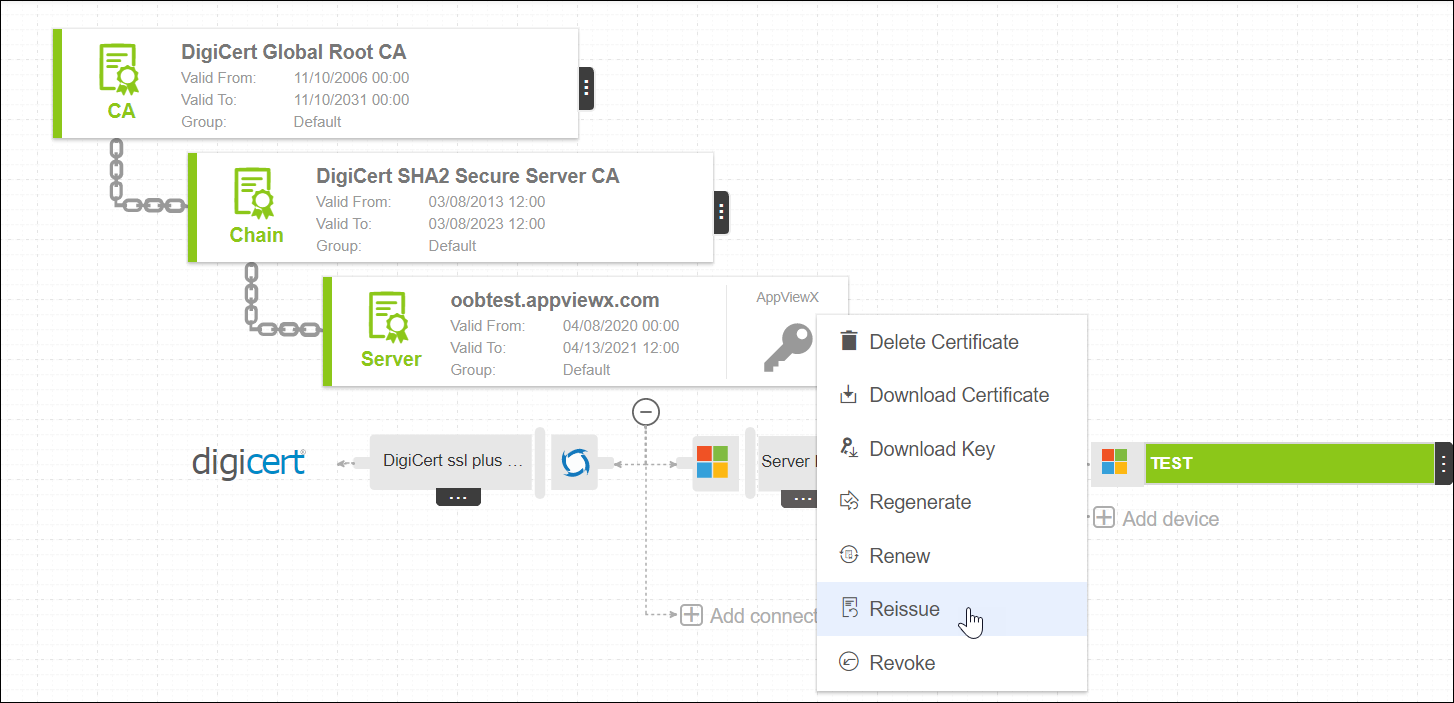
Depending on the type of certificate you are reissuing, the Reissue screen
appears.
-
Click Reissue.
-
On the Reissue pop up window, enter the reason and comments and click Yes.
A request ID and work order ID are generated automatically and the work order
status is displayed beside the certificate on the topological view.
-
Click Approve to approve the reissue request.
-
On the Approve screen that pops up:
-
Click On or Off button in the Manual Implementation field to
choose the mode of implementation.
-
If you select Off, set the date and time that you want the cert reissue
approval to occur.
-
Enter comments to approve the reissue, then click Yes.
The work order status is displayed beside the connector.
-
Click
 on the holistic
view to refresh the screen.
on the holistic
view to refresh the screen.
The work order status is displayed beside the certificate.
-
Click Implement to implement the reissued request.
-
On the screen that pops up:
-
Click On or Off button in the Manual Implementation field to
choose the mode of implementation.
-
If you select Off, set the date and time that you want the cert reissue
implementation to occur.
-
Enter comments to approve the reissue, then click Yes.
-
Click on the top-right
until the topology updates.
After the reissue action is completed, the status updates to
Completed.