View Certificate Topology
-
Click
 and select
CERT+ > Certificate Discovery.
and select
CERT+ > Certificate Discovery.
- Under Certificate Inventory, click Server or Client .
- On the Certificate Dashboard, click List on the top-right.
-
On the certificate list view, click the Common Name of the certificate for which
you want to view the topology.
The screen refreshes and displays the topology of the corresponding certificate.
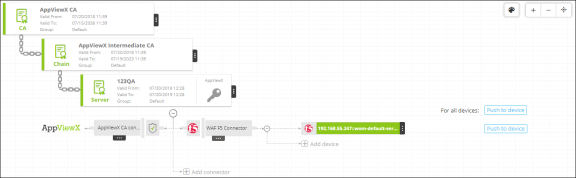
The certificate with history is denoted by an H symbol beside its name (applicable only for certificates that are reissued, renewed, or regenerated).

-
Click
 on the
top.
A Certificate History screen pops up with details corresponding to the selected certificate.
on the
top.
A Certificate History screen pops up with details corresponding to the selected certificate.